Leave allowance in FreshQR: yearly entitlement for each employee
On this page
Quick answer
A leave allowance in FreshQR is a yearly limit – for example 20 days of annual leave – that one or more absence types draw on. Set it under Absences › Absence types, give individual employees a different value with Change Limit, and see who has how much left in Table Reports › Absences usage.
#What it's good for
- Everyone’s leave balance in one table instead of a spreadsheet you update by hand.
- A different allowance for the people who need it – longer service, part-time work or days carried over from last year.
- The balance appears where decisions are made: on every leave request you approve and in the employee’s own app.
- Allowances in hours as well as days, which suits doctor visits or other time-based limits.
#Who it's for
A good fit for
- Any company that tracks a yearly number of vacation days per person.
- Companies that also limit doctor visits or other paid time off.
- HR and payroll staff who get asked “How many days do I have left?”.
Not the right fit for
- Companies that don’t limit absences at all. Leave the allowance out and the balance shows No limit.
- If you want to limit how many people are off at the same time rather than how many days each person gets, see Concurrent absence limit.
#How the balance is worked out
- Only approved absences count. A request with status Entered takes nothing from the balance until it is approved. On the request detail it appears as This request, so you see the effect before you decide.
- Calendar year. The allowance runs from 1 January to 31 December. An absence over New Year is split between the two years.
- Working days only. A day is worth the employee’s scheduled working time. Days with no scheduled work – a weekend, a day off in the schedule, a public holiday, a day without a published shift – take nothing. If a balance looks too high, check the employee’s schedule or shifts.
- Personal value first. If an employee has an individual yearly allowance for that year, it replaces the company value. Other years keep the company value.
- Never a hard stop. Going over the allowance does not block anything – neither the request in the app nor the approval in the web app. When you approve a request that goes over the yearly allowance, FreshQR first asks
Approving this request will exceed the employee's absence pool limit. Are you sure you want to proceed?
and approves it once you click Approve anyway.
#Step by step
-
Open the allowance from Absence types.
Go to Absences › Absence types. Each allowance is a group of types with a header showing its name and yearly value. Click the pencil on the header to edit it, or + Add New Group to create a new allowance. Only the Owner and Administrators see this tab.
A new company already has two: one for vacation (20 days) and one for doctor visits (7 days).

The pool header shows the yearly limit -
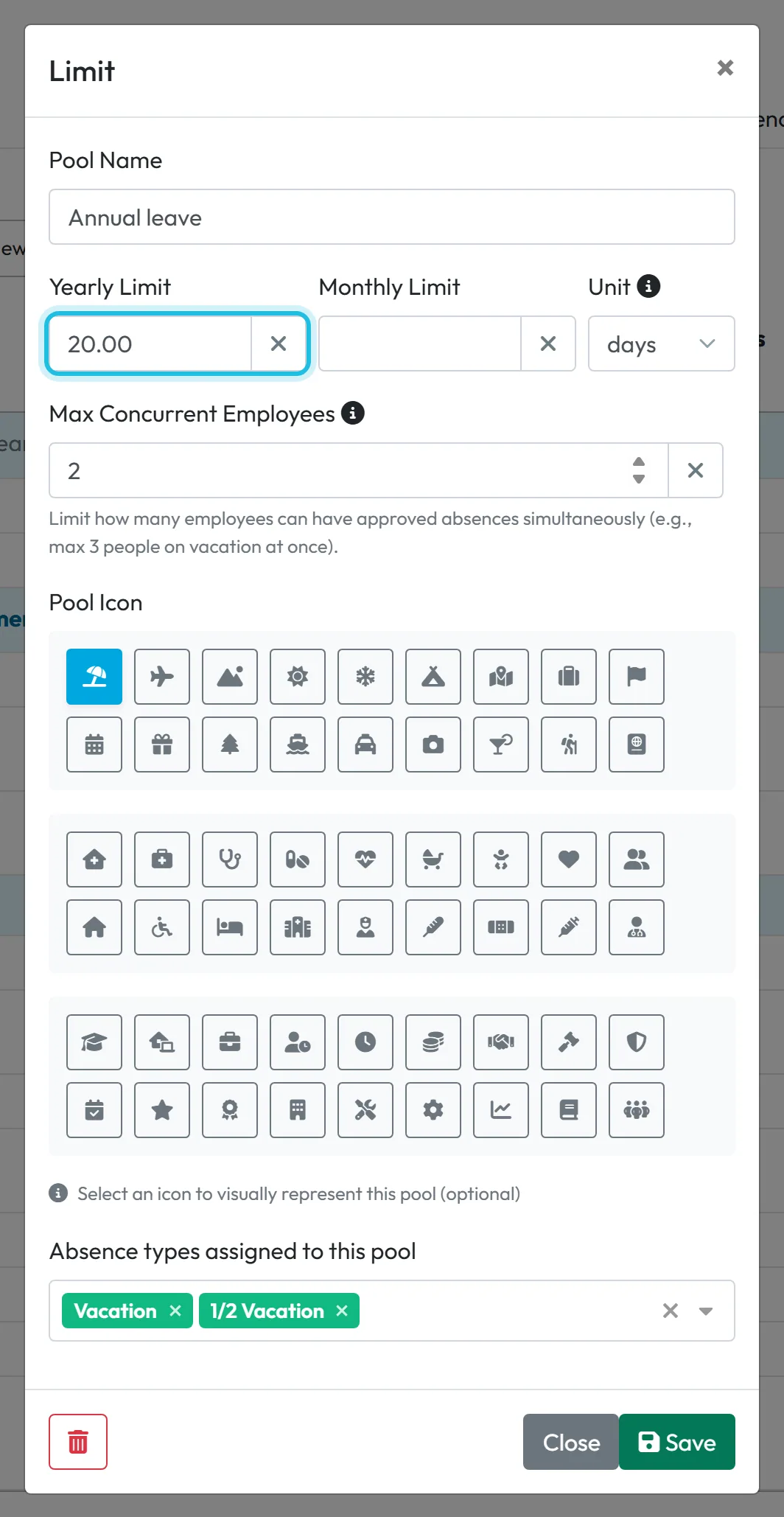
Set the yearly allowance and the types that use it.
In the Limit form, fill in Pool Name (what the allowance is called, e.g. Annual leave), Yearly Limit (empty or 0 means no limit) and Unit – days or hours. Under Absence types assigned to this pool pick every type that should use up these days, for example Vacation and 1/2 Vacation. Pool Icon is optional. Save, and the types regroup under the allowance.
The same form holds Max Concurrent Employees, explained in Concurrent absence limit. You can also set the allowance from a type’s own form, in the Limit field – see Absence types.
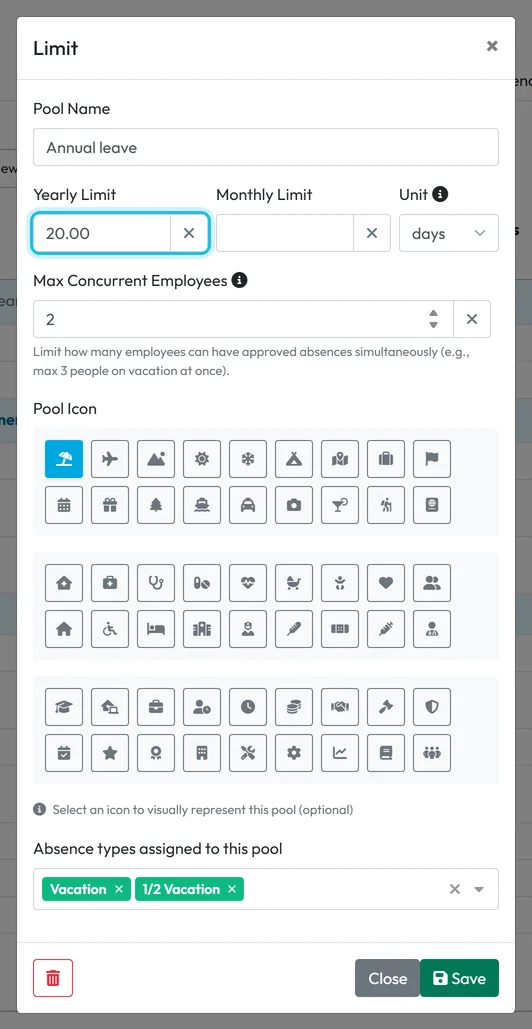
Set the yearly leave entitlement -
Check everyone’s balance in Absences usage.
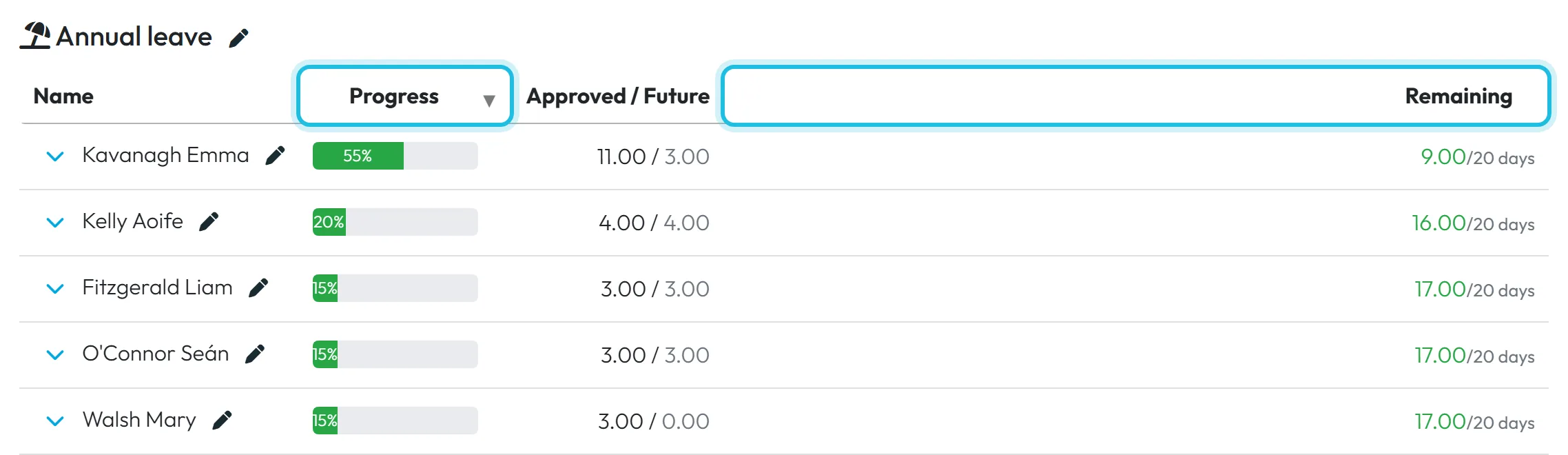
Open Table Reports and the Absences usage tab. There is one table per allowance for the chosen year, with these columns:
- Progress – a bar: green below 80 %, yellow from 80 %, red at 100 % or more.
- Approved / Future – all approved leave in the year, and the part of it still ahead. Hover for the explanation.
- Remaining – allowance minus approved leave, shown as “left / total”. This report never shows less than 0.
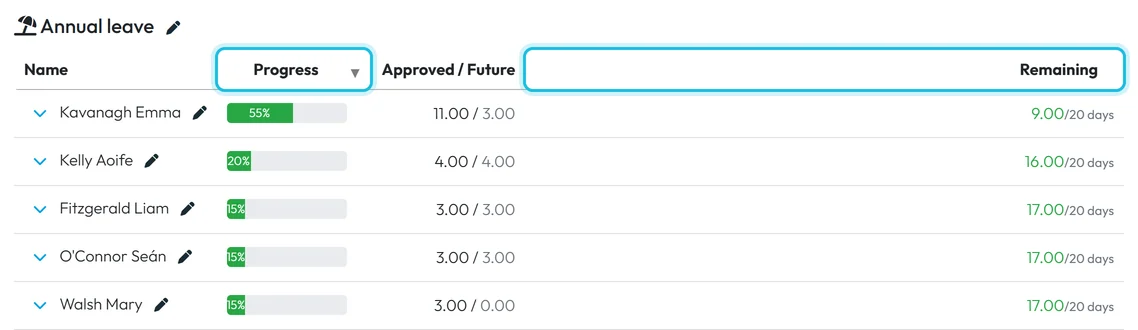
How much leave each employee has used -
Expand a row to see which types were used.
Click the arrow at the start of a row. The breakdown lists each absence type in the allowance with its days and a total, for example 8 days of Vacation and 1 day of 1/2 Vacation. The pencil next to the table title (tooltip Open absence pool settings) takes you back to Absence types.

Breakdown by absence type -
Give one employee a different allowance.
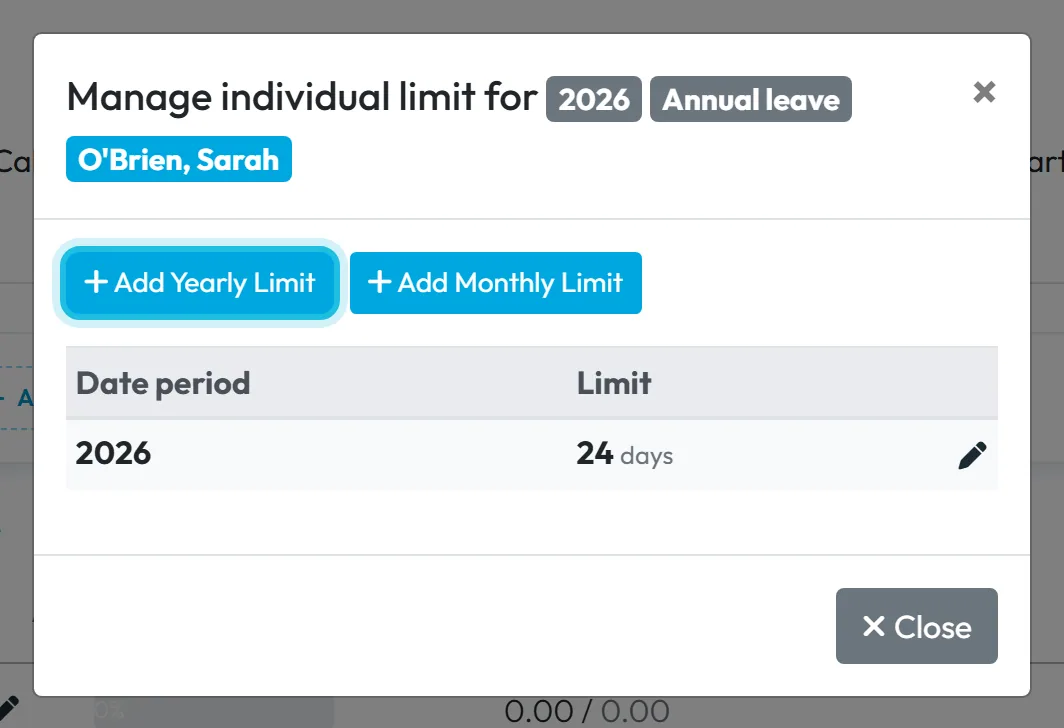
In the employee’s row, click the pencil Change Limit. In the window that opens, click Add Yearly Limit, choose the year, enter the number of days (half days are fine) and the unit, and save. Example: Seán has 22 days this year instead of 20.
The personal value applies to that one year only. An existing row can be edited with its pencil or removed with the bin icon.
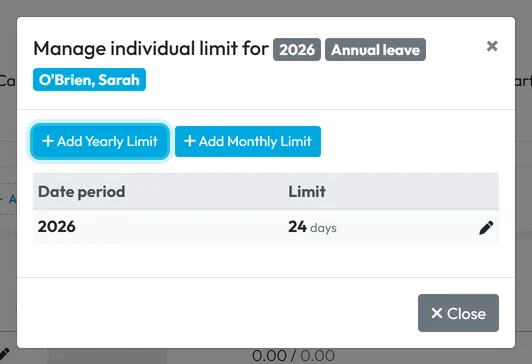
A personal entitlement overrides the company limit -
Or do it from the employee’s profile.
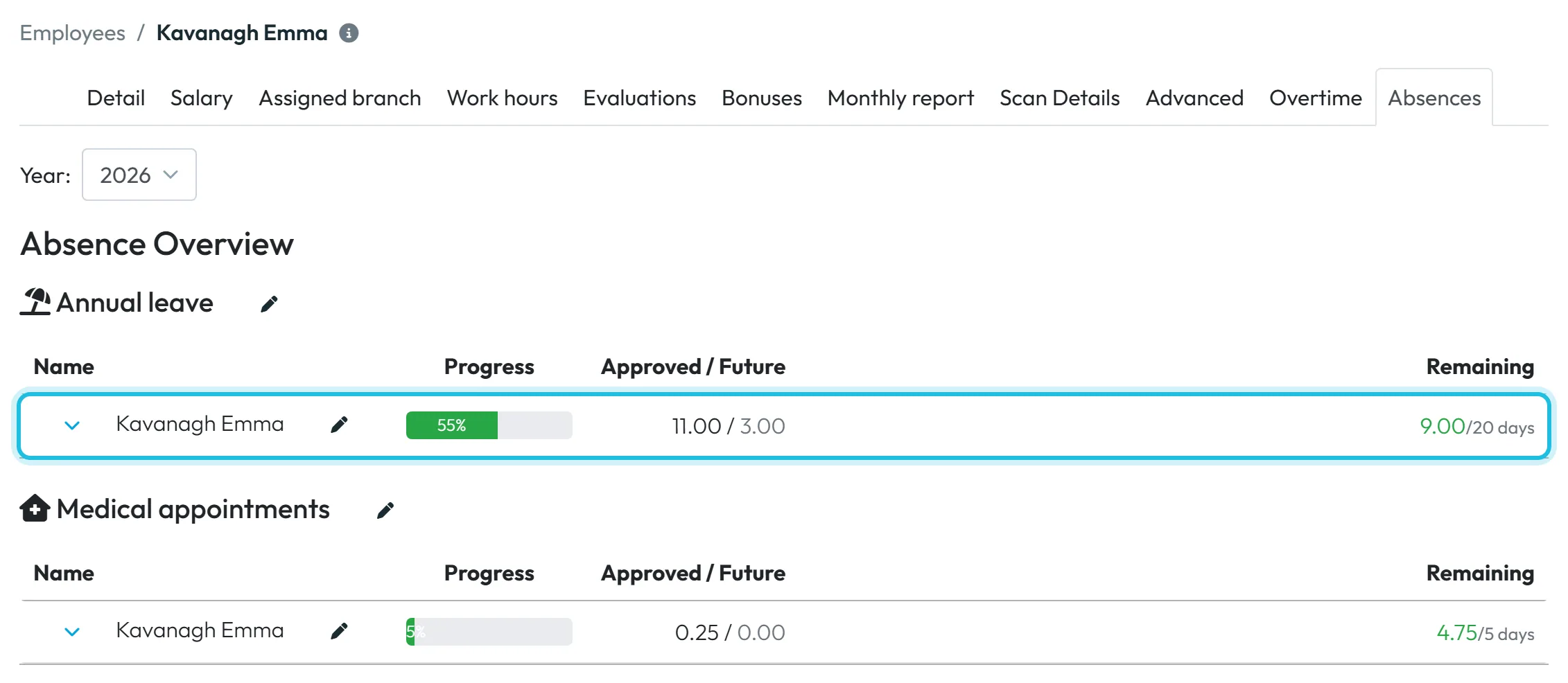
Open Employees, click the employee and go to the Absences tab. The Absence Overview shows the same table for just this person, with the same Change Limit pencil. See also Employee profile.
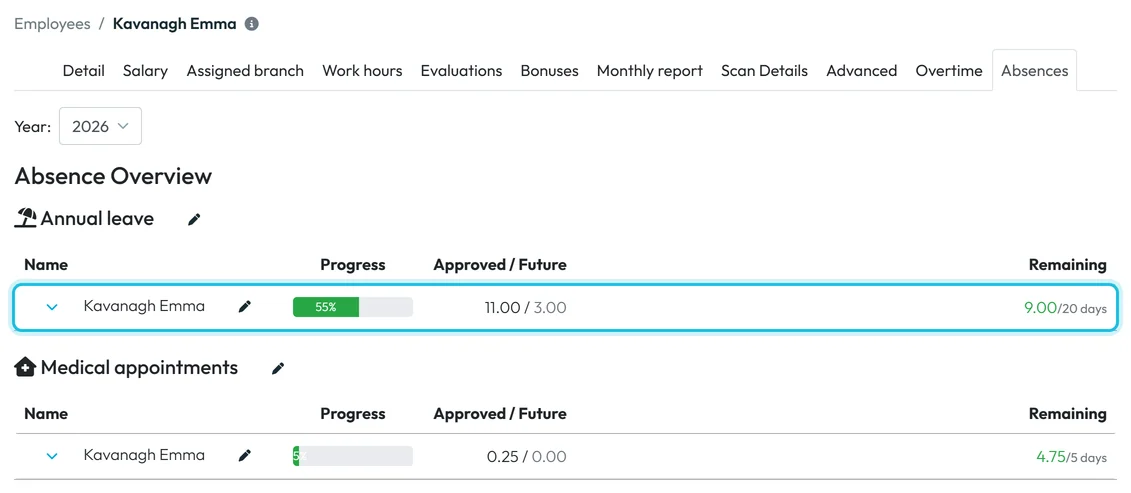
Absence overview in the employee profile -
See the balance while approving.
When you open a leave request, the balance card shows Used, Planned, This request and how many days are left of the allowance – for example 8 used, 3 planned, 5 in this request and 4 left of 20. More in Approving leave requests. Employees see their own balance in the app, as described in How many days of leave you have left.

The balance includes the request you are deciding



#Special cases and tips
- Carrying over unused leave
- Nothing is carried over automatically. At the start of the year, give the employee an individual yearly allowance that includes the carried days – for example 20 + 6 = 26.
- Deleting an allowance
- Its absence types move to Others, and every individual allowance set for it is removed as well. Write the personal values down first if you might need them.
- Monthly Limit
- The form also has a Monthly Limit field, and the individual window has Add Monthly Limit. A monthly limit works as a warning: if approving a request would go over it for that month, FreshQR warns you, but you can still approve. The balance card, the Absences usage report and the employee’s app show the yearly allowance.
- Odd decimals in the report
- If an employee scanned in on a day of approved leave, the time they worked is taken off that day’s absence, so the report can show a fraction of a day – the Attendance & Absence Overlaps tab helps you find such days.
- Candidates in the report
- People on the Candidates list can appear in Absences usage with the full allowance; you can skip their rows.
#Frequently asked questions
How do I give one person more leave days?
Click Change Limit next to their name in Absences usage (or in their profile’s Absences tab), then Add Yearly Limit for that year with the new number of days.
How do I carry unused leave over to next year?
Set next year’s individual allowance with Change Limit to the normal days plus the carried-over days. FreshQR doesn’t carry leave over automatically.
Can the allowance be in hours?
Yes. Set Unit to hours in the allowance form. This is typical for doctor visits.
Does the app stop an employee who has no days left?
No. They can still send a request, and you can still approve it. Check the balance card on the request before deciding.
Do pending requests reduce the balance?
No. Only approved absences are deducted, including approved leave that is still in the future.
Who can set allowances?
Company-wide allowances: the Owner and Administrators. Individual allowances: anyone who can edit absences, such as a manager with full access or Absences: View & Edit.
#Related
You are hereLeave allowance and absence pools
Administrator
Employee
Web app (administrator)Mobile app (employee)



