Track time by project with project QR codes
On this page
Quick answer
To track time by project, open Projects (QR Codes), click + New Code and create a project for each job or client site. FreshQR gives every project its own QR code. Print it and hang it at the site; employees scan it with their own phone to start work there and again to finish. Hours then appear per project.
#What it's good for
- Hours per job or client site instead of “was at work” – the basis for client invoices and quotes.
- One code for clocking in and out, printed once per site.
- An optional GPS pin per site lets FreshQR measure how far from the site each scan was made.
- Status, priority and the person responsible are kept with the project, in a list or a kanban.
#Who it's for
A good fit for
- Cleaning and facility firms with one project per client building, like Brightway in Dublin.
- Construction, installation and maintenance crews working on changing sites.
- Agencies and contractors who bill clients by the hour.
Not the right fit for
- Fixed workplaces such as an office, shop or restaurant are branches, not projects – see Branches or projects – which to use.
#Step by step
-
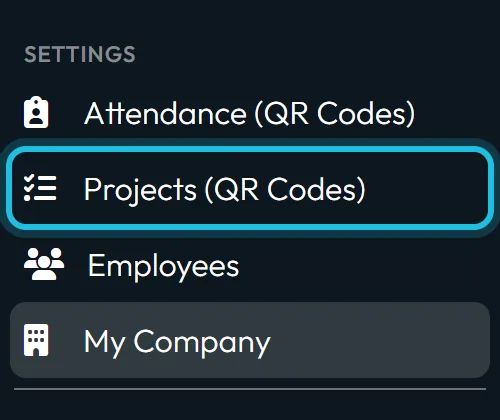
Open Projects (QR Codes).
Click Projects (QR Codes) in the left menu. The page has three tabs: List, Kanban and Report.
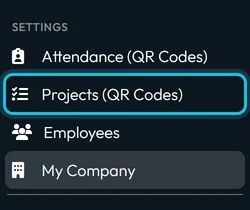
Projects live under Projects (QR Codes) -
Create a project.
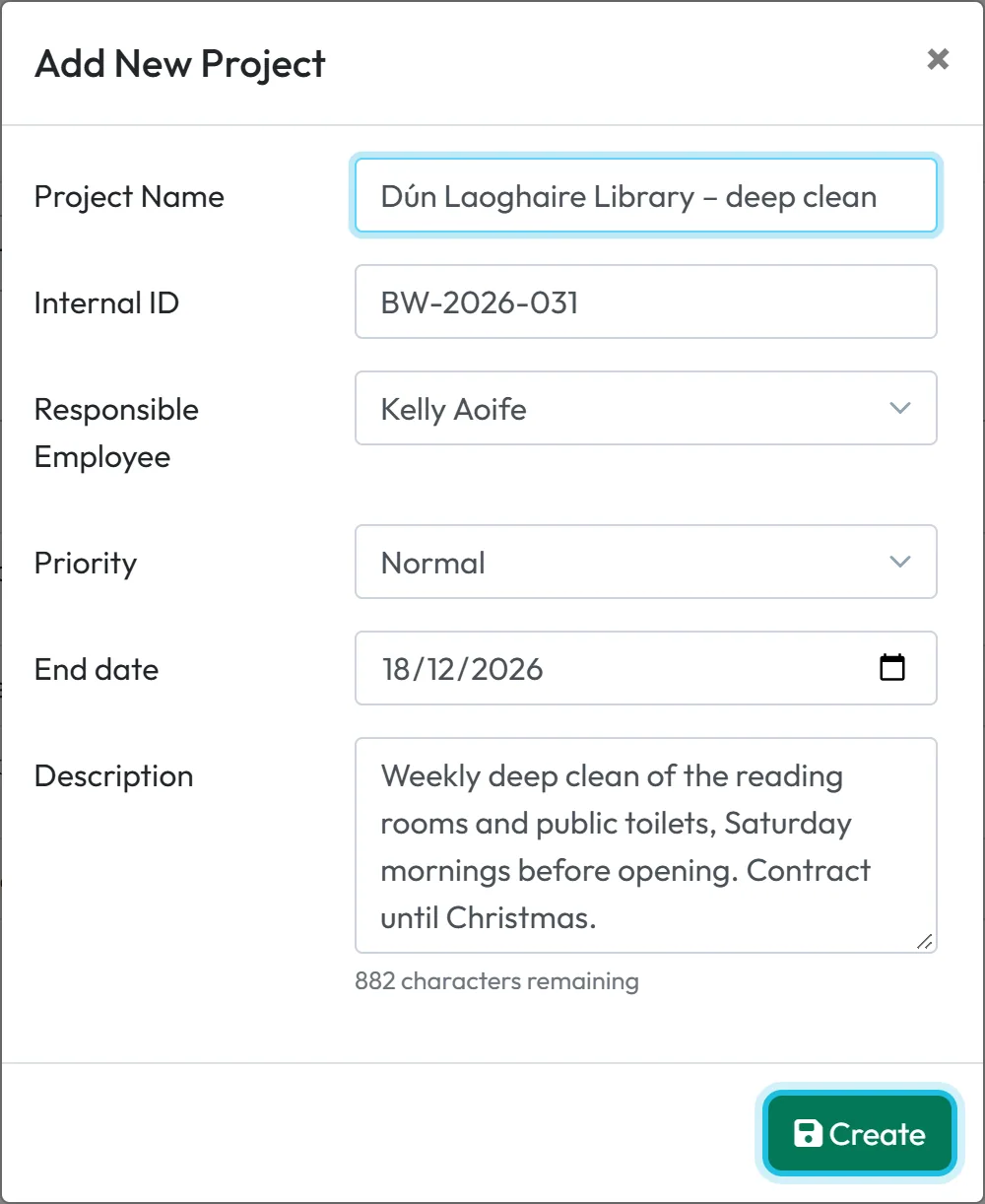
Click + New Code. In the window Add New Project only the Project Name is required. Optionally fill in the Internal ID (your job or contract number, e.g. C-1049), the Responsible Employee (who looks after the project, for the office), Priority (High, Normal or Low), the End date and a Description. Click Create; the new project’s page opens with its QR code already made.
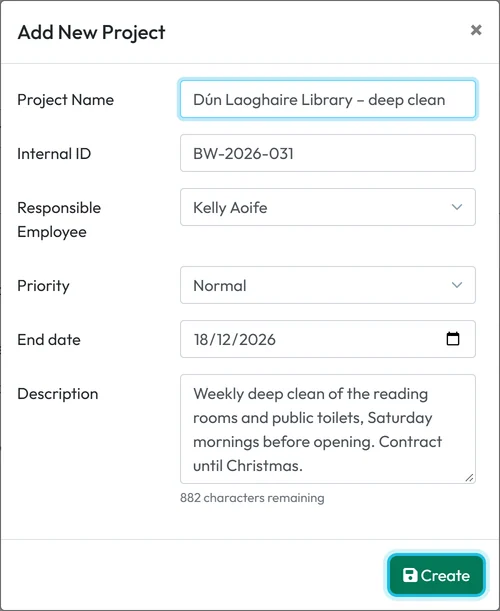
A new project takes a few fields -
Complete the project page.
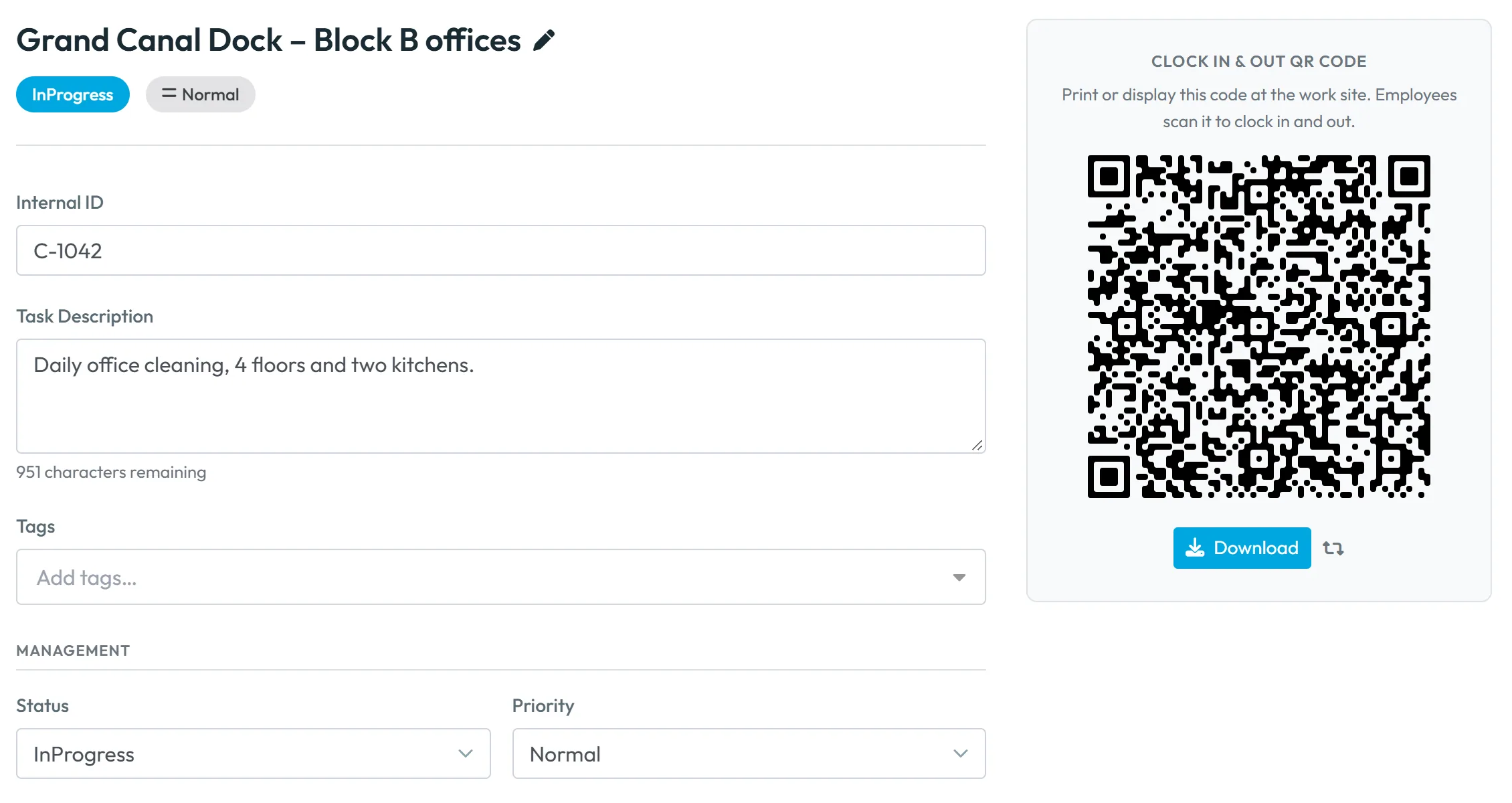
The project page has the name with a pencil to rename it, the Internal ID, the description and Tags. Under Management you set the status, priority and responsible employee; under Schedule the Start date and End date. Click Save.
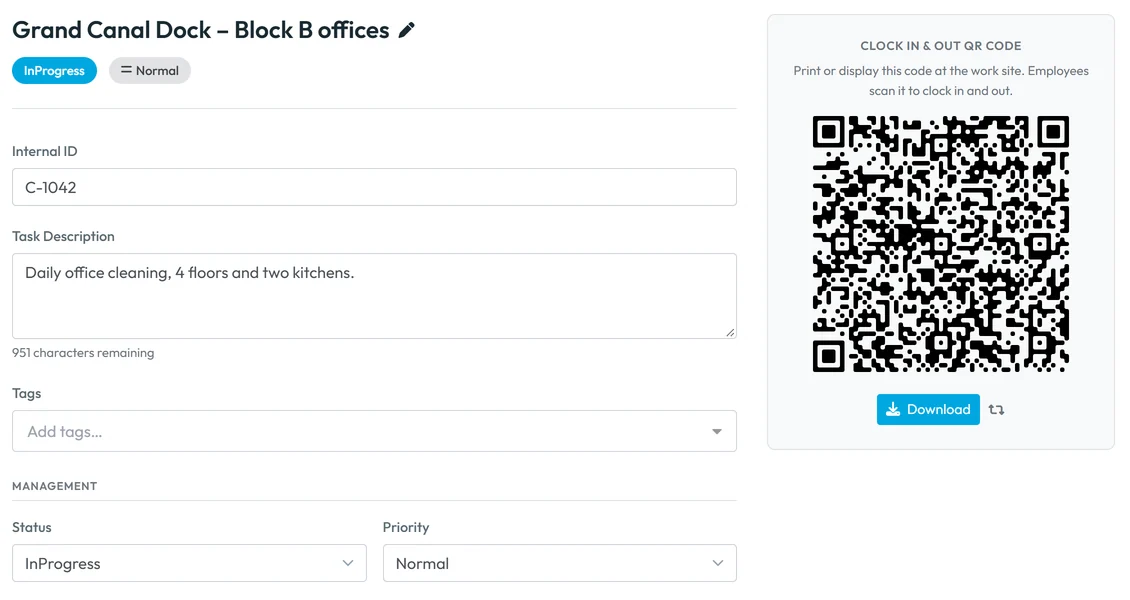
Each project has its own QR code -
Check the schedule and location.
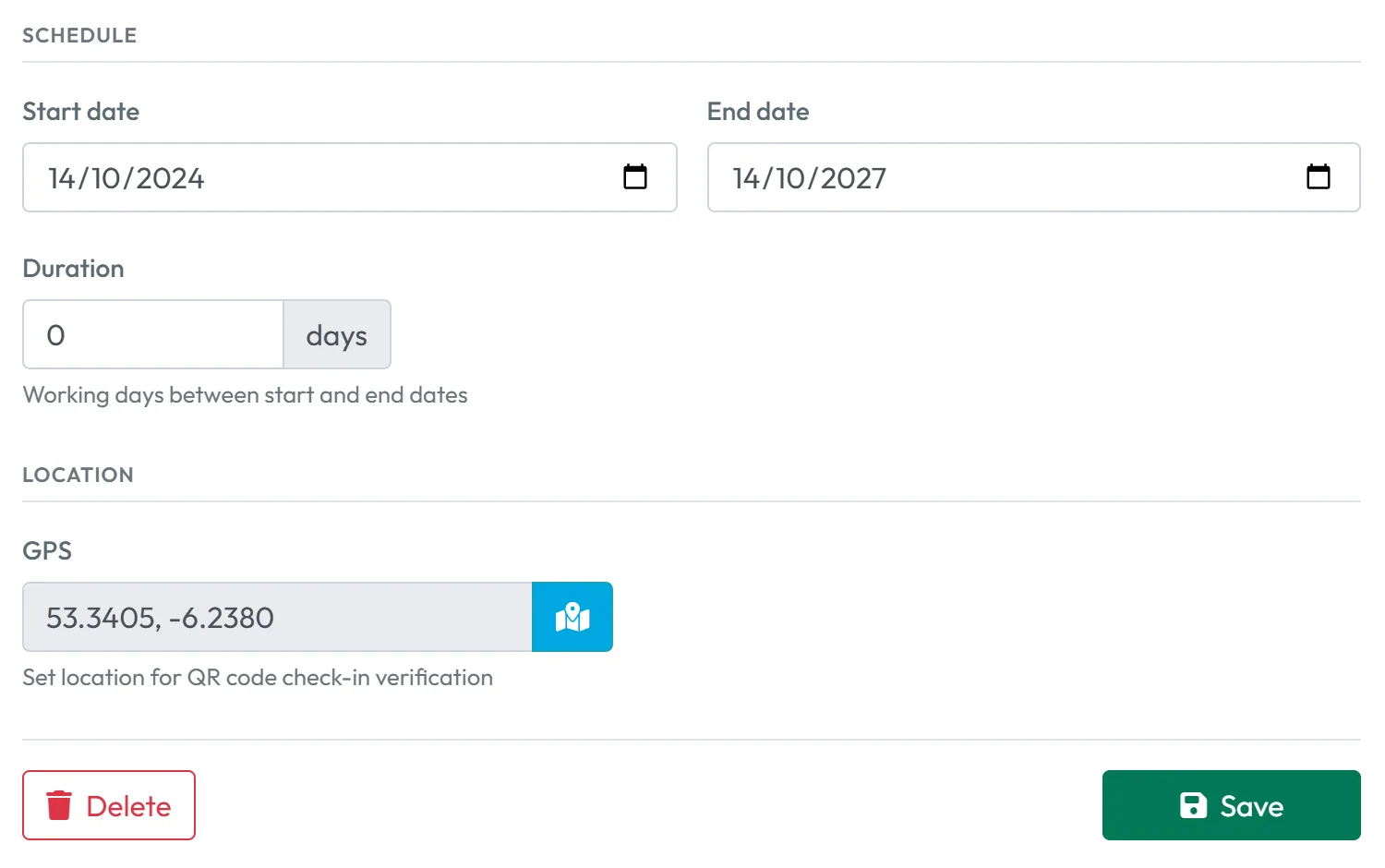
Further down the project page, Schedule holds the Start date and End date of the job. Location shows the GPS position of the site with the hint
Set location for QR code check-in verification
.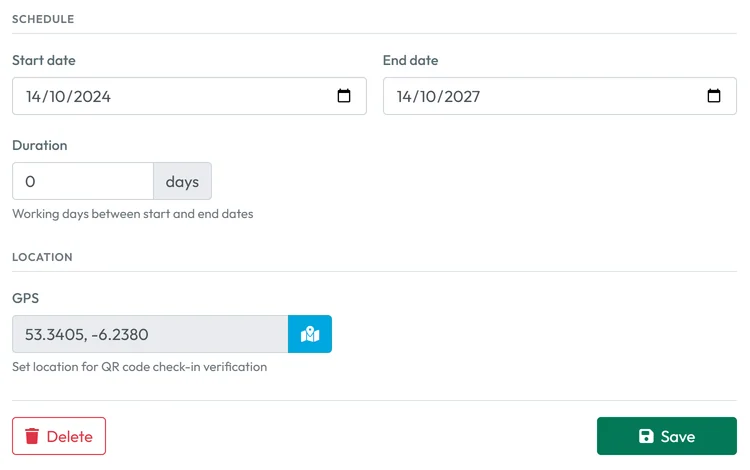
Dates and GPS position of the site -
Place the pin on the map.
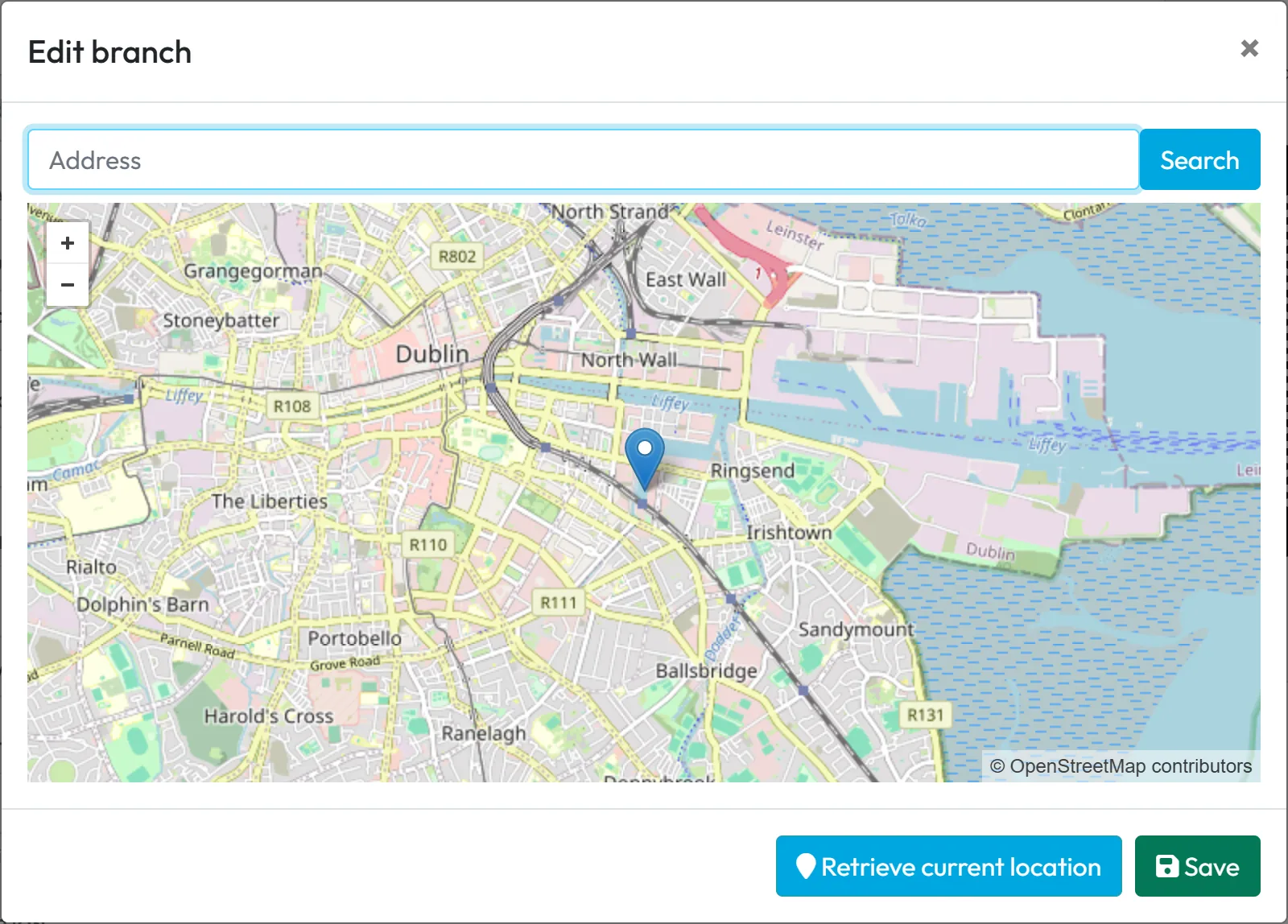
Click Set on map (the map button next to GPS), search for the address or drag the pin, confirm, and save the project. Scans of this project’s code are then measured against the pin instead of your branch – see GPS check and accuracy.
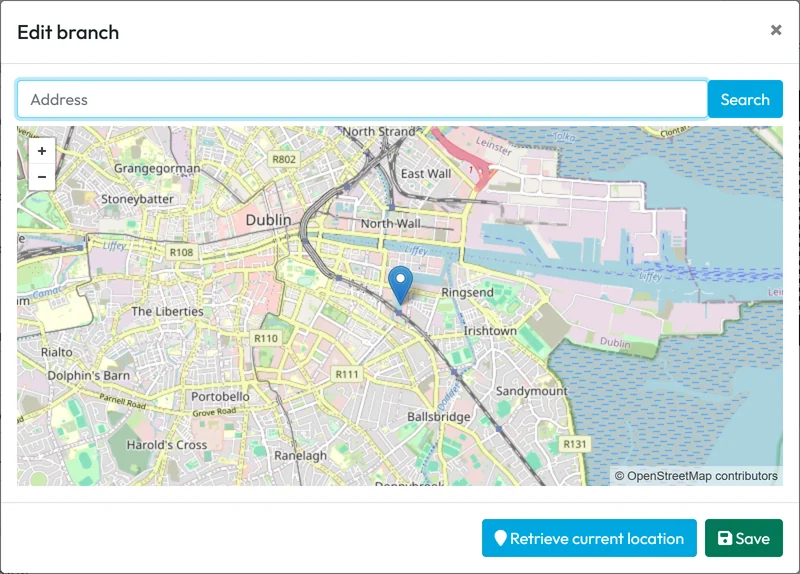
Set the project location on the map -
Download and print the QR code.
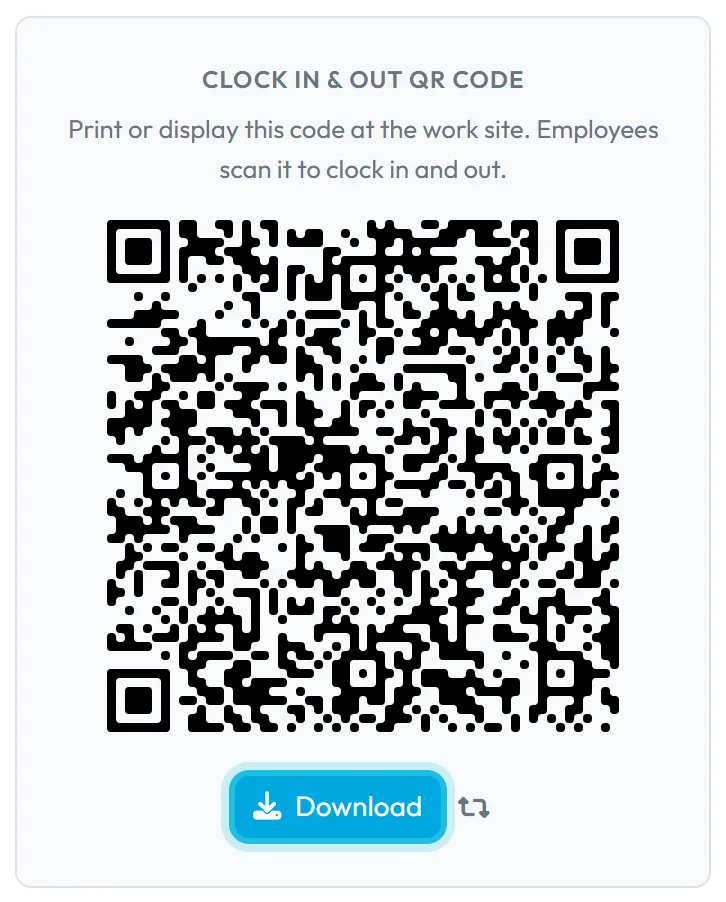
The card Clock In & Out QR Code on the right says what to do:
Print or display this code at the work site. Employees scan it to clock in and out.
Click Download for a printable A4 PDF with the project name. Laminate it and hang it at the site entrance. The look of the code (colour, size) follows your company QR style – see QR codes.Employees scan the same code to start and to end work – see Clocking in on a project.
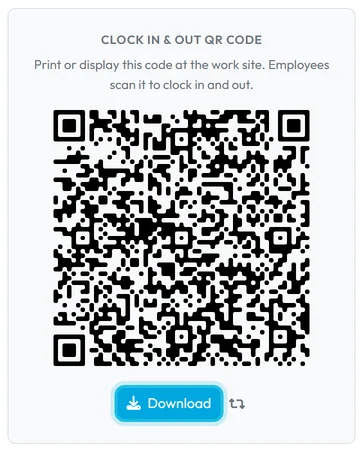
Download the project QR code as a printable PDF -
Manage your projects in the list or the kanban.
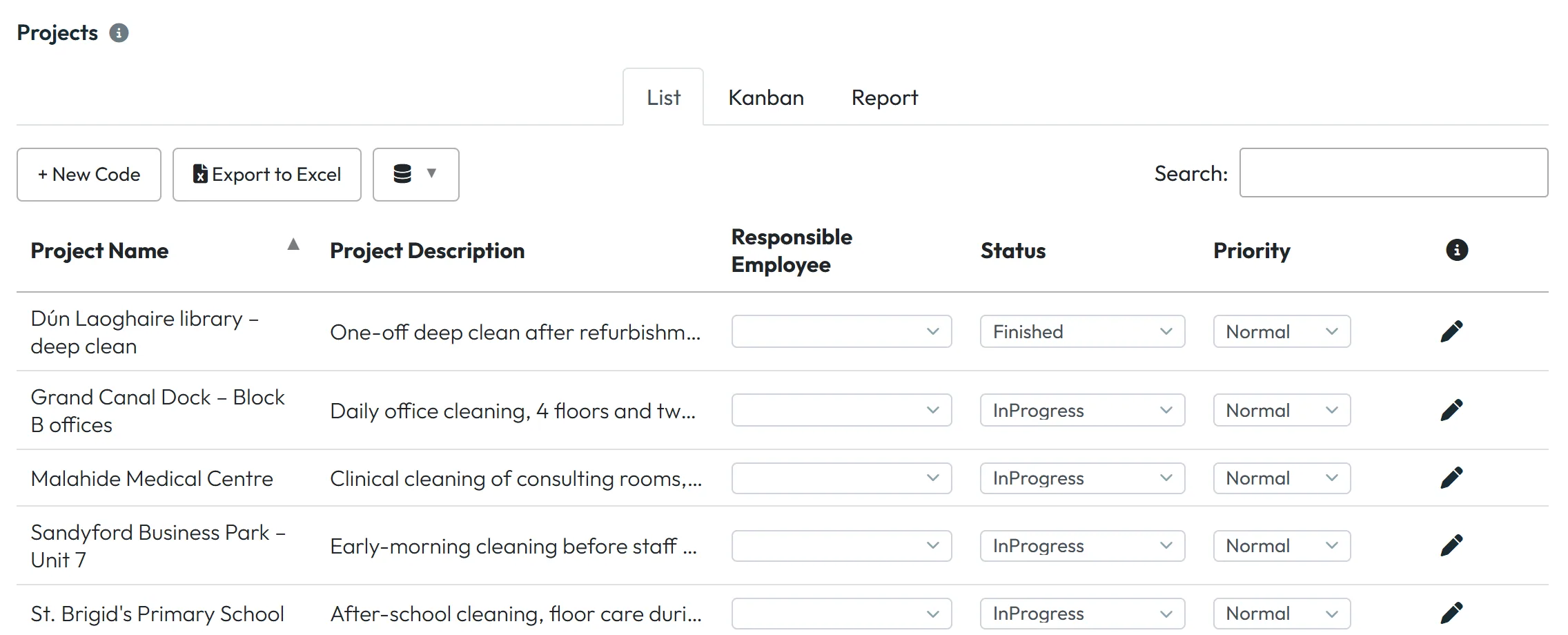
The List tab shows Project Name, Project Description, Responsible Employee, Status and Priority. Change the status, priority or responsible employee right in the row; the pencil opens the project. Export to Excel downloads the list.
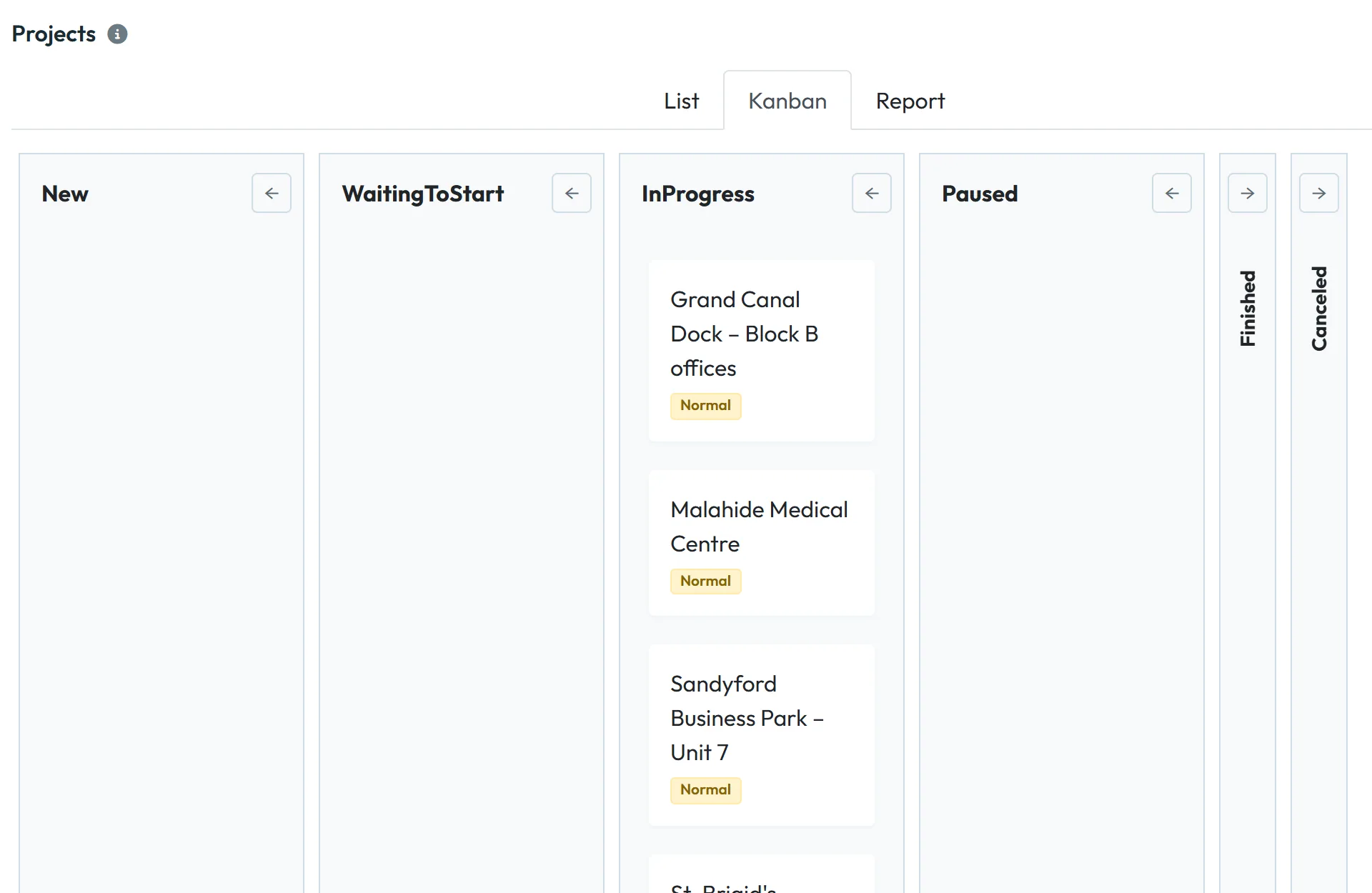
The Kanban tab groups the projects into one column per status, from New to Finished and Canceled.
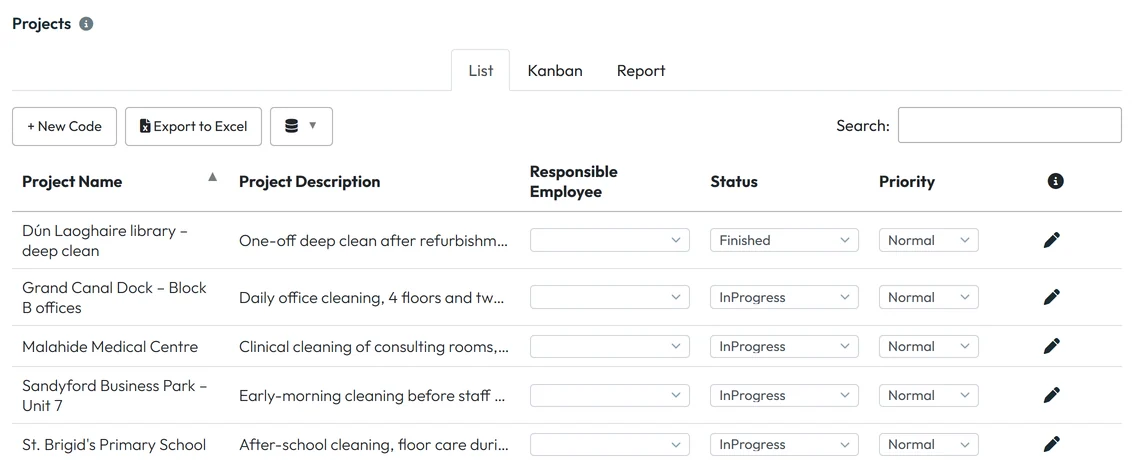
The projects list -
Decide whether people may run two projects at once.
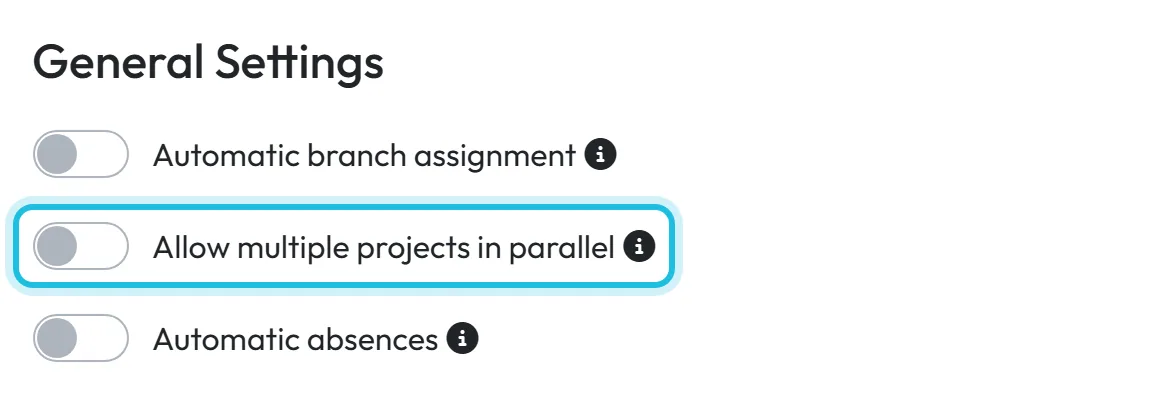
In My Company › Company Details › General Settings, Allow multiple projects in parallel (
Employees can scan multiple projects simultaneously
) decides what happens when someone scans a second project. Off: scanning project B ends project A at that moment. On: both run until each is ended with its own code. Companies created since March 2026 start with it off.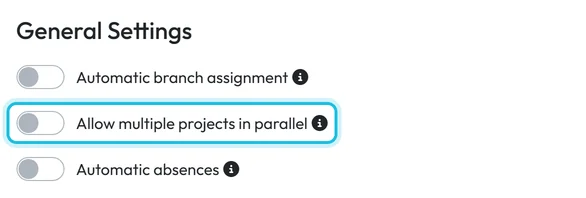
Allow several projects at once in company settings -
Finish or delete a project.
When a job ends, set its status to Finished (or Canceled). Its hours stay in the reports; the project report hides finished projects until you tick Show finished projects. The status doesn’t take the printed code off the wall – remove it at the site.
Delete only a project created by mistake: on the project page click Delete and confirm with Yes, delete. There is no undo in the app.

The app asks before deleting

#Other ways to work with projects
- Kanban viewThe Kanban tab shows the same projects by status – useful for a quick look at what is running.
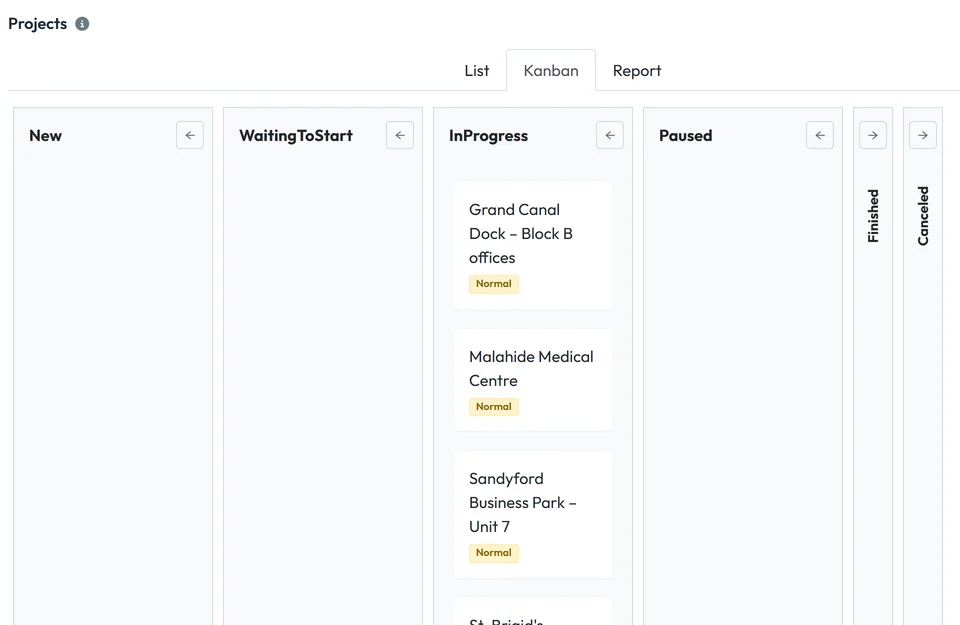
Kanban groups projects by status - Start a project without scanningFor crews who can’t reach a code, FreshQR support can turn on Start Project and End Project buttons in the app. There is no switch in the web app; write to info@freshqr.online or use WhatsApp.
- Projects from other softwareProjects can also be created through the FreshQR API – see API keys.
#Special cases and tips
- The QR code photo was shared in a group chat
- Click the regenerate icon next to Download –
Create a new QR code (invalidates the current one)
. It happens in one click, without a confirmation. Print the new code and replace the old one at the site. More in Invalid QR code scans. - Who can scan a project code
- Any employee of your company with the app. Use the GPS pin and the Farthest GPS scans report to spot scans made away from the site.
- Project or branch?
- Project time and branch attendance are recorded separately. Your company decides whether people also clock in at a branch – see Branches or projects.
- Deleted by mistake
- Contact support at info@freshqr.online or on WhatsApp.
#Frequently asked questions
How many projects can I have?
As many as you need. Pricing depends on active employees, not on projects – see the pricing page.
Is the same code used for clocking in and out?
Yes. The first scan starts work on the project, the next scan of the same code ends it.
Can I set planned hours or a budget for a project?
No. A project has start and end dates. Costs come from employees’ hourly rates in the project report.
Can I limit which employees scan a project?
No. Every employee can scan any project code. Check the GPS distance if you need to know they were on site.
Can a site manager see only their projects?
Yes, with a user account that has the Project Manager role – see Project Manager role.
#Related
You are hereProjects and project QR codes
Administrator
Web app (administrator)Mobile app (employee)



