Real-time attendance: who is at work right now – on screen and on a TV
On this page
Quick answer
Real-time attendance is the first card on the FreshQR Dashboard. Currently working lists everyone clocked in, with their site, arrival, time worked and break; Not working / Break lists who has left or is on a break. To show the same board on a TV, click Generate Public URL and open the link there – no login needed.
How to turn it on
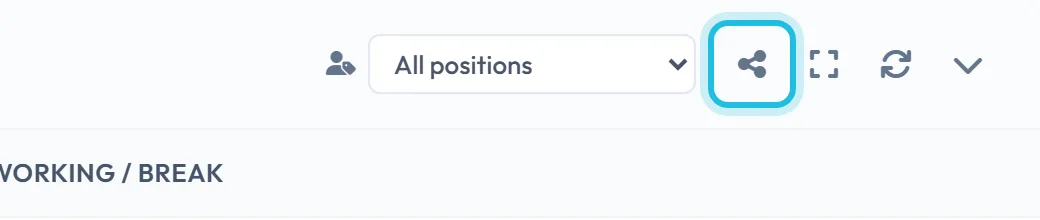
There is nothing to switch on. The Dashboard card fills in with the first scans, and the public link for a TV is created with the share icon in the header of the card.
- Dashboard
- Generate Public URL
- Who can turn it on
- The Owner and Administrators can create a public link. Only the Owner can save which parts the board shows.
- What changes
- Anyone who has the link sees the board in a browser without logging in. Nothing changes in the employees’ app.
- Applies to
- The whole company: the public board lists all employees. Each link has its own display settings.
#What it's good for
- You know who is in without phoning the site or the shift lead.
- Each name shows where the person clocked in, when, how long they have worked and how long their break has run.
- This week’s absences are on the same screen, so you can plan cover before the day starts.
- A screen at reception, in the depot or in the staff room shows who is in, without a manager account logged in on a shared device.
- You can revoke a public link at any time from one list, and see when it was last opened.
#Who it's for
A good fit for
- Owners and office staff who need a quick “who is where” in the morning or during a shift.
- Facility, cleaning and hospitality teams spread over several sites.
- Offices with a reception, and depots, kitchens or halls where a shift lead wants a wall screen.
Not the right fit for
- For hours over a month or a year, use Table Reports; the Dashboard is about today.
- Clocking in on the screen. The board is a display only – everyone scans with their own phone.
#Step by step
-
Open the Dashboard.
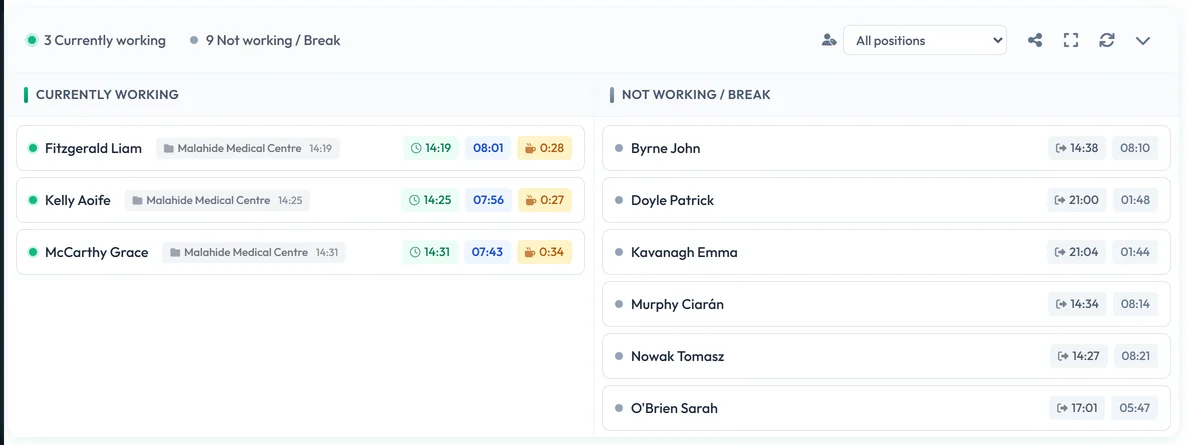
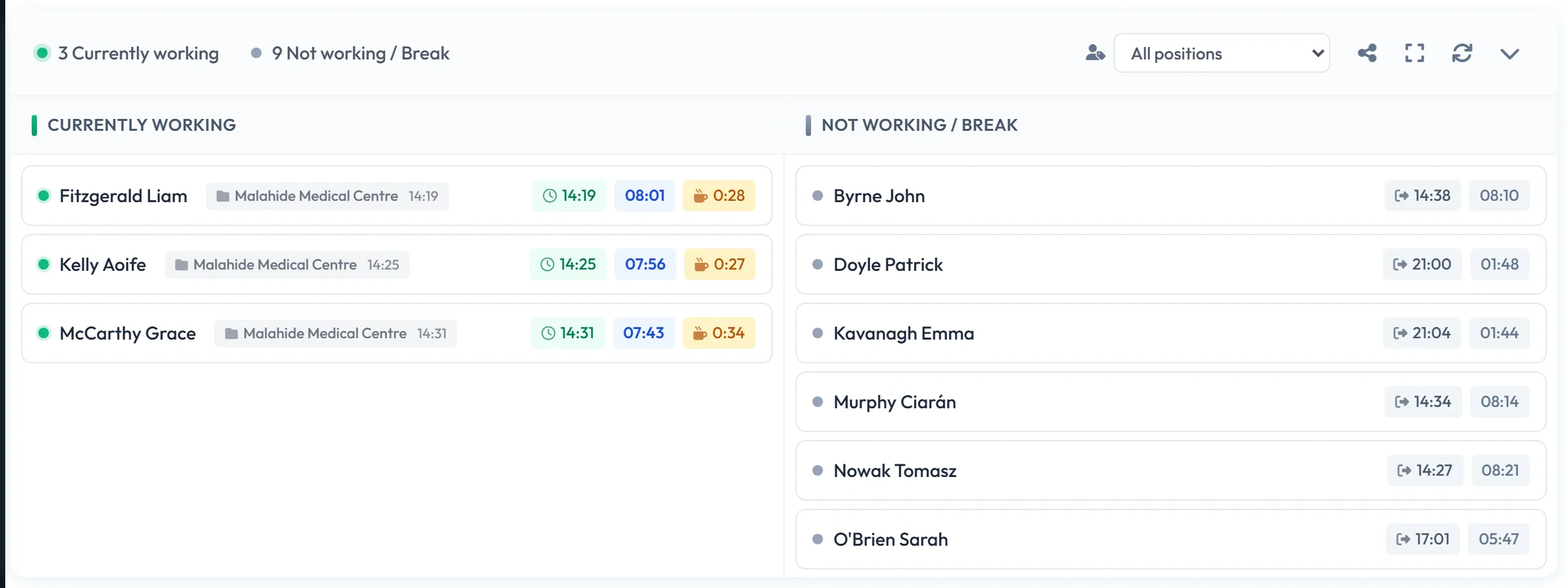
Click Dashboard in the left menu. The first card has two columns. The header counts them, for example 3 Currently working · 9 Not working / Break.
In Currently working each row shows the name, the branch or project with the scan time, then three badges: arrival (green), time worked so far (blue) and break time (yellow cup). In the evening example, Liam Fitzgerald, Aoife Kelly and Grace McCarthy are on the evening clean at Malahide Medical Centre.
Who is at work right now (evening shift) -
Read the Not working / Break column.
Here you find people who have clocked out – with the departure time and how long ago it was, so “has Patrick finished at the school?” takes one look – and people on an approved absence, shown with the absence and its dates. If an employee marks the next scan as a break, they appear here while the break runs. With a long team the column scrolls inside the card; scroll down to see everyone.
If everybody is in, the column says
All employees are currently working.
If nobody is, the first column saysAll employees are either done working or are on a break.
-
Filter by position.
The select in the card header narrows the list by job position, for example only Site Supervisors. Next to it are four icons: Generate Public URL (the share icon, for a TV screen), Fullscreen, Refresh and Expand. The list refreshes on its own; Refresh updates it at once.

Filter the board by position -
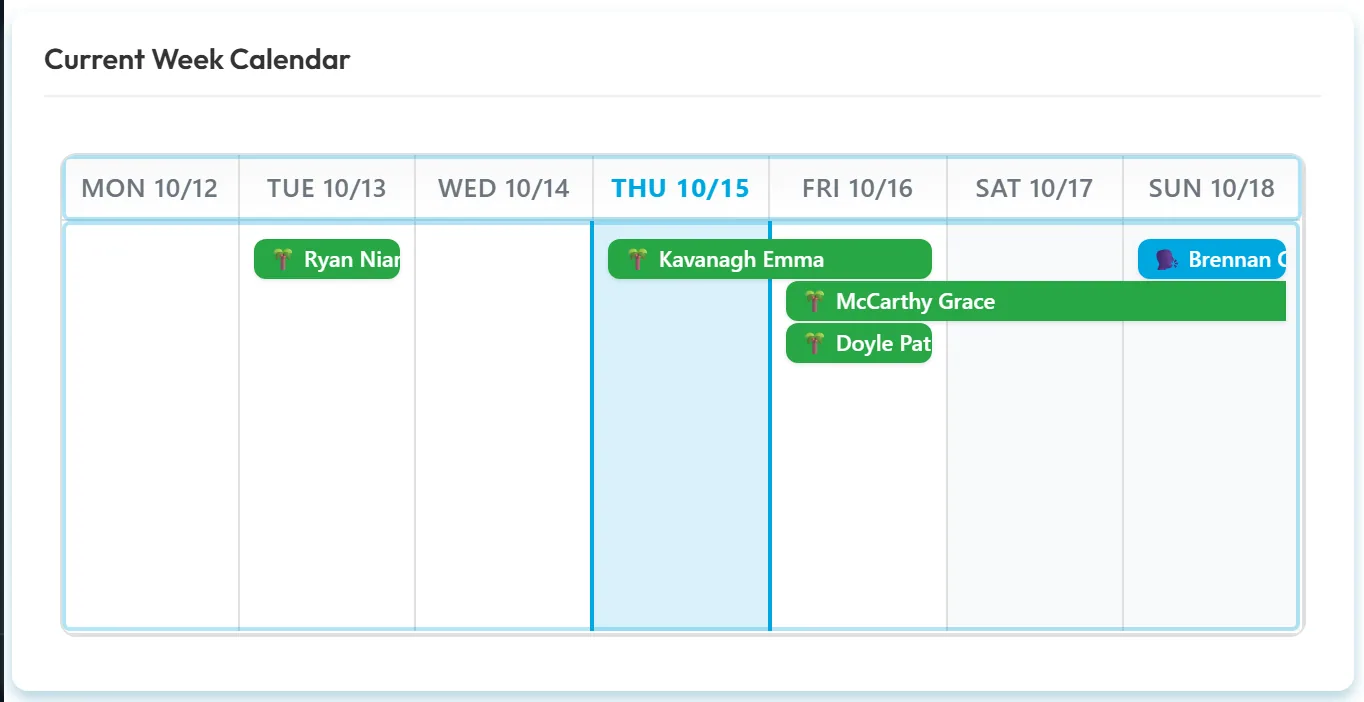
Check who is off this week.
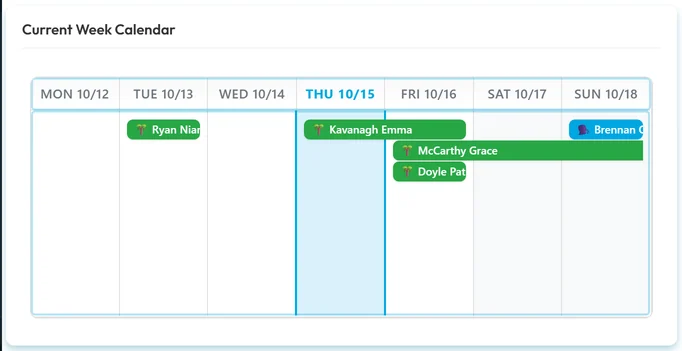
Scroll to the Current Week Calendar. Absences of the current week appear as bars, so you see at a glance that, say, two cleaners are on annual leave on Thursday. For the whole month, open the Event Calendar.
Who is away this week -
For a TV, click Generate Public URL.
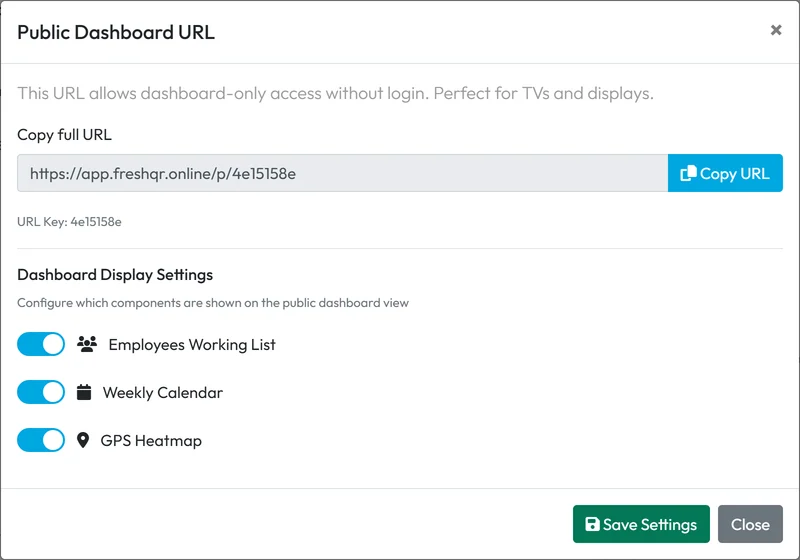
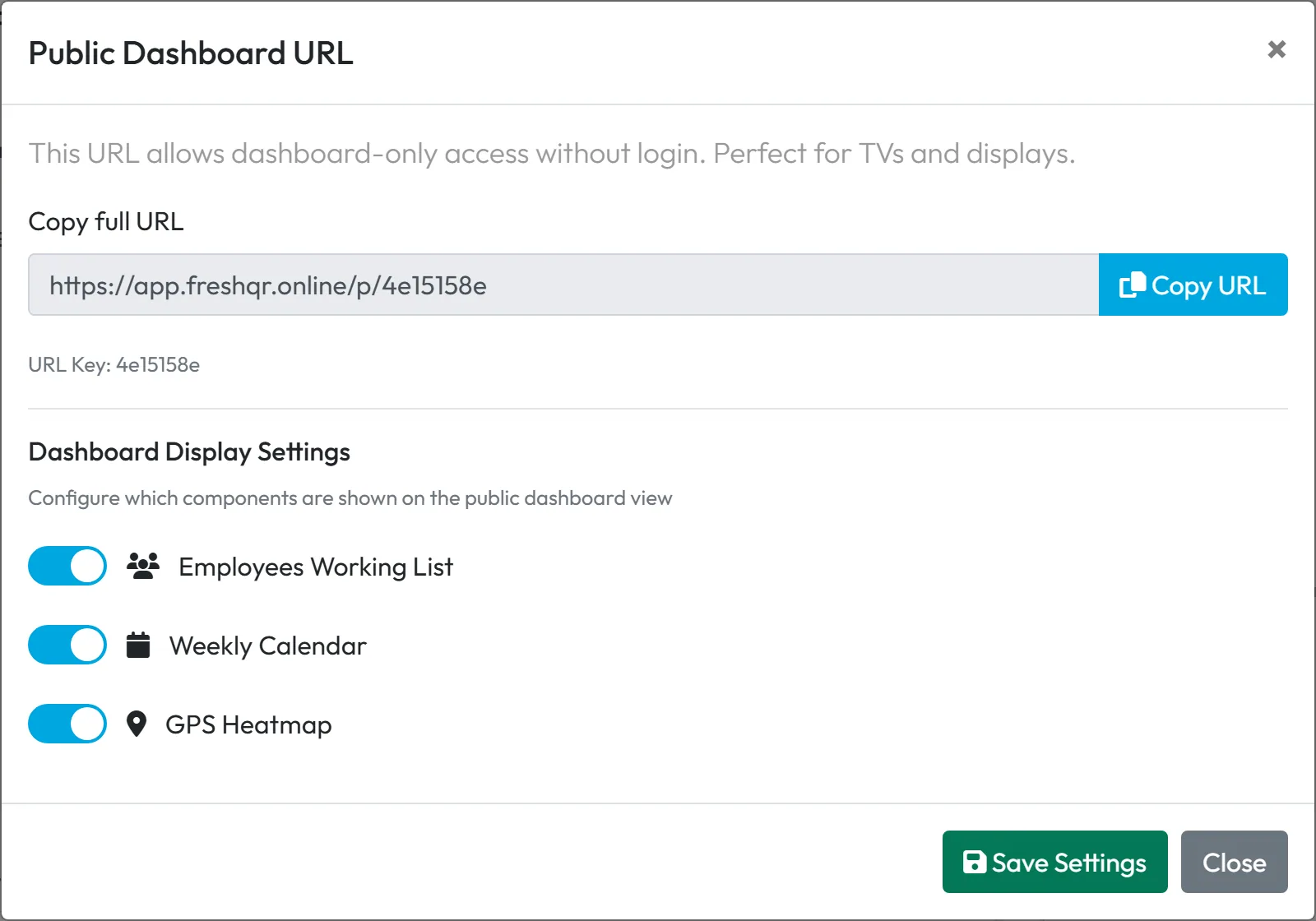
The share icon in the header of the first card opens the window Public Dashboard URL:
This URL allows dashboard-only access without login. Perfect for TVs and displays.
-
Choose what the board shows.
Under Dashboard Display Settings switch on the parts you want: Employees Working List, Weekly Calendar and GPS Heatmap (today’s scans on a map). Click Save Settings. Only the Owner account can save these settings.
What the TV board shows -
Open the link on the screen.
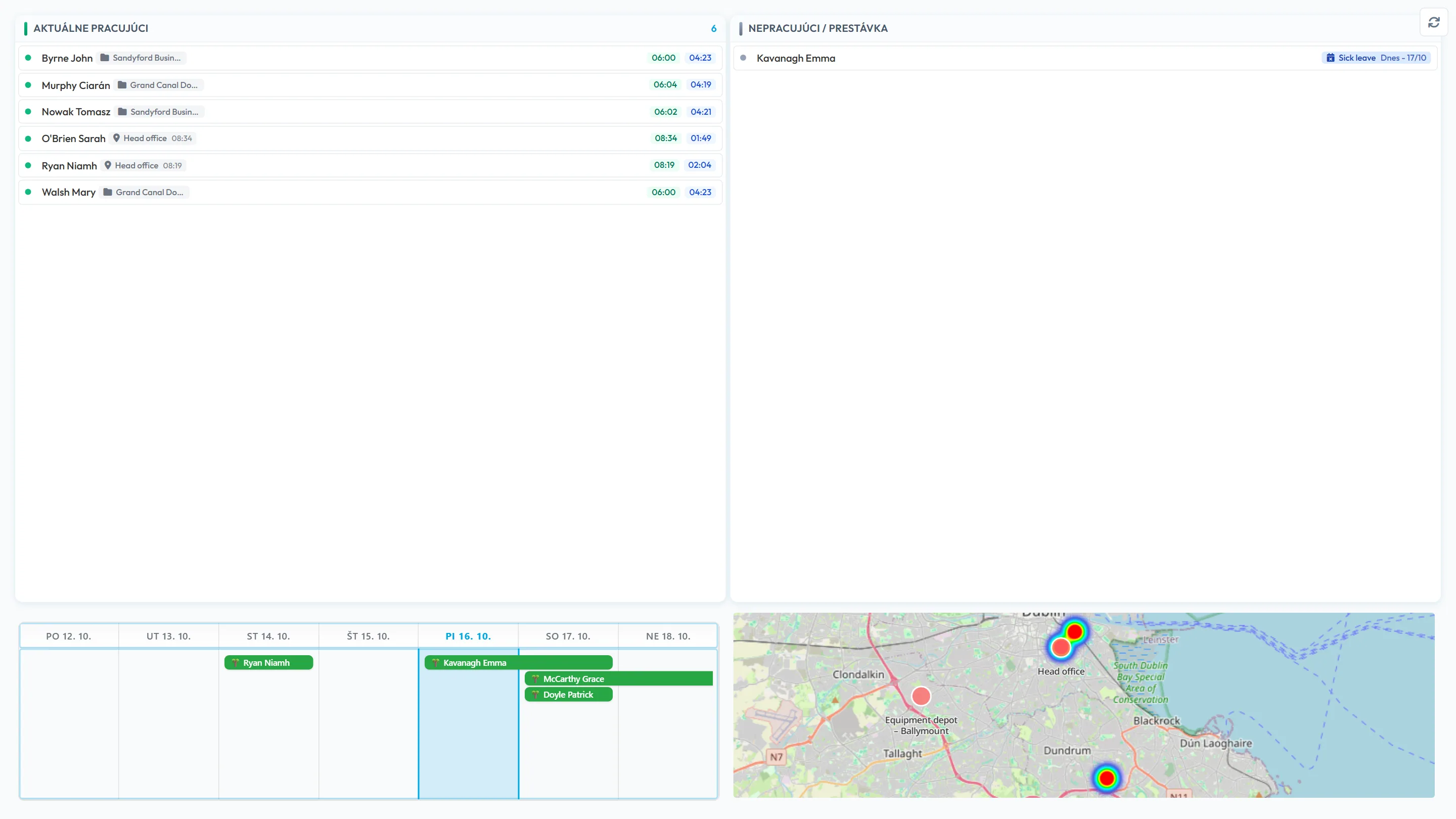
Click Copy URL (or Copy full URL), send the link to the device and open it in its browser, full screen. The board shows Currently working and Not working / Break like the Dashboard, with a Refresh button and no filters – it lists all employees of the company.
The public board currently opens in Slovak, whatever your company’s language.
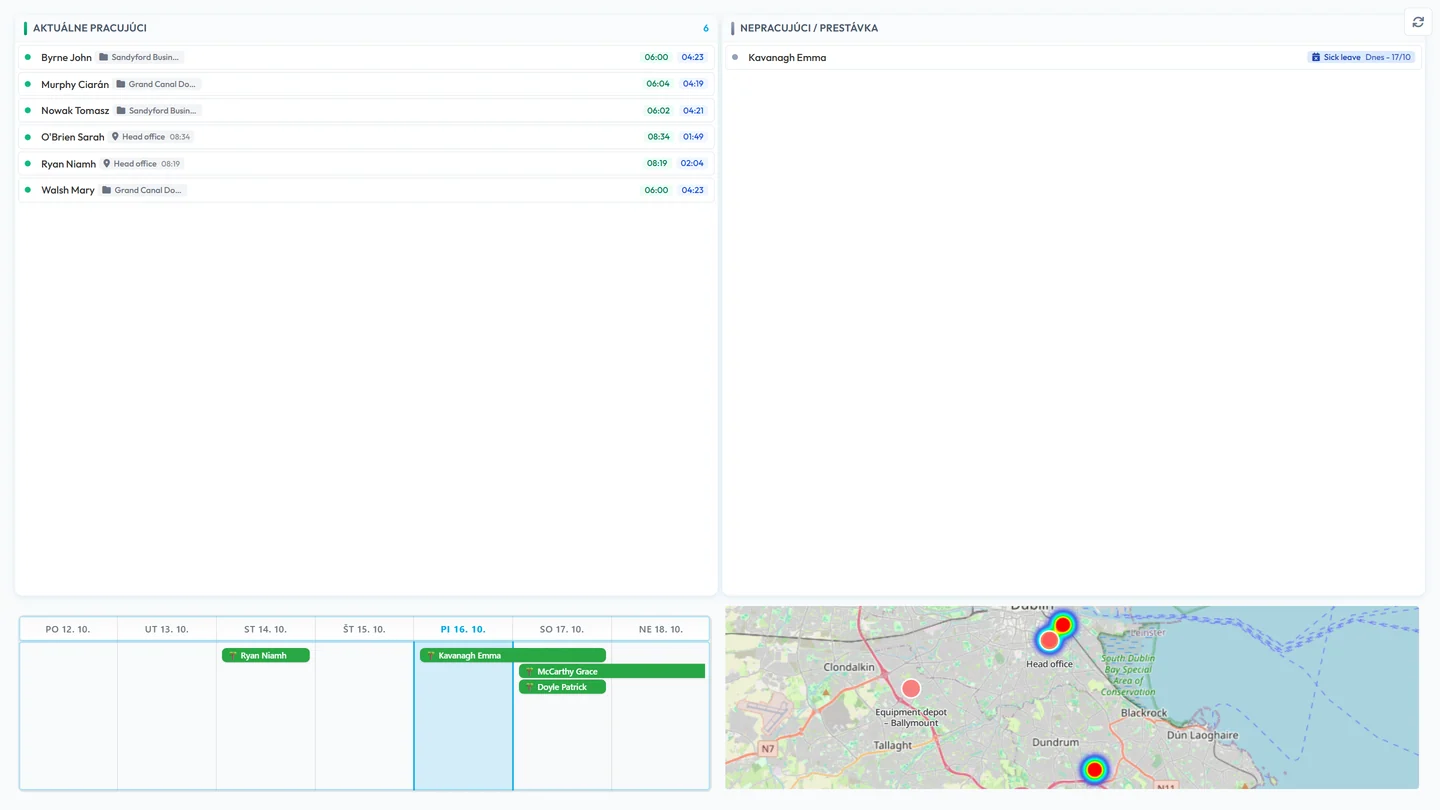
The board on a TV – labels are still in Slovak -
Manage and revoke links.
Go to My Company › Public URLs. Each link shows Created, Last Accessed, Views, Status and Actions. Delete asks
Are you sure you want to delete this public URL?
and revokes the link. After deleting, also close the browser on the screen that showed it.
Deleting a link revokes it


#More on the Dashboard
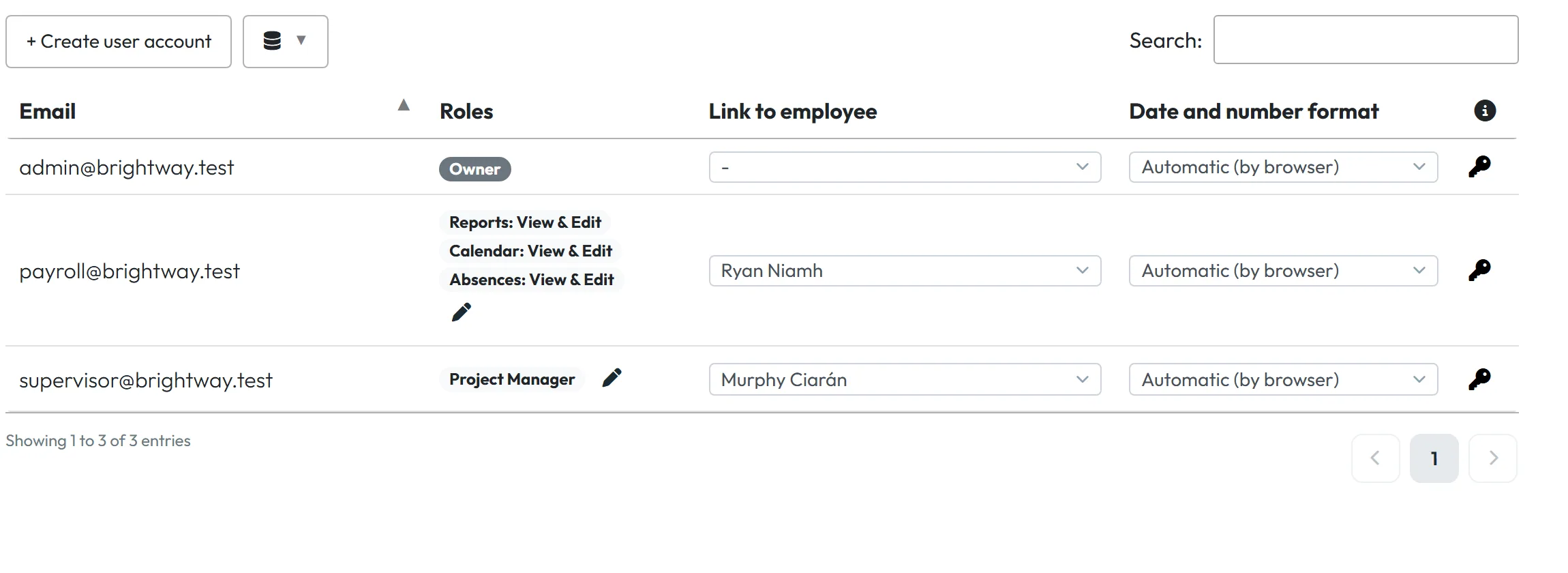
- A board account instead of a linkCreate a user account in My Company › User accounts with only the role Workplace board status. When you log in with it on the screen, it opens the board and nothing else. Useful if you prefer a password to a link. See User accounts and roles.
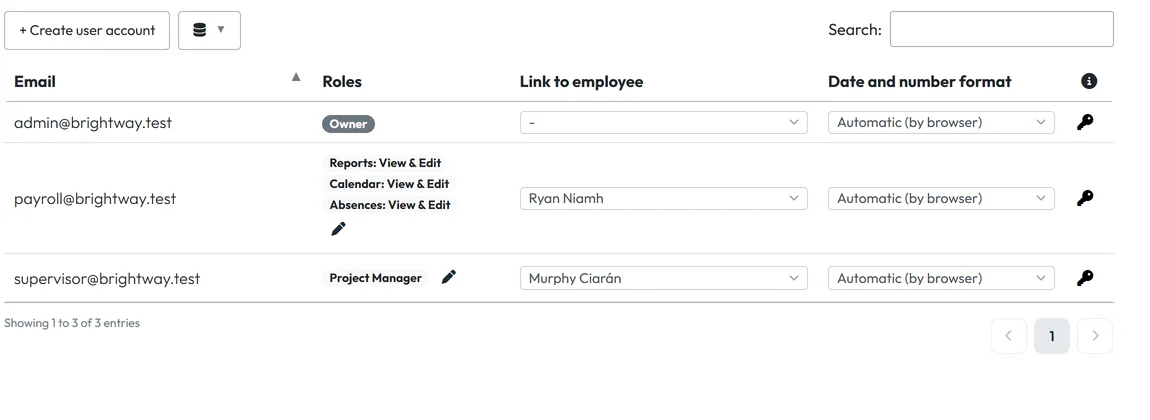
User account roles - Approve requests from the DashboardThe Pending Absence Requests card lets you approve or decline waiting requests without leaving the page – see Approving leave requests.
- Where people scannedThe Scans location map shows today’s or this month’s scans – see Scan map.
- TrendsFurther down, Performance Metrics (Beta) show punctuality, overtime and leave usage.
#Special cases and tips
- Someone is missing from both columns
- Check the filter in the card header – it may be set to one position.
- An employee on leave appears as working
- They scanned in despite the approved absence; the scan wins. Such days are listed in Attendance & Absence Overlaps.
- A manager sees only part of the team
- Branch and Project Manager accounts see their own branches or projects. A user account linked to an employee sees that person’s team.
- Nothing shows yet
- Until the first scan the Dashboard says
View statistics and reports about your company in graphs. You are only 1 scan away from seeing them.
- Treat the public link like a password
- Anyone who has it sees names and who is in. Don’t post it in a group chat; delete it when the screen is no longer used.
- Several screens
- Create a link for each screen. Then you can see each one’s views and revoke one without touching the others.
#Frequently asked questions
Is the Dashboard live?
It refreshes on its own every so often. Click Refresh in the card header for an immediate update.
Does it track where employees are during the day?
No. It shows the branch or project of their last scan and when it happened, nothing in between.
Who can see the Dashboard?
The Owner, Administrators, Managers and accounts with a Dashboard role. Branch and Project Managers see only their own branches or projects.
Can I put this list on a TV?
Yes, with a public link that works without logging in, or with a user account that has the Workplace board status role.
Can employees clock in on the TV?
No. The board only shows information. Every employee scans the QR code with their own phone.
Does the public link expire?
It works until you delete it in My Company › Public URLs.
How do I know if a screen still uses the link?
The Public URLs list shows Last Accessed and the number of Views for each link.
#Related
You are hereWho is at work and the public dashboard
Administrator
Web app (administrator)Mobile app (employee)



