How the 30-day free trial works: sign up and use FreshQR
On this page
Quick answer
Here is how the 30-day free trial works: it starts with one short form – company name, email, password and two consents. No payment card is needed. Straight after sign-up you have a main branch with clock-in and clock-out QR codes, a default work schedule and absence types. The trial runs for 30 days; after that you continue by buying credits.
#What it's good for
- A working company account in about a minute. Nothing to install on a computer and no time clock to buy.
- You can test the first scan the same day, straight from your screen – no printer needed yet.
- For 30 days you use FreshQR fully, with your own people and real shifts.
- The end of the trial deletes nothing. When you buy credits, you carry on where you left off.
#Who it's for
A good fit for
- An owner or manager who wants to try digital attendance at one site first, for example a cleaning crew of ten.
- Companies that track hours on paper or in a spreadsheet today and want to see how much time they save.
- The person who will run attendance in the company – the main account belongs to whoever signs up.
Not the right fit for
- Employees. You don’t sign up – you install the app and join your company, see Installing the app and joining your company.
- People whose company already uses FreshQR. A second sign-up creates a new, empty company. Ask your administrator for a user account instead.
#Step by step
-
Open the sign-up form.
Go to the registration page. The trial buttons elsewhere on the website open the same short form.
-
Fill in the form.
Enter COMPANY NAME, EMAIL and PASSWORD. The email and password become your login for the web app. Tick both consents – the terms of use and the processing of personal data. The form won’t send without them. The check against bots runs in the background, so there are no puzzles to solve.
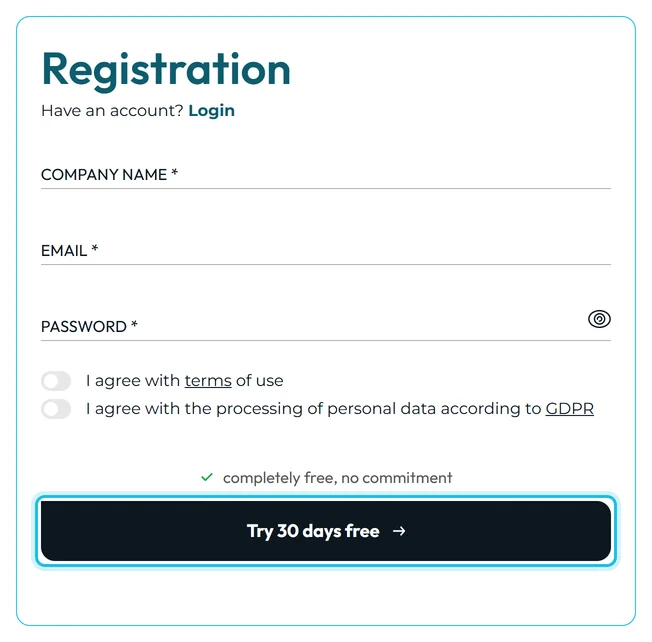
The form doesn’t ask for a payment card -
Click Try 30 days free.
The button creates your company and logs you in. Your 30-day trial starts at that moment.
-
See what is already set up.
You don’t start with an empty app. Your company gets:
- The main account – your email. It can do everything, including buying credits and adding more user accounts.
- A main branch with two QR codes, Clock in and Clock out.
- A default work schedule, Every day 8 hours. Despite the name, it counts 8 hours Monday to Friday.
- 13 default absence types – annual leave, sick leave, doctor visits and more. See Absence types and their settings.
- A random six-character company code, shown in My Company › Company Details as Your company/trustbox code.
The company’s language and currency follow the website language you signed up from. An English sign-up gets English and euro.
-
Follow the wizard.
The app takes you to Attendance (QR Codes) and opens a short wizard. In two minutes you install the app on your own phone and make your first scan straight from the screen. What comes next is in Getting started after sign-up.
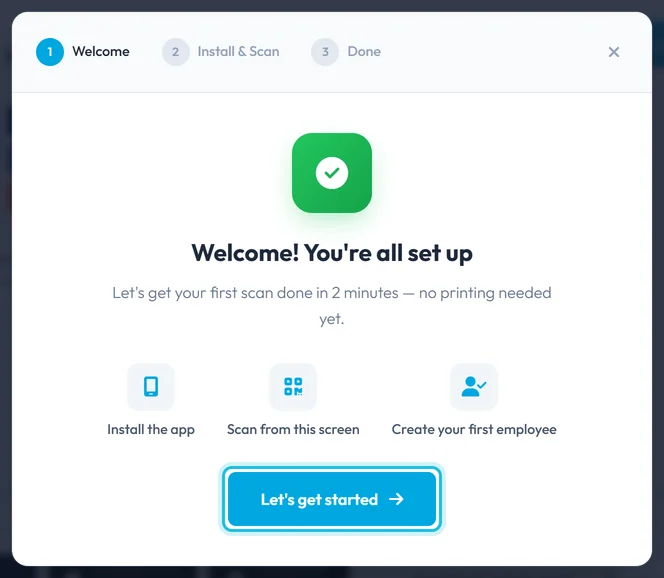
A short wizard greets you right after sign-up
#How the trial runs
The trial lasts 30 days from sign-up. During that time you use FreshQR fully and pay nothing. Employees download the app for free, just as they will later.
For most of the trial the app doesn’t interrupt you. Only in the last few days does a yellow bar appear at the top with the end date and a Pay button. It’s worth noting the date in your calendar on the day you sign up.

#What happens after 30 days
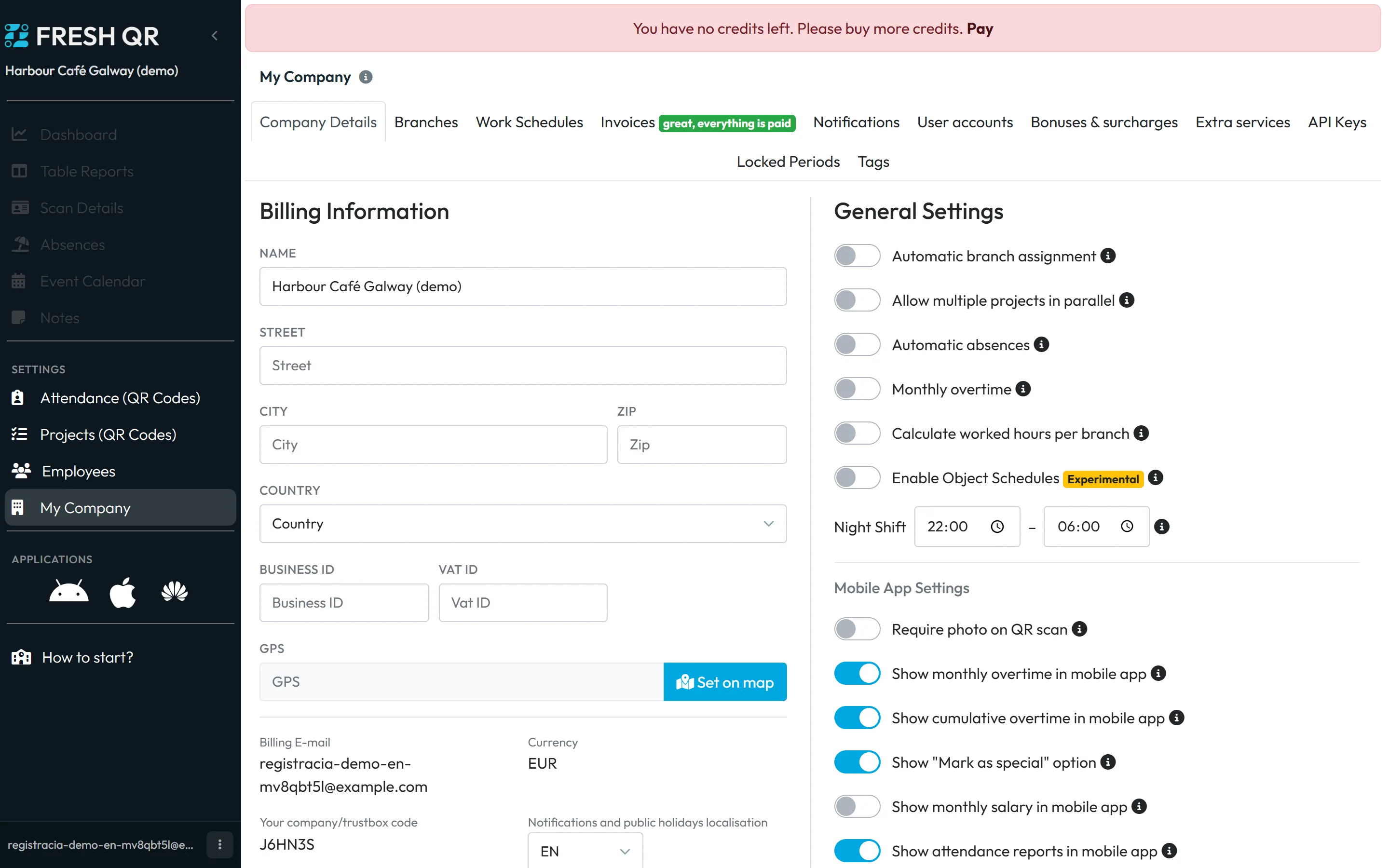
If you have no credits when the trial ends, the web app is restricted:
- A red bar at the top says
You have no credits left. Please buy more credits.
with a Pay button. - Dashboard, Table Reports, Scan Details, Absences, Event Calendar and Notes are greyed out and don’t open.
- The settings still work: Attendance (QR Codes), Projects (QR Codes), Employees and My Company. The main account lands on My Company after logging in, where it can buy credits.
- Other user accounts see a page telling them access is restricted and asking them to have an administrator buy credits.
Meanwhile your employees keep clocking in and out in the mobile app, and their attendance is still recorded. The end of the trial deletes nothing. Attendance records, employees and settings stay, and the greyed-out menu items open again once you buy credits. How credits work and how to buy them is in Credits and invoices. Current prices are on the pricing page.
#Other ways into FreshQR
- You already have an accountDon’t sign up again. Log in on the login page. If you’ve forgotten your password, see Logging in and resetting your password.
- An account for a colleagueAnother manager or your bookkeeper doesn’t sign up either. The main account creates a user account with a role for them in My Company › User accounts – see User accounts and roles.
#Special cases and tips
- A typo in the company name
- No problem. You can correct the name and billing details in My Company › Company Details. See Company Details and billing information.
- More than one site
- Sign-up creates one branch. Add more, for example an equipment depot, in My Company › Branches. Each gets its own QR codes – see Branches.
- Your staff work at client sites
- Branches and projects are both available from day one. If you’re not sure which to use, read Branches or projects – which to choose.
- You bought credits late
- Once you buy credits, the restricted parts of the app open again. The records from before the trial ended are all there, and so are the scans your employees made while the web app was restricted.
#Frequently asked questions
Do I need a payment card to sign up?
No. The form doesn’t ask for one. You only pay for credits if you decide to continue after the trial.
Is FreshQR free?
The 30-day trial and the employee app are free. After the trial you pay with credits. Current prices are on the pricing page.
Will I lose my data after the trial?
No. The end of the trial deletes nothing – records and settings stay. Without credits the web app is partly restricted, but employees keep scanning in the mobile app and their attendance is recorded. The web app opens again when you buy credits.
How do I know when the trial ends?
Count 30 days from sign-up. In the last few days a yellow bar in the app shows the exact date.
Do employees need to sign up?
No. They install the Fresh QR app and join your company with their first scan of a company QR code. They need no email or password.
#Related
You are hereSign-up and the 30-day trial
Web app (administrator)Mobile app (employee)



