Employee tags: label people and filter reports
On this page
Quick answer
Employee tags are your own short labels, such as “Keyholder” or “Garda vetted”. Open an employee’s profile, type the tag into Tags, press Enter and click Update. The tag is then offered on every employee, branch and project, and you can filter Table Reports by it. My Company › Tags shows where each tag is used.
#What it's good for
- Groups that don’t fit positions or branches: keyholders, first aiders, staff vetted for healthcare sites, new starters.
- Reports for exactly that group – for example the hours of everyone tagged “New starter” this month.
- No setup: a tag exists as soon as you save it on someone.
#Who it's for
A good fit for
- Companies that report on groups across sites and roles, such as a crew that moves between client buildings.
- Anyone who needs to know quickly who holds a certificate or a key.
Not the right fit for
- Labels that should also change schedules, shift coverage or swaps. Use job positions for those.
- Controlling access. Tags don’t change what anyone can see or do.
#Step by step
-
Open the employee’s profile.
Go to Employees and click the pencil next to the person. The Tags field is on the Detail tab, above Geolocation Accuracy – see Employee profile.
-
Type or pick a tag.
Click into Tags (Add tags…). The list shows the tags your company already uses – pick one, or type a new name and press Enter.
To remove a tag from the person, click the × on its chip.

Pick an existing tag or type a new one -
Click Update.
The tag is saved with the profile. A new tag is now offered everywhere tags are used: on other employees, on branches (in the branch form, see Branches) and on projects (see Track time by project).
-
Filter reports by tag.
In Table Reports, click Add filter and choose one or more tags in Tags. The report narrows down straight away, and you can pin the filter so it is there next time – see Attendance reports.
-
See where each tag is used.
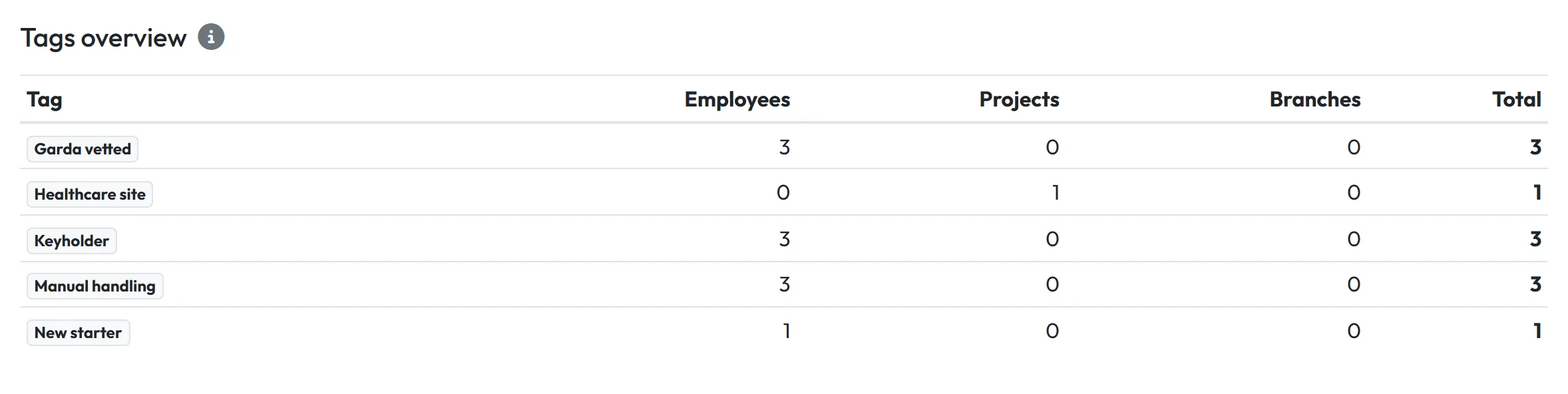
Open My Company › Tags. The Tags overview lists every tag with the number of Employees, Projects and Branches that carry it, and the Total. Deleted employees, branches and projects aren’t counted. The overview is for reading only; tags are added and removed on the employee, branch or project itself.
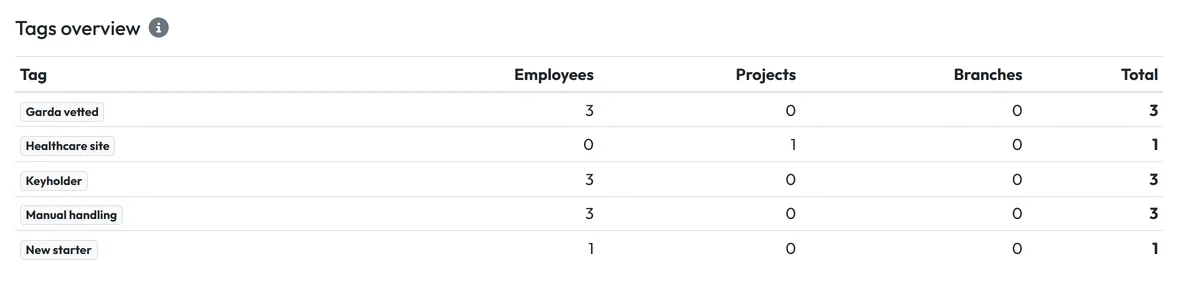
Which tags exist and where they are used

#Special cases and tips
- Renaming or deleting a tag
- Not possible at the moment. If you made a typo, create the correct tag, move the people to it and leave the old one unused. An unused tag stays in the list with zero uses.
- Filtering employees by tag
- Use the tag filter in Table Reports. The employee list itself has no tag filter.
- Merging profiles
- Tags stay on the closed profile when you merge duplicate profiles. Add them to the kept profile afterwards.
#Frequently asked questions
How do I create a new tag?
Type it into the Tags field of an employee, branch or project and save. There is no separate screen for creating tags.
Do employees see their tags?
No. Tags are used only in the web app.
Do tags change access rights or pay?
No. They only label people, branches and projects and filter reports.
Who can add tags?
Anyone who can edit employees can tag employees. Tags on branches and projects need the right to edit those.
#Related
You are hereTags
Administrator
Web app (administrator)Mobile app (employee)



