Project hours report: hours and costs per project
On this page
Quick answer
The project hours report is the Report tab in Projects (QR Codes). It shows every project by month as Hours, Expenses, Overtime or Weekend & holiday, with totals and a comparison with earlier months. For one project’s people, open its own Report tab; for daily rows, use Table Reports › Project detail.
#What it's good for
- Hours and wage costs of every job side by side, month by month.
- A comparison with the previous period or the same months last year shows which sites grow.
- Per project you see who worked how many hours – useful when a client asks.
- A day-by-day PDF to attach to a client invoice.
#Who it's for
A good fit for
- Cleaning, facility and construction firms that bill clients per site or job.
- Owners preparing a quote who want to know what a similar job cost last time.
Not the right fit for
- Companies without projects – their reports are in Table Reports and Branch reports.
- Material costs and client prices: the report covers hours and wage costs only.
#Step by step
-
Open the Report tab.
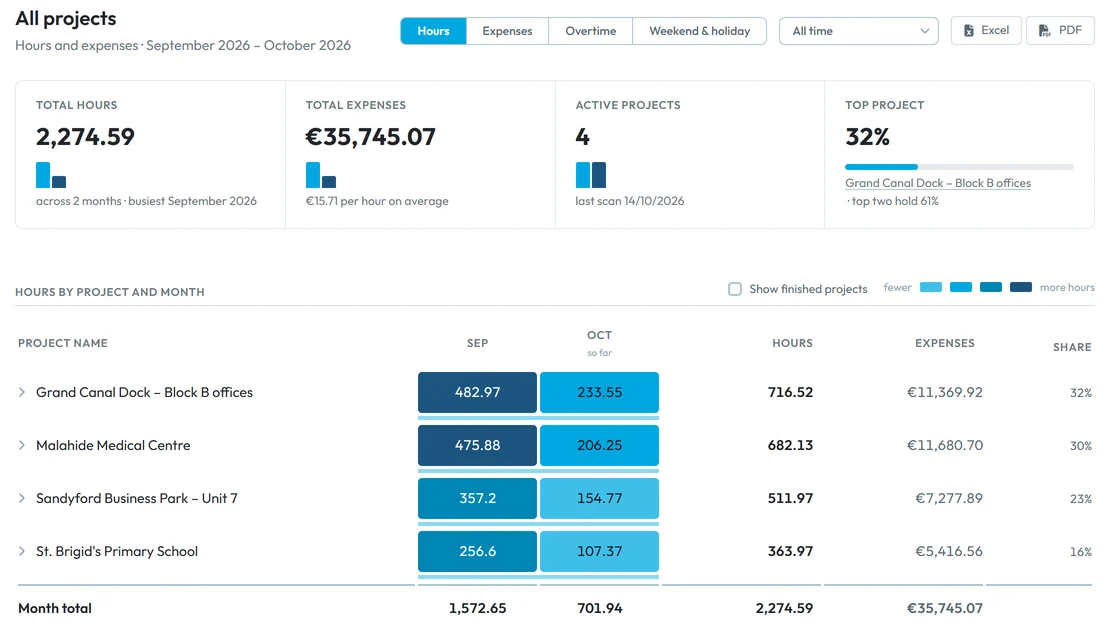
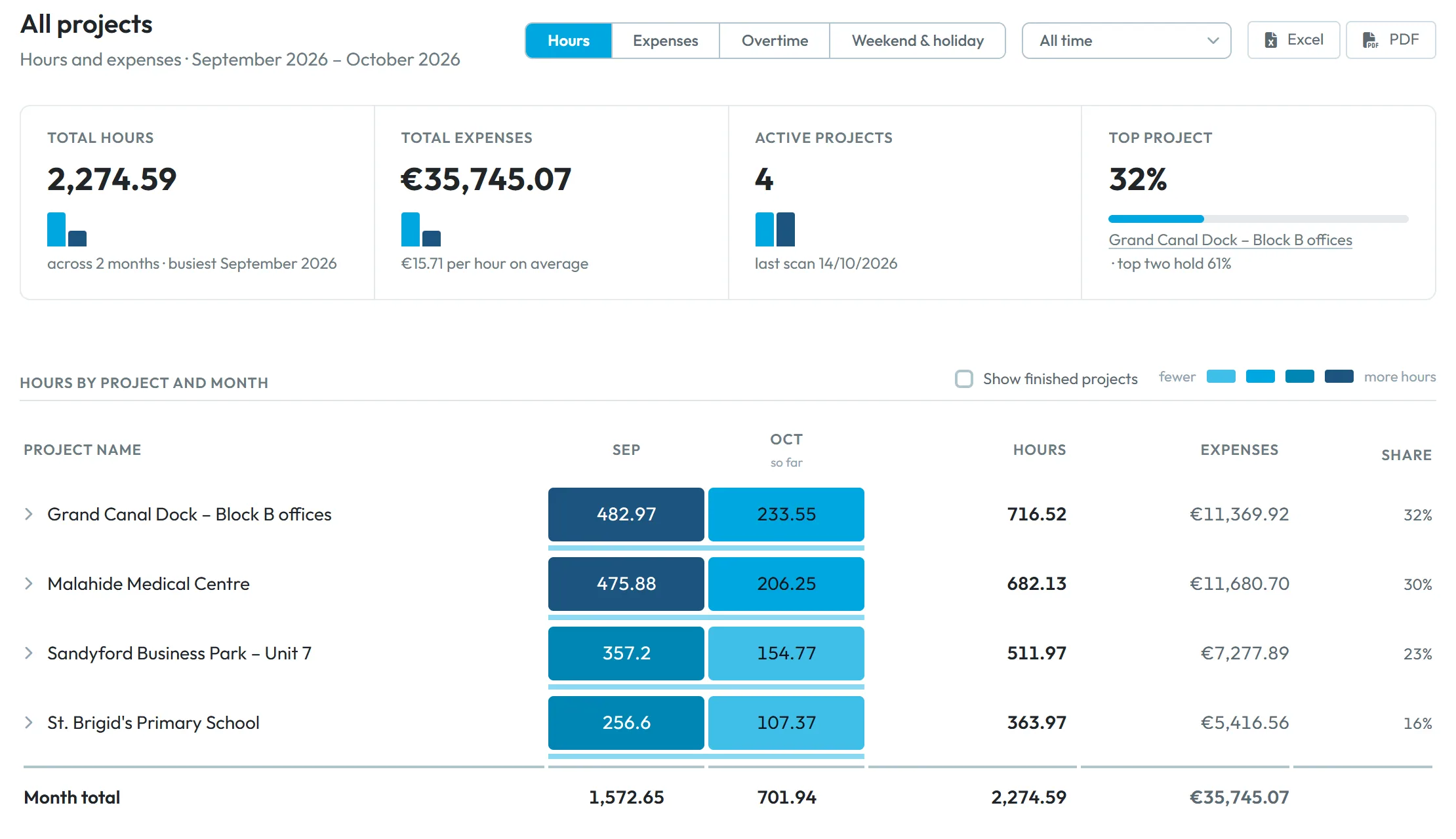
Go to Projects (QR Codes) › Report. The heading All projects sits above four tiles: total hours, Total Expenses, Active projects and Top project with its share. Below is a table of projects by month.
Brightway’s four client sites logged 2,274.59 hours in September and October; Grand Canal Dock – Block B offices is the top project with 32 %.
All projects by month -
Choose the measure and the period.
Switch between Hours, Expenses, Overtime and Weekend & holiday. Choose the period: Last 3 months, Last 6 months, Last 12 months, Last 24 months or All time. Finished and canceled projects are hidden until you tick Show finished projects.
On the overtime measure, keep in mind:
Overtime is attributed to the project scanned on the day it arose. With monthly overtime it lands on the project scanned at the end of the month.
-
Compare with an earlier period.
With a period of 3 to 24 months, a comparison select appears: No comparison, Previous period or Same months last year. Cells and tiles then show the difference. If there is no older data you see
Nothing recorded before …, so there is nothing to compare with.
; if the period includes the current month,The current month is still running, so its comparison covers only the days recorded so far.
-
Understand the costs.
Expenses are worked hours × the hourly rate valid on each day – see Hourly rate and salary. Bonuses are not included. An employee without a rate shows “—” instead of an amount. If part of the work has no rate, the report says
Part of this work has no hourly rate, so the amount covers only the priced days.
If nobody has one, the Expenses measure shows Expenses need hourly rates with a button Open employees. -
Open a project’s summary.
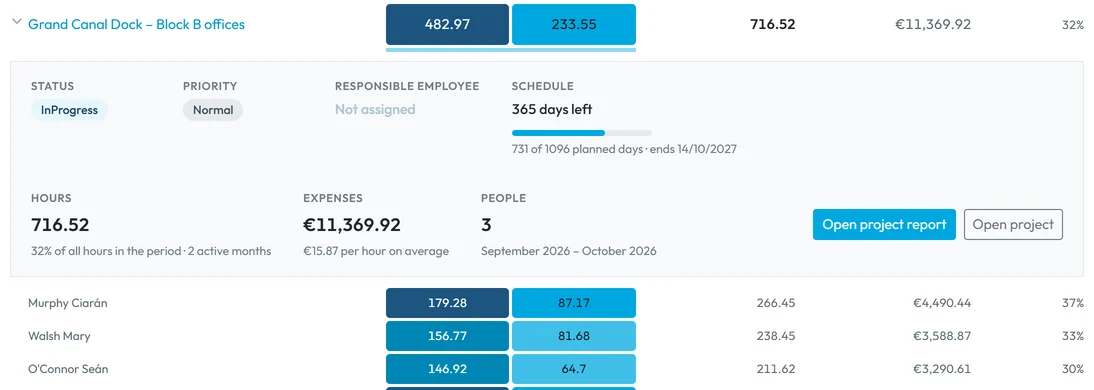
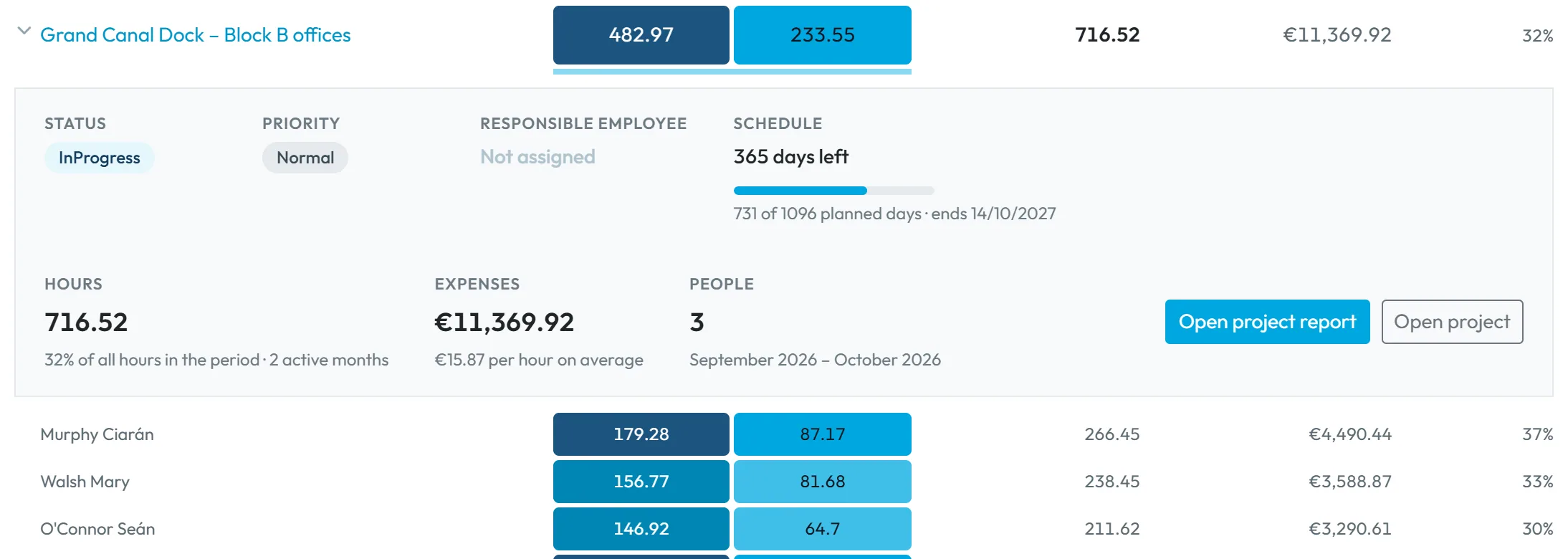
Click a project row to expand it: status, priority, schedule, hours, expenses and the people who worked on it, with Open project report and Open project.
Expand a project for a quick summary -
See who worked on one project.
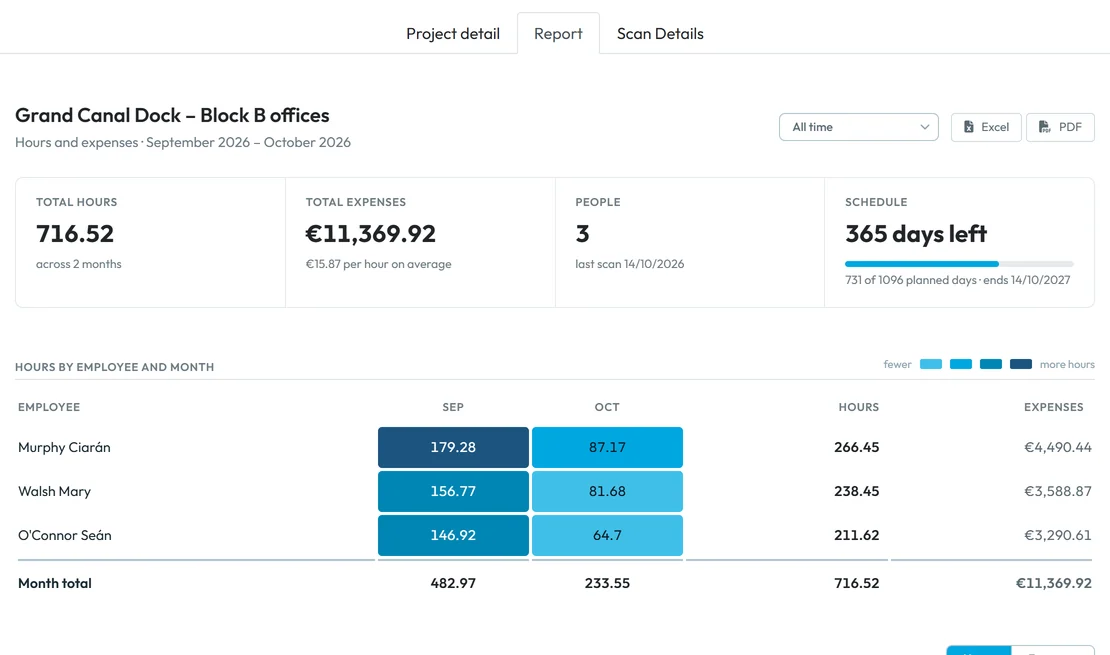
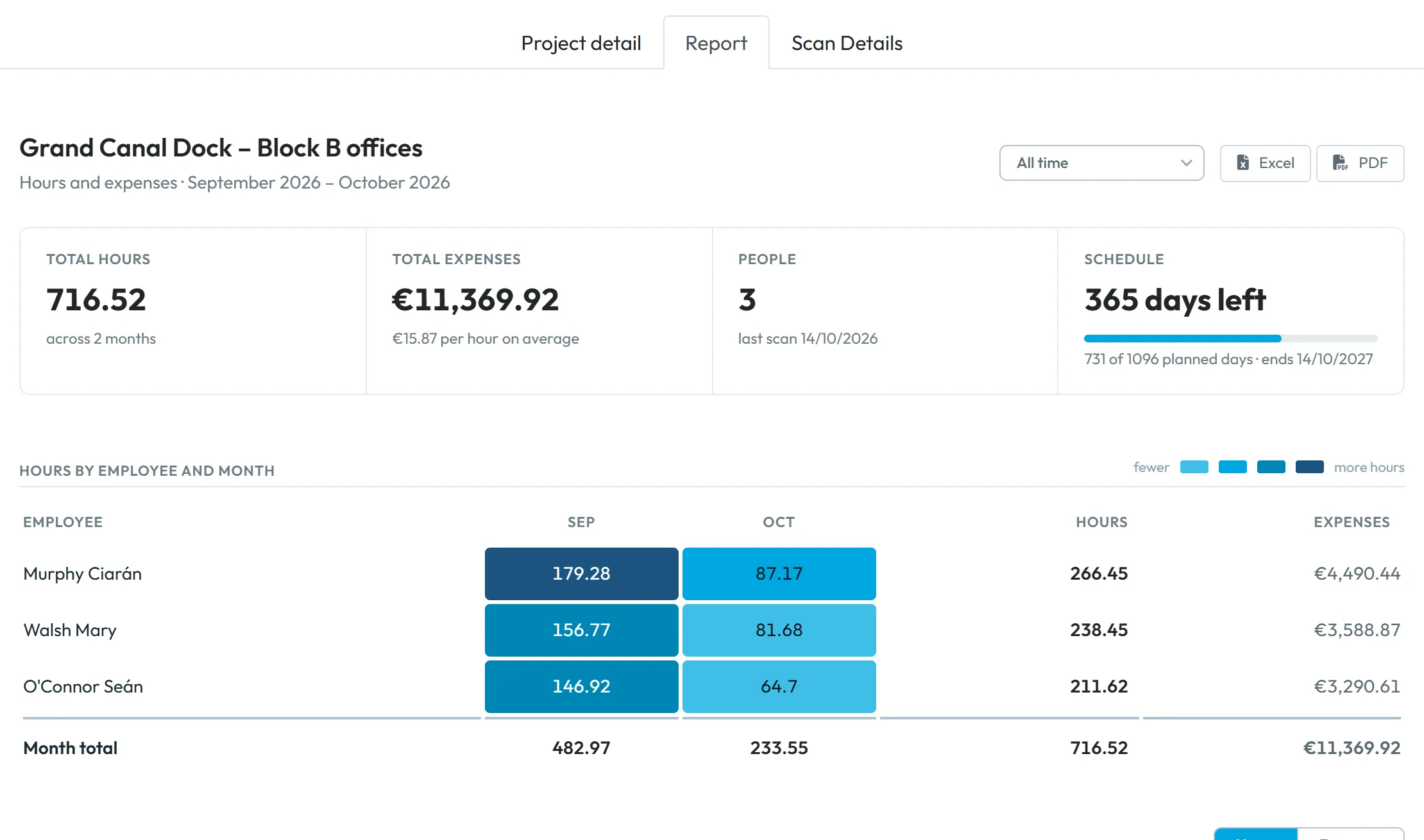
Open project report (or the project page › Report) shows that project: total hours, total expenses, people, the schedule from start to end date, and the table Hours by employee and month. On Grand Canal Dock, Ciarán Murphy, Mary Walsh and Seán O’Connor worked 716.52 hours in two months. Excel and PDF export the table.
One project by employee -
Get day-by-day rows for a client.
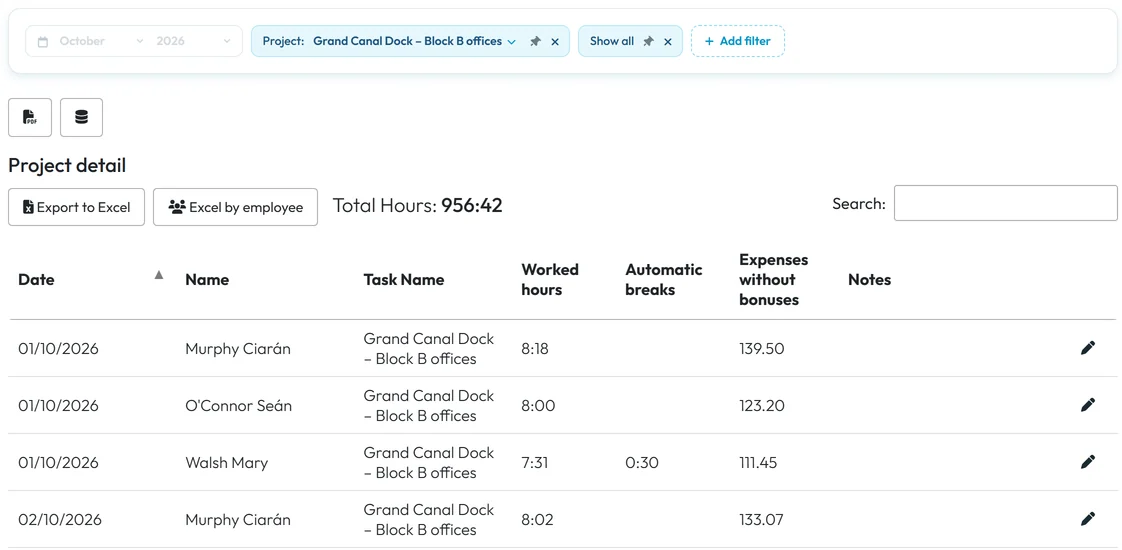
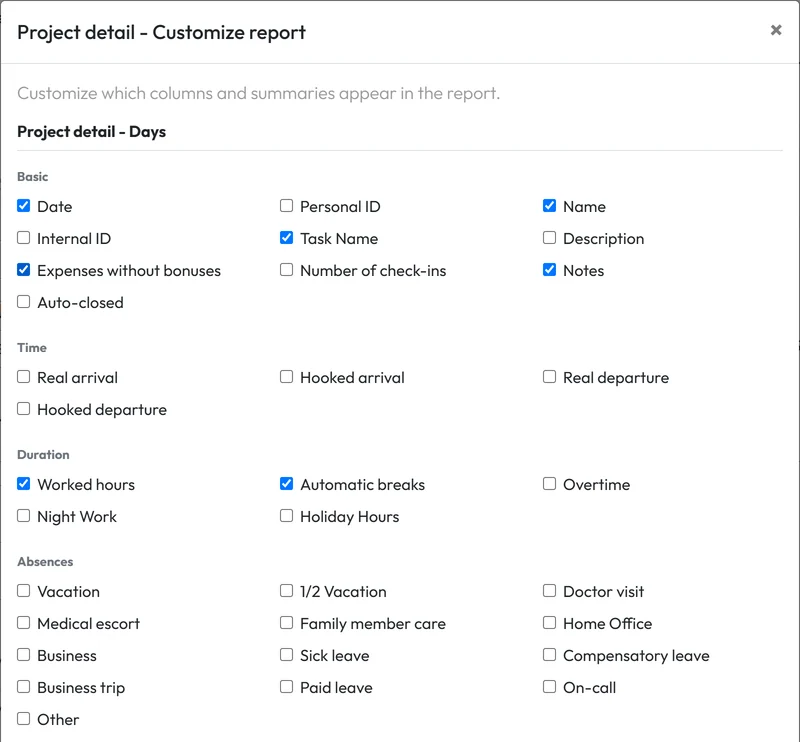
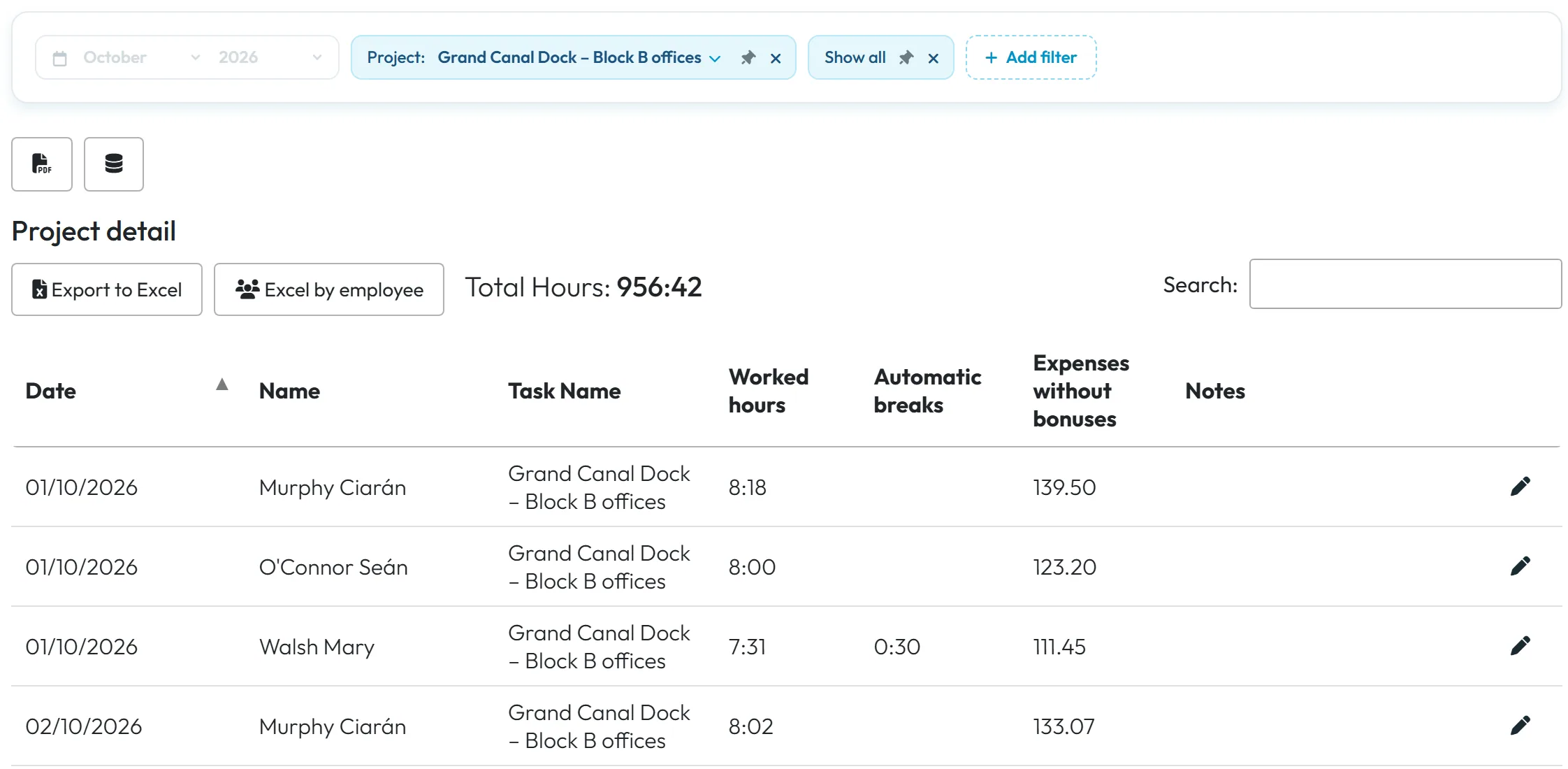
Go to Table Reports › Project detail, choose the month and add the filter Project. Each row is one employee’s day on the project with Worked hours, Automatic breaks, Expenses without bonuses and Notes. The table also lists days without work on the project; those rows stay empty. Export to Excel and Excel by employee download the rows.
Daily rows for one project in Table Reports -
Choose columns and export a PDF.
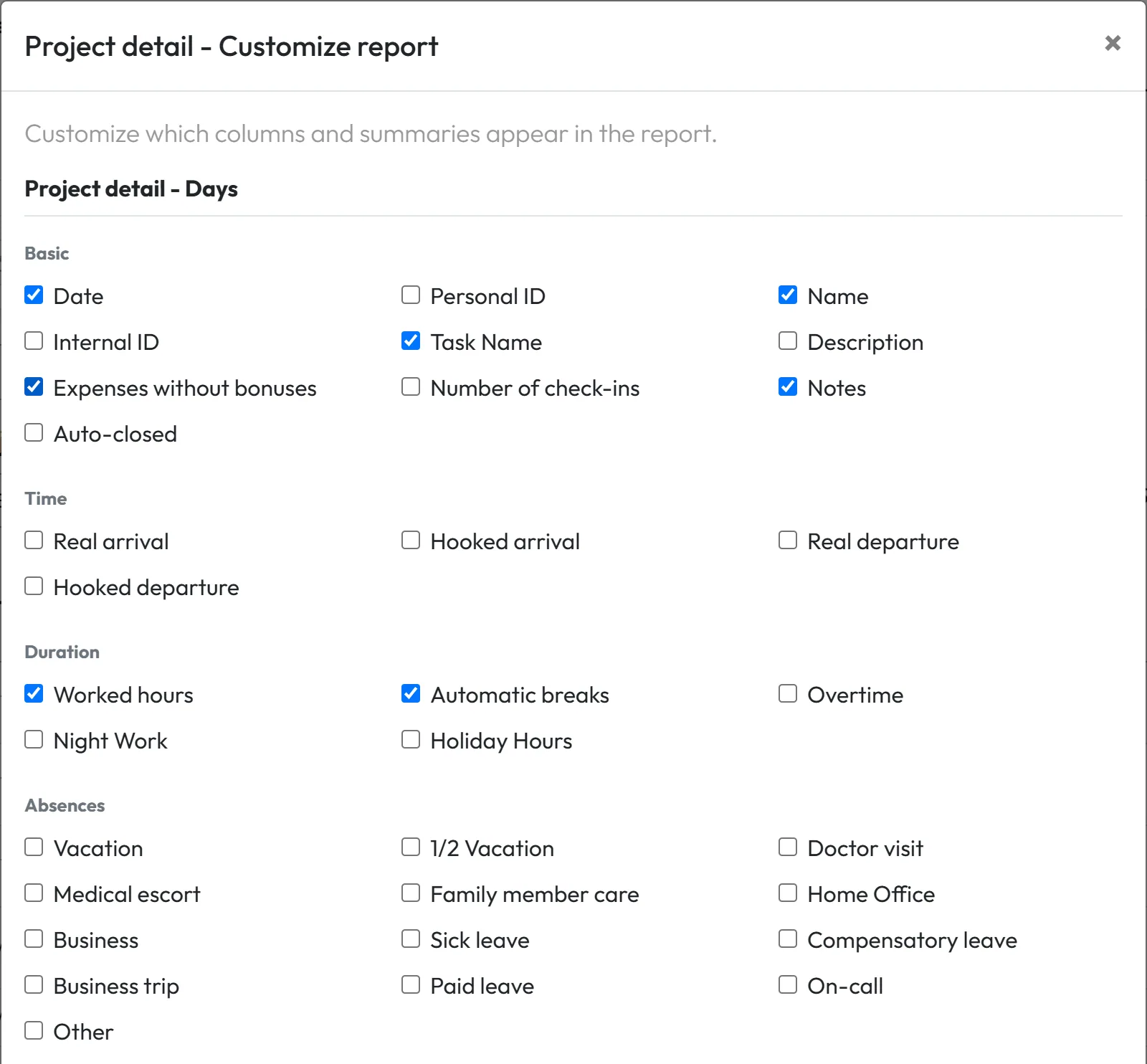
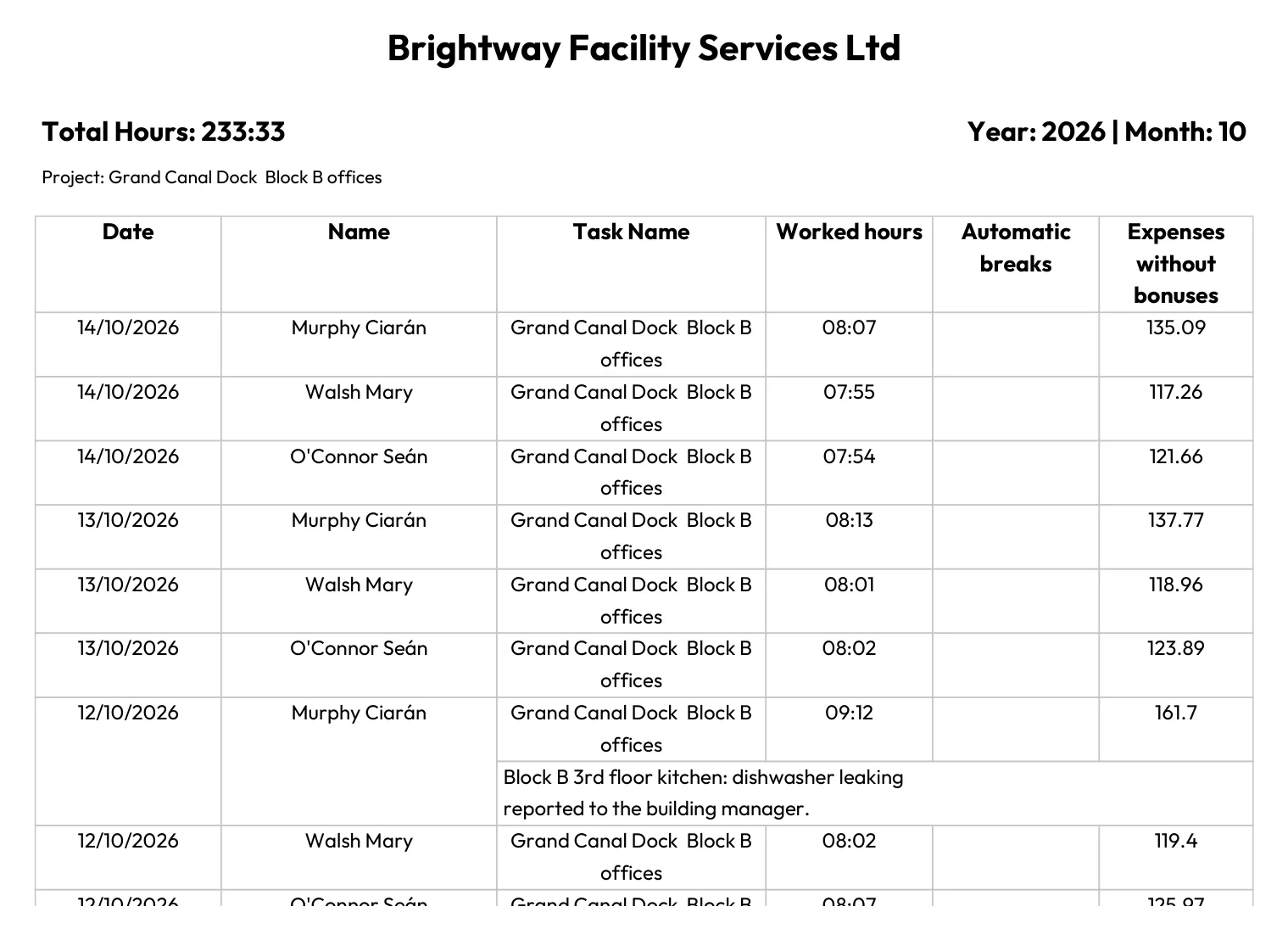
The database icon opens Customize report for Project detail, where you tick the columns, for example the internal ID or night work. The PDF icon exports the month with your columns – ready to attach to an invoice.
Choose the report columns
#Other project views
- The PDF of Project detailA month of one project as a printable sheet.
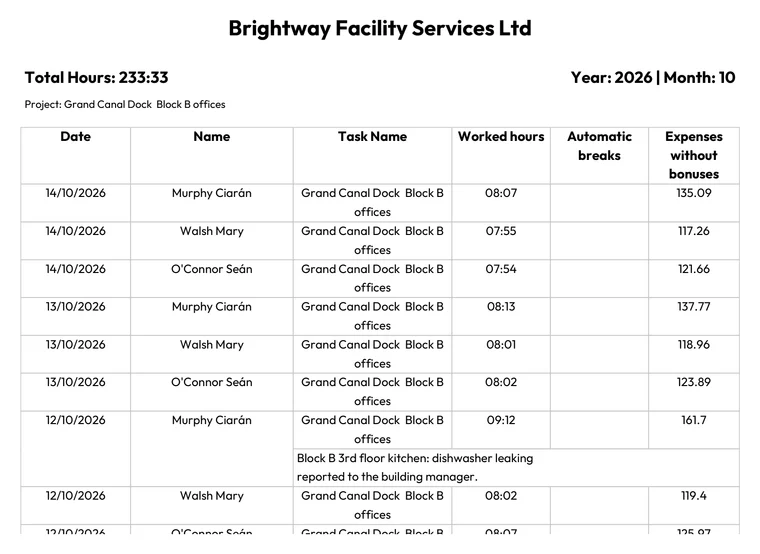
Project detail as PDF - Projects side by sideBranches/Projects Overview and Branches/Projects Comparison in Table Reports work for projects too – see Branch reports.
- Where the hours come fromEmployees scan the project’s QR code – see Projects and project QR codes.
#Special cases and tips
- Expenses are empty
- Nobody who worked in the period has an hourly rate, or the rate starts later. Add one and back-date its Valid from if earlier months should be priced.
- A finished project is missing
- Tick Show finished projects.
- Project hours are higher than attendance
- With Allow multiple projects in parallel on, each project counts its own time in full, so overlapping projects add up to more than the time actually spent.
- A site manager should see only their sites
- Give them a user account with the Project Manager role.
#Frequently asked questions
Does the report include material costs or client prices?
No. It shows hours and wage costs only. FreshQR doesn’t issue client invoices.
Can I compare this quarter with the last one?
Yes. Choose Last 3 months and the comparison Previous period.
Why is the comparison select missing?
It appears only with a period of 3 to 24 months, not with All time.
Are bonuses part of the project costs?
No. Costs are worked hours × hourly rate.
#Related
You are hereProject report – hours, expenses and period comparison
Web app (administrator)Mobile app (employee)



