Custom columns and timesheet templates in FreshQR
On this page
Quick answer
To build a timesheet template, open Table Reports › Per employee and click the database icon. In Customize report, tick the columns, drag them into order, choose the totals and add calculated columns. Save as template… stores the whole layout under a name you can switch to in one click.
#What it's good for
- Each output gets the columns it needs: arrivals and signatures for the archive, just hours and overtime for payroll.
- Calculated columns turn report values into your own numbers, for example Saturday hours × 1.5, without a spreadsheet.
- The layout is used everywhere: the on-screen table, the PDFs and the Excel files of the monthly report.
- Saved templates let you switch from “Payroll” to “Client sign-off” in one click.
#Who it's for
A good fit for
- Payroll clerks and accountants who prepare more than one kind of monthly sheet.
- Companies that report hours to clients in a fixed format.
- Anyone who wants a figure the default columns don’t show, such as hours on public holidays at a different rate.
Not the right fit for
- If the default layout works for you, you don’t need to change anything.
- For real pay on top of the hourly rate (weekend or night premiums), use Rate surcharges. Calculated columns only show numbers; they don’t change costs.
#Step by step
-
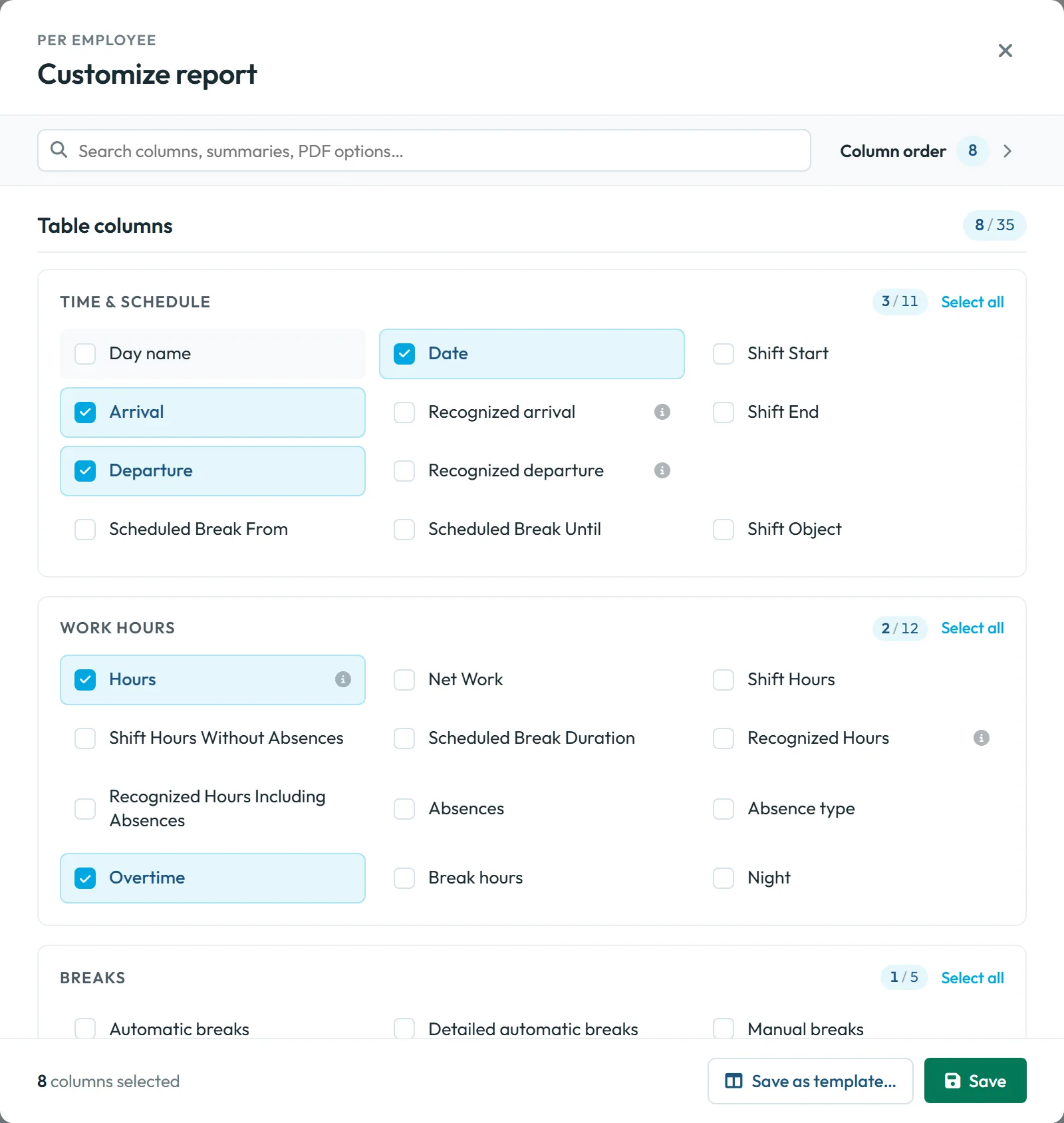
Open Customize report.
Go to Table Reports › Per employee and click the icon with the database symbol – its tooltip reads
Choose what columns and summaries are displayed in the report
. The window Customize report opens.Under Table columns the columns are grouped by topic as tiles. Click a tile to add or remove a column; use the search box to find one quickly, or Select all.
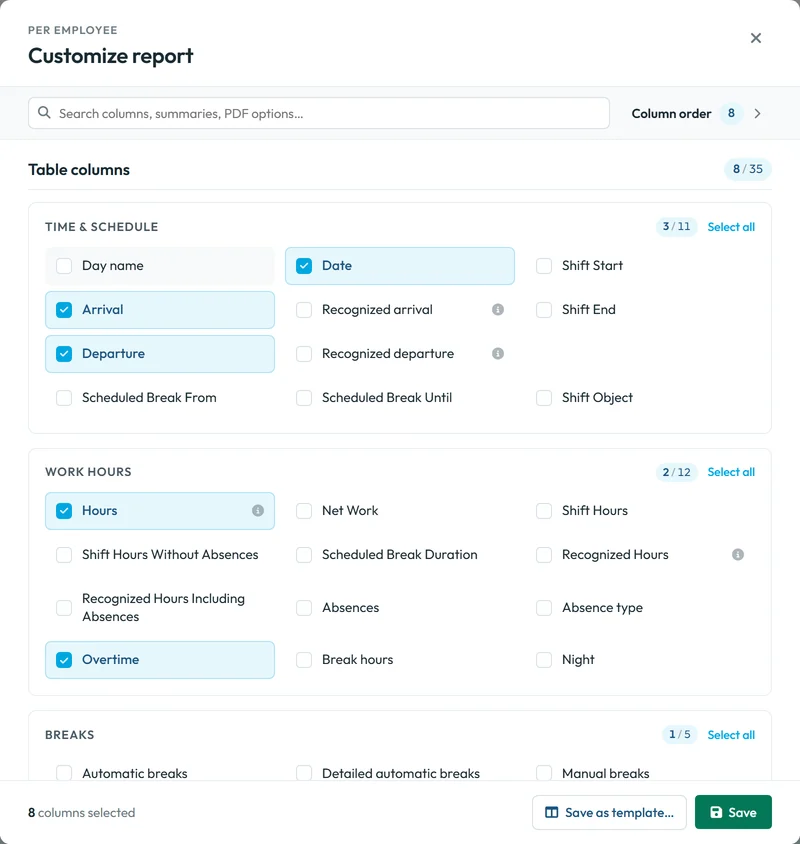
Click a tile to add or remove a column -
Put the columns in order.
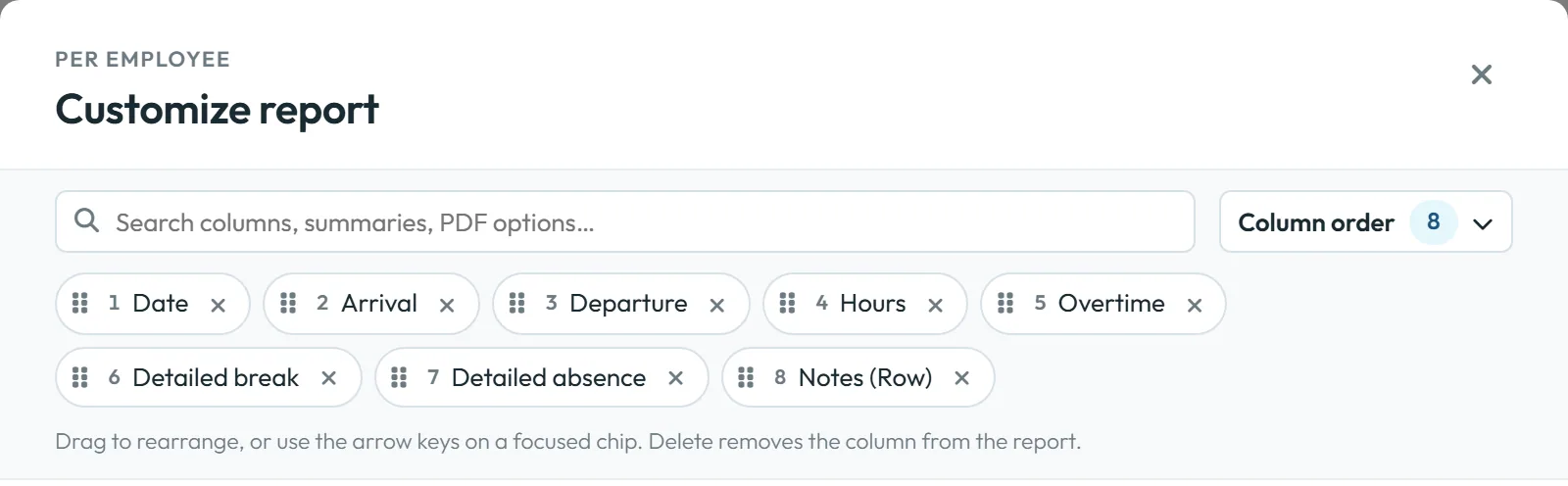
Expand Column order. Each chosen column is a numbered chip. As the hint says:
Drag to rearrange, or use the arrow keys on a focused chip. Delete removes the column from the report.
If the window warns
PDF may overflow at this width
, the PDF would be too wide for the page – remove a column or two.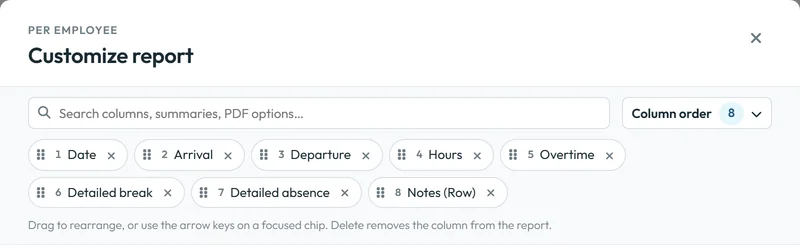
Drag the chips to reorder columns -
Choose the totals and the PDF content.
Table summaries decides which totals appear under each employee’s table, for example totals per absence type. PDF Content Options adds the branch address, an absence legend, signature lines and the export time to the PDF – see Monthly employee report.
-
Add a calculated column.
Under Calculated columns –
Build your own columns from report values and fixed numbers.
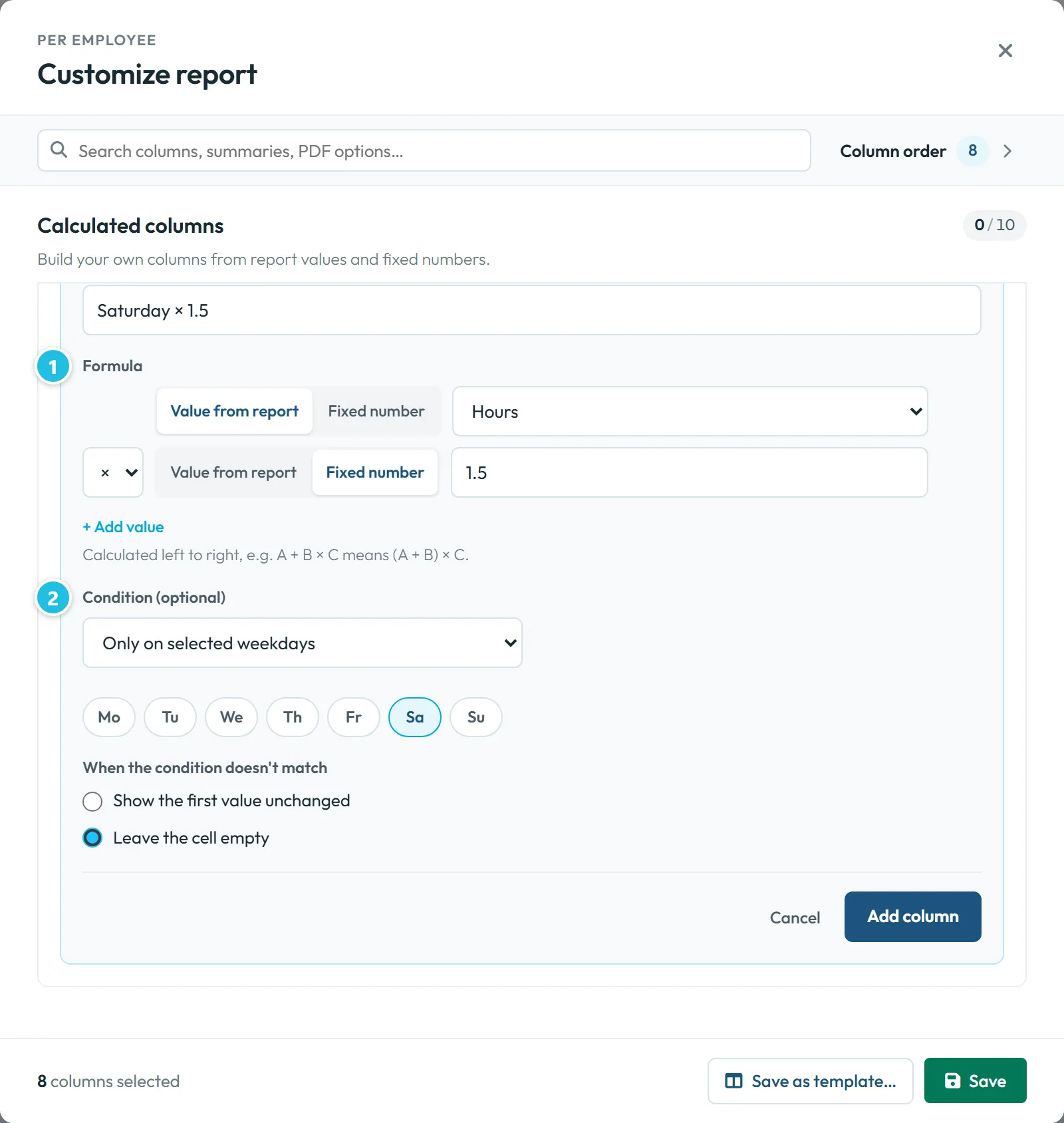
– click Add calculated column. Example for Saturday work paid at time and a half:- Column name: Saturday × 1.5
- Formula: Value from report = worked hours, then × Fixed number 1.5
- Condition (optional): Only on selected weekdays, tick Sa
- When the condition doesn’t match: Leave the cell empty
Formulas are worked out from left to right:
Calculated left to right, e.g. A + B × C means (A + B) × C.
Other conditions are Every day, Only on public holidays and Only on non-holidays.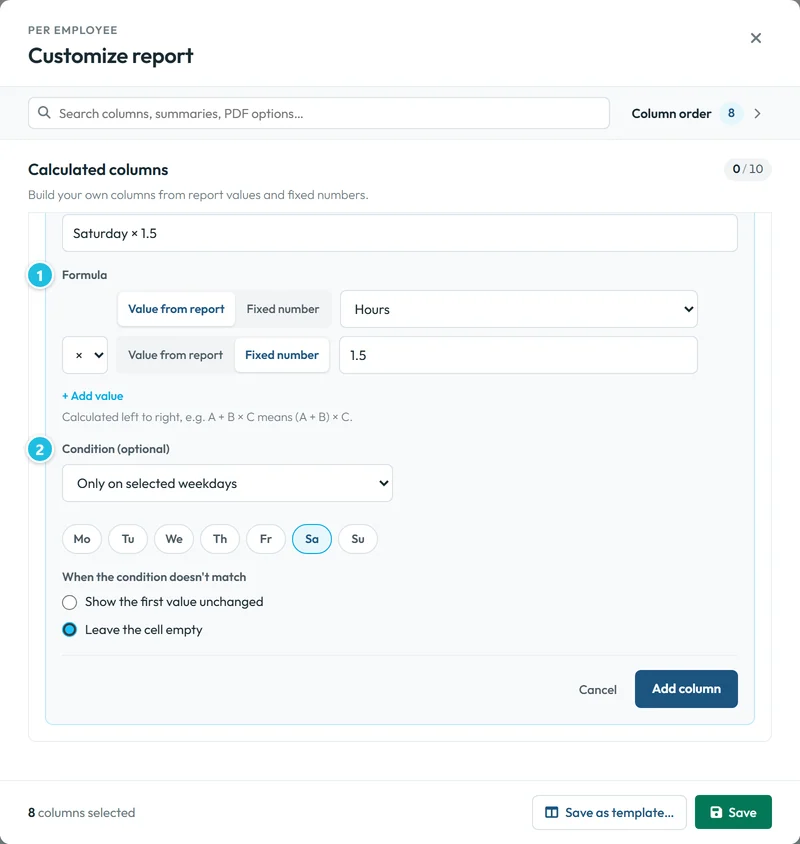
Formula and condition of a calculated column -
Check the new column in the table.
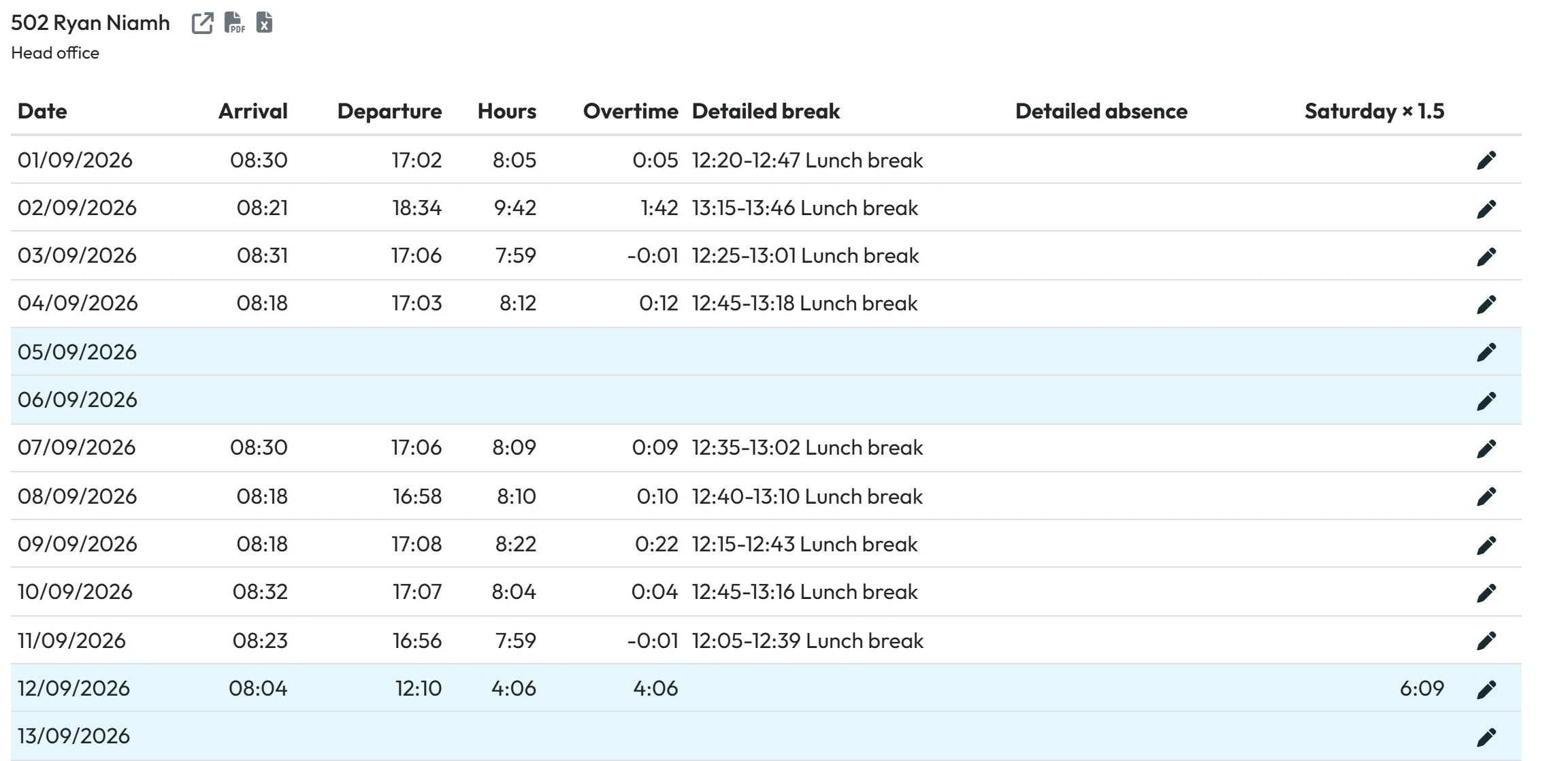
Click Add column, then Save at the bottom of the window. The new column appears in Per employee, filled only on Saturdays. Calculated values go into the PDF and the Excel export as well.
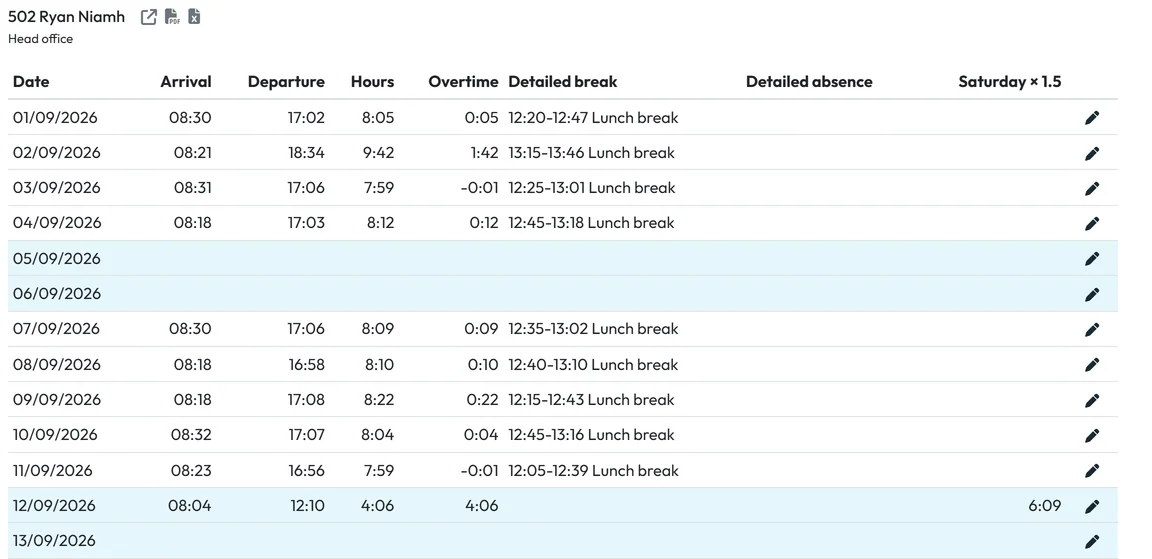
The calculated column in the table -
Save the layout as a template.
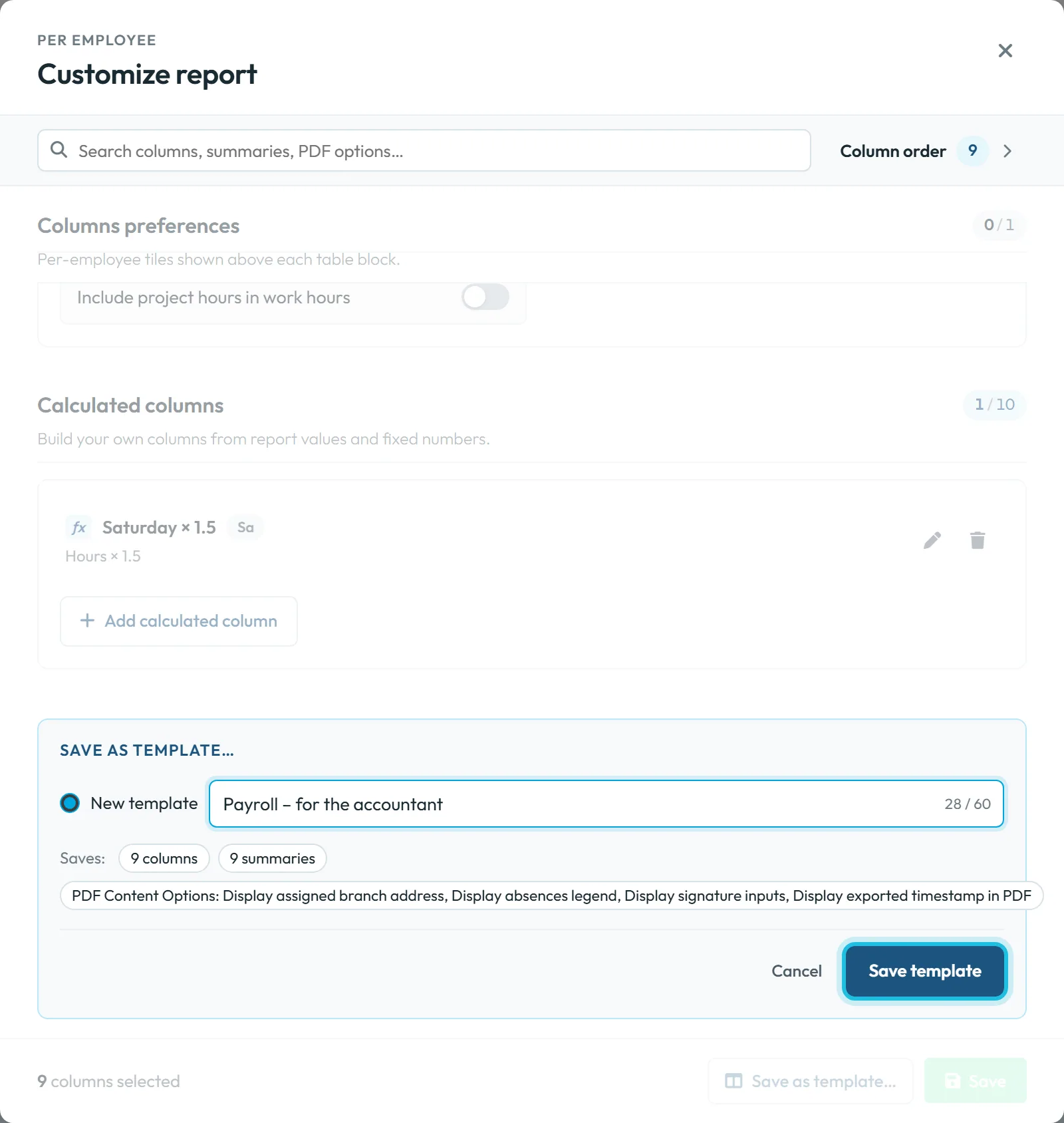
In Customize report click Save as template…, type a Template name such as “Payroll – hours only” and click Save template. The line Saves: lists the columns, summaries and PDF content that go into the template. Calculated columns are saved with it too, even though that line doesn’t mention them.
To change an existing template, adjust the layout and choose Update “…” with these settings. You can keep up to 20 templates.
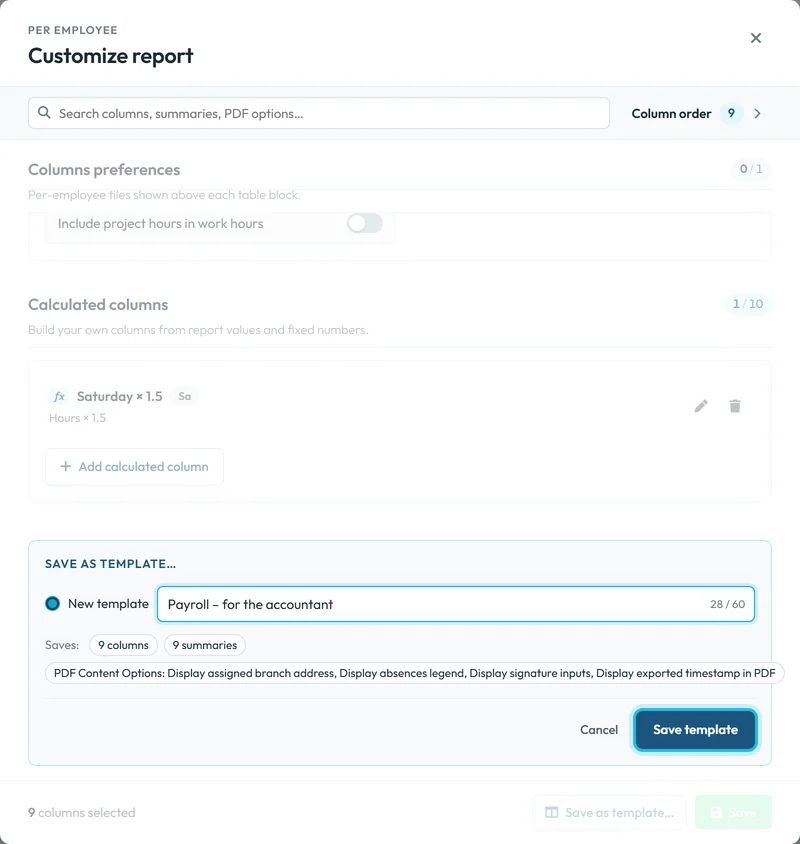
A template stores the whole report layout -
Switch between templates.
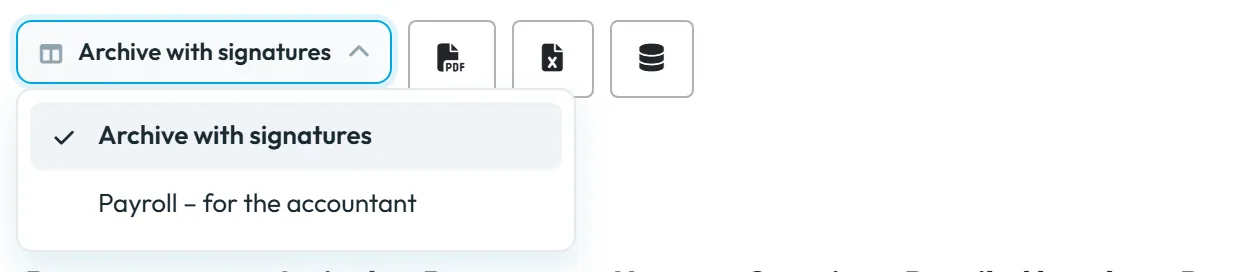
Once you have a template, the Report template switcher appears next to the export buttons. Pick a template and the report is redrawn with that layout. If you change something afterwards, the switcher shows Modified –
Changed since applied. Use Save as template in Customize to update it.
Custom means no template is applied. Templates can be renamed or deleted from the same switcher.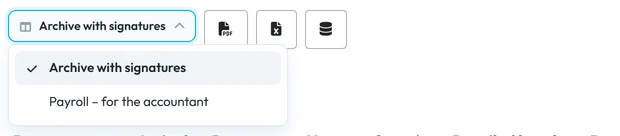
Switch between templates in one click
#Other ways to shape a report
- Simple column visibility on other tabsThe Years, Months, Weeks and Days tabs have no templates; their database icon only shows or hides columns of that table before you click Export to Excel.
- Filters instead of columnsIf you want fewer people rather than fewer columns, use Add filter – see Table reports – tabs and filters.
#Special cases and tips
- A colleague’s report looks different
- Layouts and templates belong to each user account. Templates aren’t shared, so set the same template up on the colleague’s account.
- The PDF has fewer columns than the table
- A PDF fits at most 10 data columns. Keep the ten that matter most in the order you want; the Excel export carries the rest.
- “Unavailable — edit or delete”
- The calculated column uses a value your company no longer has, for example a column that existed only while you used a feature. Edit the formula or delete the column.
- The formula gives an unexpected number
- Remember the left-to-right rule. “Hours + 0.5 × 2” is (hours + 0.5) × 2, not hours + 1. Put the multiplication first if that is what you mean.
- Calculated columns don’t change pay
- They are display values. Labour costs in reports come from the hourly rate or salary and rate surcharges.
#Frequently asked questions
Does my layout apply to the PDF and Excel export?
Yes. The monthly report PDFs, the bulk PDF or ZIP export and the per-employee Excel files use the columns, order and PDF options you chose.
Can I share a template with other managers?
No. Templates are saved per user account. Each manager saves their own.
How many templates can I keep?
Up to 20 per account. The app tells you when you reach the limit.
Can a calculated column use a condition for weekends?
Yes. Choose Only on selected weekdays and tick Sa and Su, or only one of them.
Can I go back to the default layout?
Select the columns you want again in Customize report, or keep the default layout as a template of its own before you start changing things.
#Related
You are hereCustom columns and report templates
Administrator
Web app (administrator)Mobile app (employee)



