Photo clock-in: require a workplace photo at every scan
On this page
Quick answer
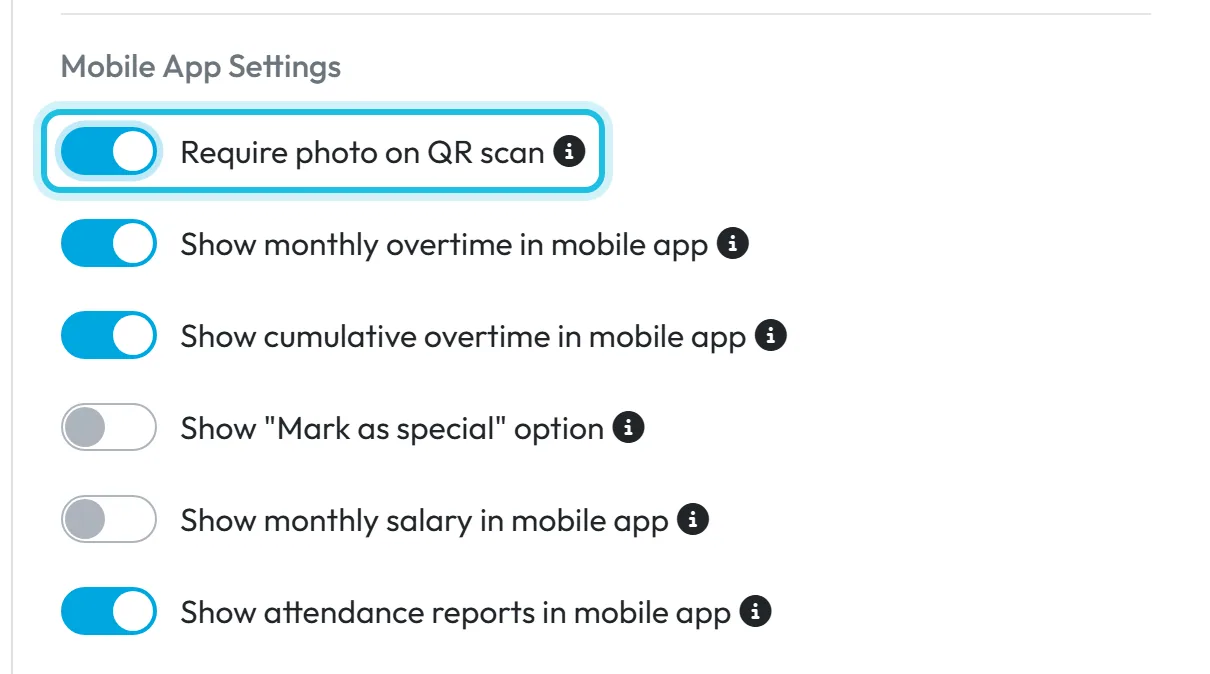
Photo clock-in is switched on in My Company › Company Details › Mobile App Settings with Require photo on QR scan. After each scan the employee then photographs the workplace with their phone camera. Without the photo the scan isn’t saved. The photos are kept with the record in Scan Details for 3 months.
How to turn it on
The setting is off by default. Switch it on for the whole company and save. You can also switch it on or off for individual employees.
- My Company
- Company Details
- Mobile App Settings
- Require photo on QR scan
- Who can turn it on
- The Owner, Administrators and the role Company Settings: View & Edit.
- What changes
- After a scan the app asks for a photo of the workplace, with the buttons Cancel and Capture. If the employee doesn’t take the photo, the scan isn’t recorded.
- Applies to
- The whole company. In an employee’s profile you can make an exception for one person.
#What it's good for
- A photo shows what the workplace looked like at clock-in or clock-out. GPS only shows where the phone was.
- For cleaning or maintenance work you have something to show the client that the job was done.
- Clocking in from home with a photo of the code becomes pointless when the place itself has to be photographed.
#Who it's for
A good fit for
- Cleaning and facility companies, building sites, maintenance and security – anywhere people work out of a manager’s sight.
- Companies that need to show clients when and where their staff were.
Not the right fit for
- Cafés and offices where the manager can see everyone anyway. The photo would only slow down the start of the shift.
- Teams with old phones that have weak cameras.
#Step by step
-
Switch on the required photo.
Open My Company › Company Details, switch on Require photo on QR scan under Mobile App Settings and save. The hint next to the switch says:
When enabled, employees must take a photo of the workplace when scanning a QR code to verify their location
. -
Tell your staff.
The app doesn’t warn them in advance. After the scan they see
Great! QR is scanned
with a request to photograph their workspace, and the buttons Cancel and Capture. Tell them what the photo should show – for example the building entrance or the cleaned room.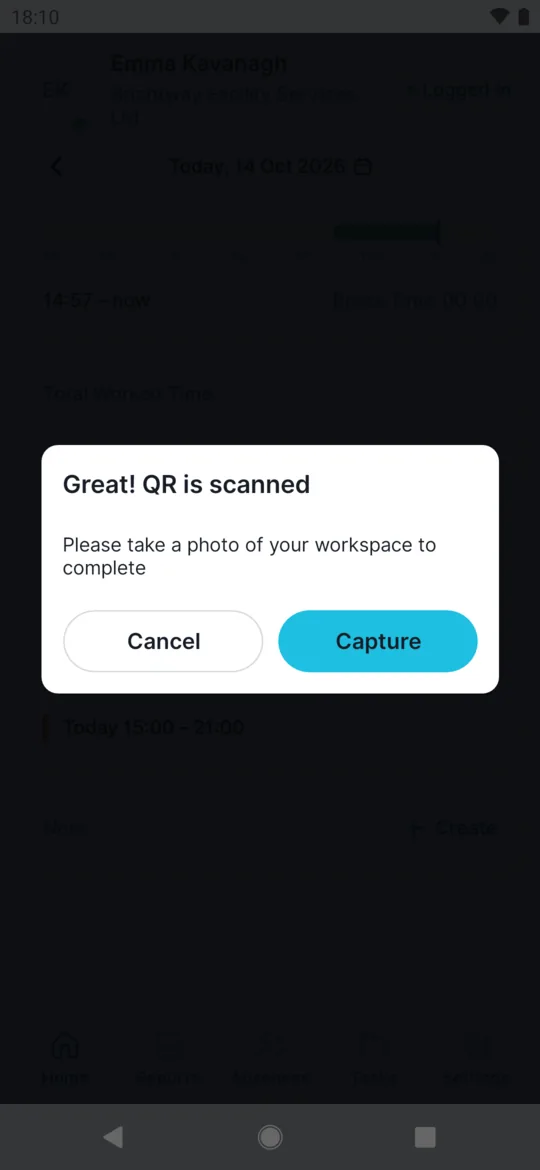
After the scan the app asks for a photo -
No photo, no scan.
If the employee taps Cancel, they see
Work Place Image is mandatory for attendance.
and the scan isn’t saved. The photo is taken with the camera at that moment; it can’t be picked from the gallery. The employee’s side is described in Taking a workplace photo when you scan.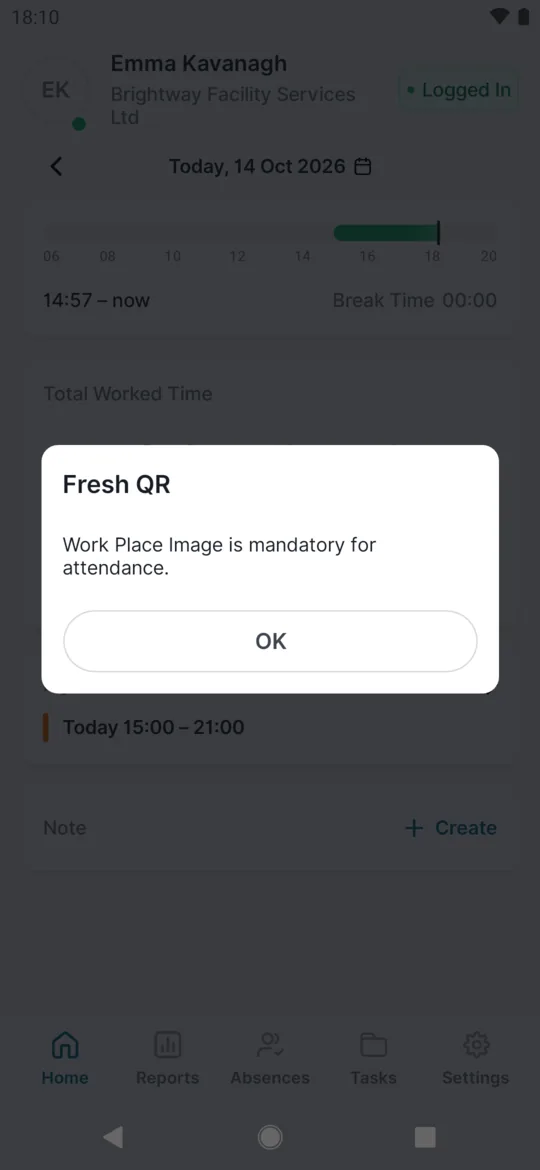
Without the photo the scan isn’t saved -
Look at the photos.
In Scan Details, open Edit on the record. The photos are in the Scan Photos section. Photos older than 3 months are not kept, so if you need one for longer – for a client complaint, say – save it in time. See Scan details.
#Other ways to set it up
- Only for some employees
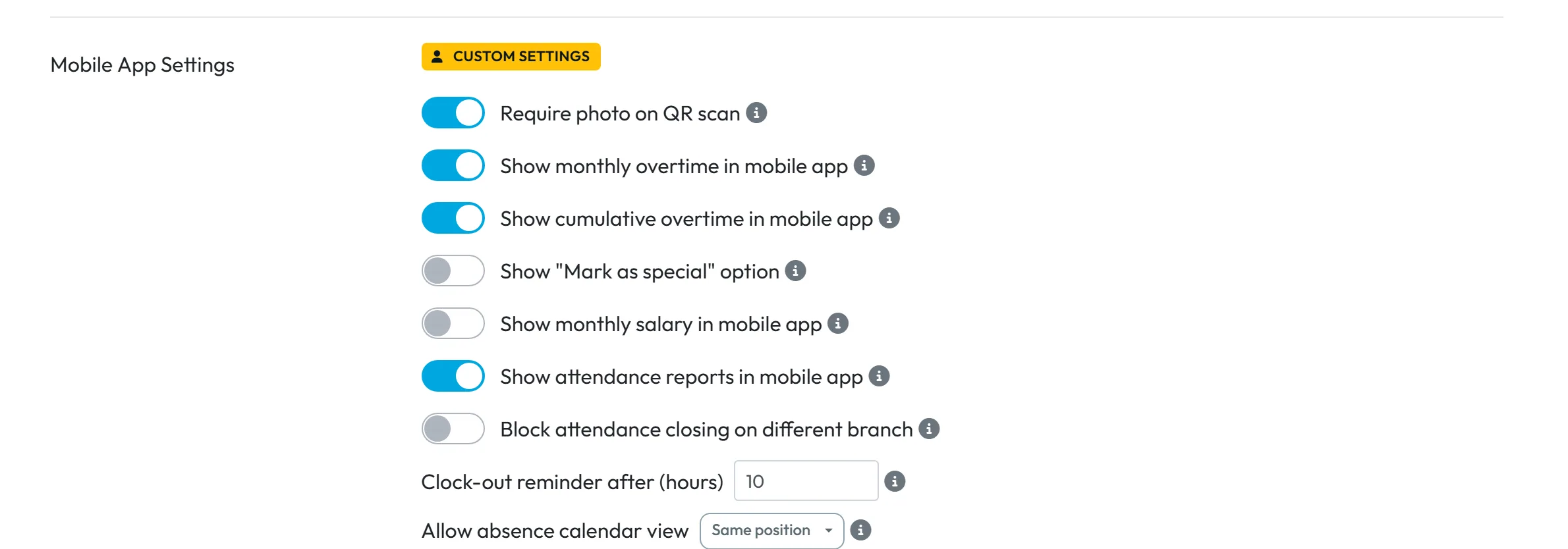
You can require the photo from just one person, or exempt one person from it. In the employee’s profile, under their Mobile App Settings, change Require photo on QR scan and click Update. The label changes from Using company defaults to Custom settings.
While an employee has custom settings, changes to the company’s mobile app settings don’t reach them. Bring them back with Reset to company defaults. See Mobile app settings.
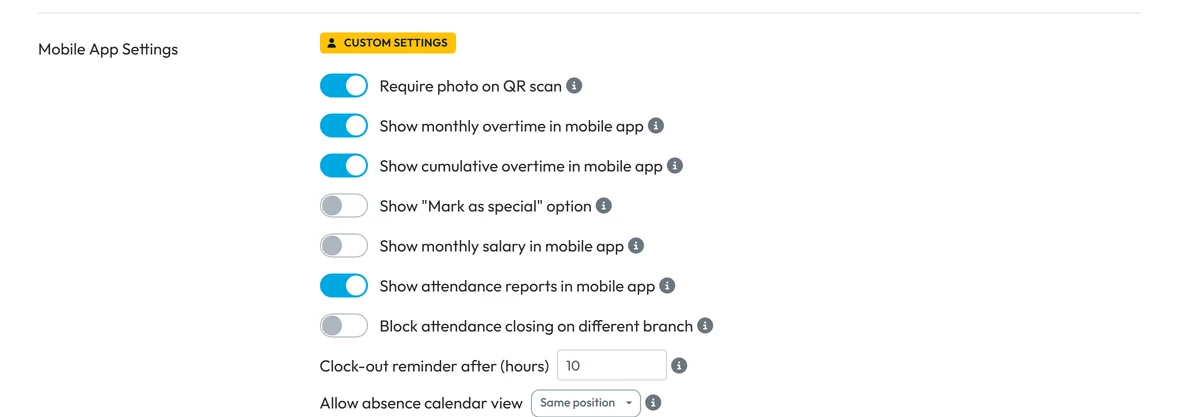
You can switch the photo on for a single employee too
#Special cases and tips
- No internet
- The photo is stored on the phone together with the scan and sent once the phone is back online. See Scanning without internet.
- The employee didn’t allow the camera
- Without camera access they can’t take the photo, and the scan isn’t recorded. The steps are in Camera or location not working.
- Photo and GPS
- A photo doesn’t replace the location. You get the strongest proof by using both – see GPS location check and accuracy.
#Frequently asked questions
Can an employee send a photo from the gallery?
No. The photo is taken with the camera at the moment of the scan.
How long are the photos kept?
3 months. Older photos are no longer shown.
Can I require the photo from some people only?
Yes. Give those employees custom mobile app settings in their profile.
Who can see the photos?
People in your company who have access to Scan Details in the web app.
#Related
You are hereRequired photo on scan
Administrator
Employee
Web app (administrator)Mobile app (employee)



