GPS attendance tracking: location check at each scan
On this page
Quick answer
GPS attendance tracking in FreshQR means the phone records its location at the moment of each scan. The web app shows how far the scan was from the branch and a point on the map. A scan is never rejected because of distance – the location is saved and a far scan is flagged. Nobody is tracked during the shift.
How to turn it on
GPS is on for every new employee, with the accuracy set to Best. There is no company-wide switch. You set the accuracy, or switch GPS off, for each employee separately in their profile, in the Geolocation Accuracy field.
- Employees
- employee profile
- Geolocation Accuracy

- Who can turn it on
- The Owner, Administrators and roles allowed to edit employees.
- What changes
- The options are Best, High, Medium, Low, Lowest and None (GPS disabled). With lower accuracy the phone finds its position faster but less precisely. With None (GPS disabled) the scan is saved without a location and no distance is calculated.
- Applies to
- One employee. It can’t be set for the whole company at once.
#What it's good for
- You can see whether a scan happened at the workplace or, say, at home from a photo of the QR code.
- Nobody is followed around during the day. The location is recorded only when someone scans.
- An email about far scans alerts you without going through the list every day.
- If an older phone struggles, you lower the accuracy for that one employee only.
#Who it's for
A good fit for
- Companies with several sites or with staff out in the field: building sites, cleaning crews, maintenance.
- Anyone worried that people clock in for a colleague or from a photographed printout.
Not the right fit for
- If you want scans away from the site to be blocked automatically. FreshQR doesn’t do that – it saves the scan and flags it, and the decision is yours.
- If you need to follow where employees go during the shift. The location is saved only at the scan.
#Step by step
-
Set the branch location.
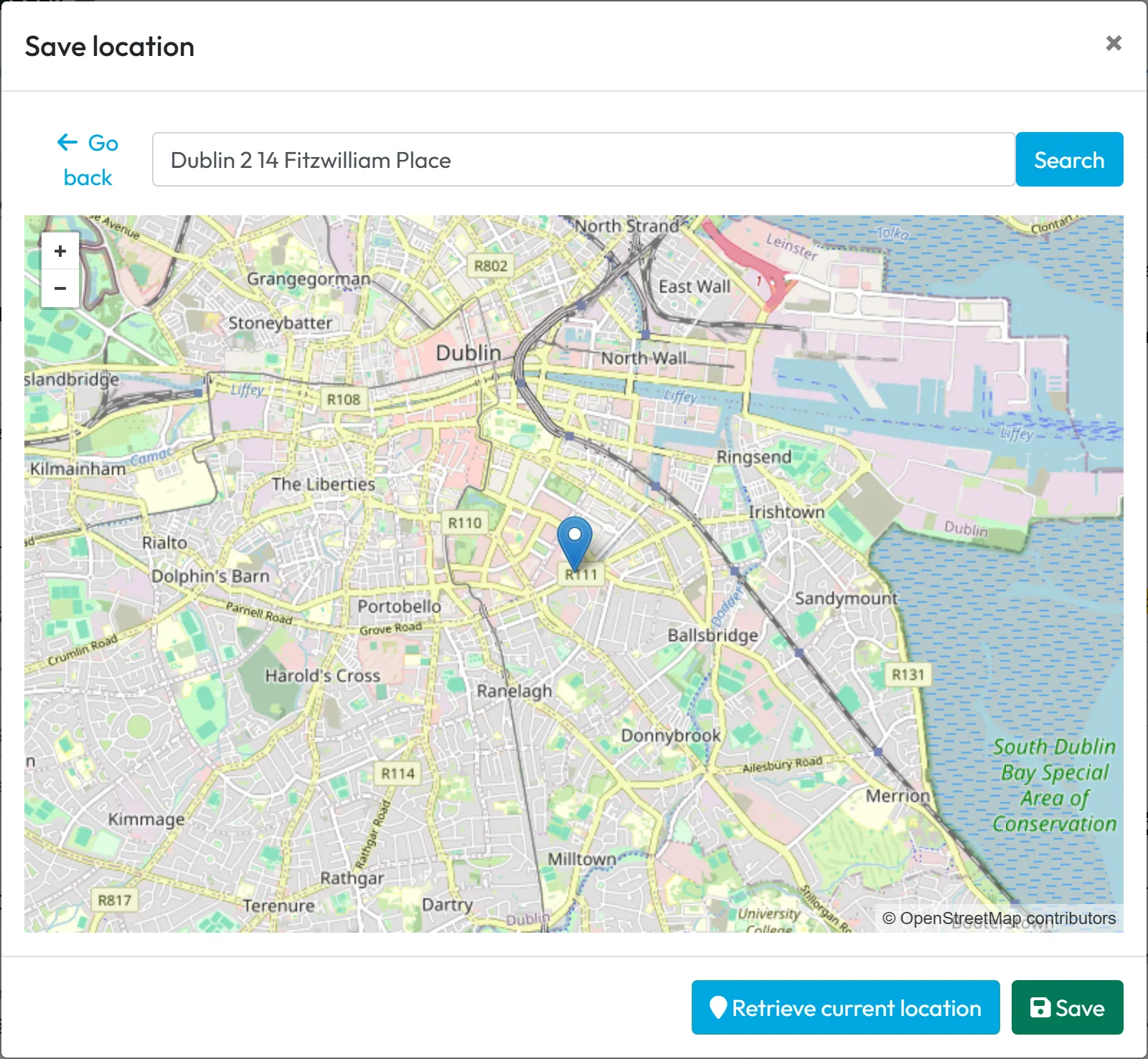
The distance of a scan is measured from the branch’s GPS point. Set it with the Set on map button – for the billing address in My Company › Company Details, and for other branches in My Company › Branches. Move the pin to the entrance where the QR codes hang. Projects have their own point in the project detail. See Branches.
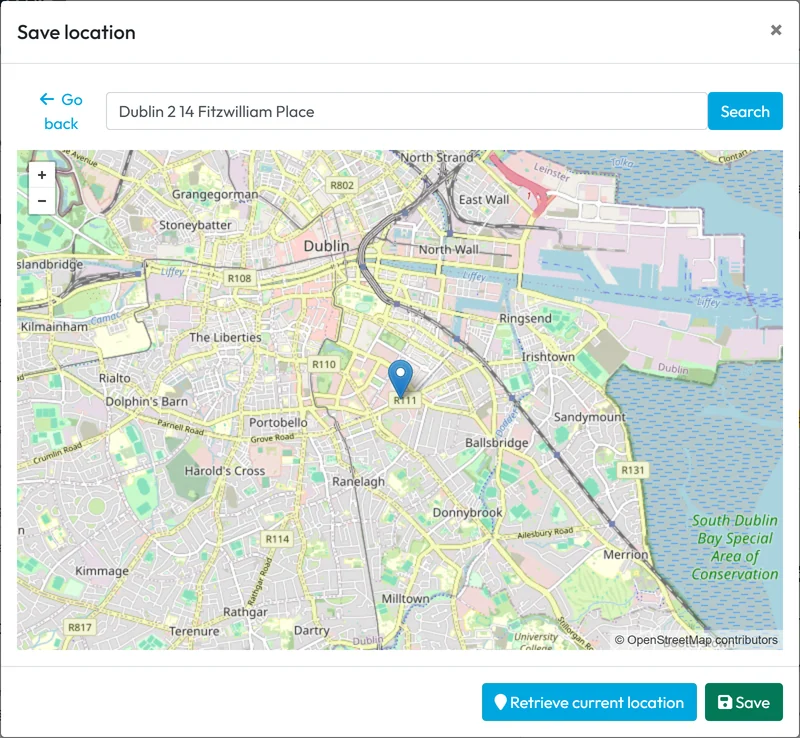
Set the branch GPS point on the map -
Check the distance in Scan Details.
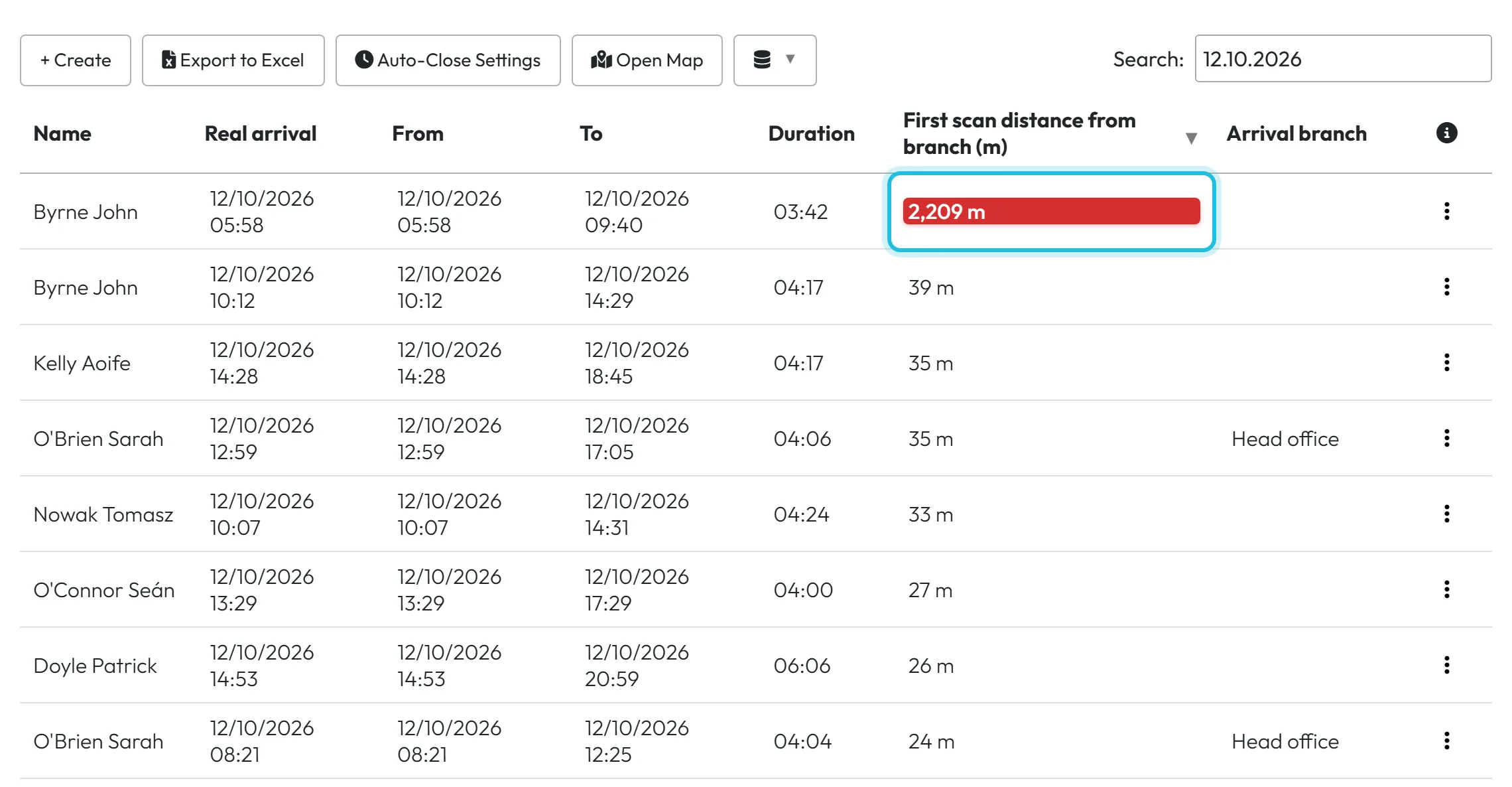
In Scan Details, the columns First scan distance from branch and Second scan distance from branch show the distance in metres. Far scans are highlighted in red. Add the columns Arrival GPS scan address and Departure GPS scan address with the column chooser.
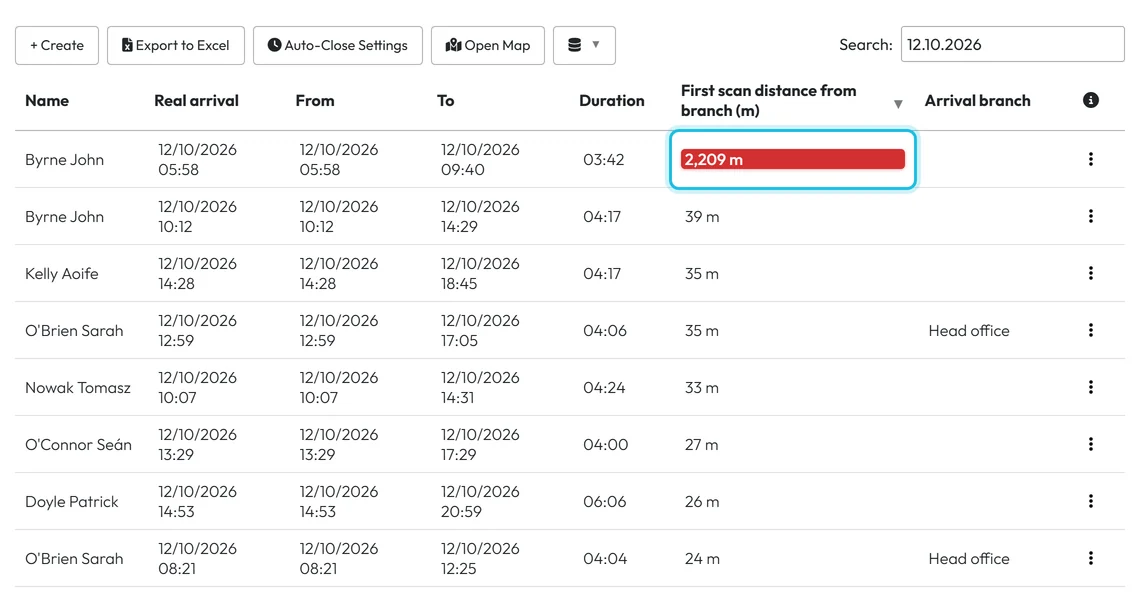
Spot a far scan by its distance from the site -
Open the map for a suspicious scan.
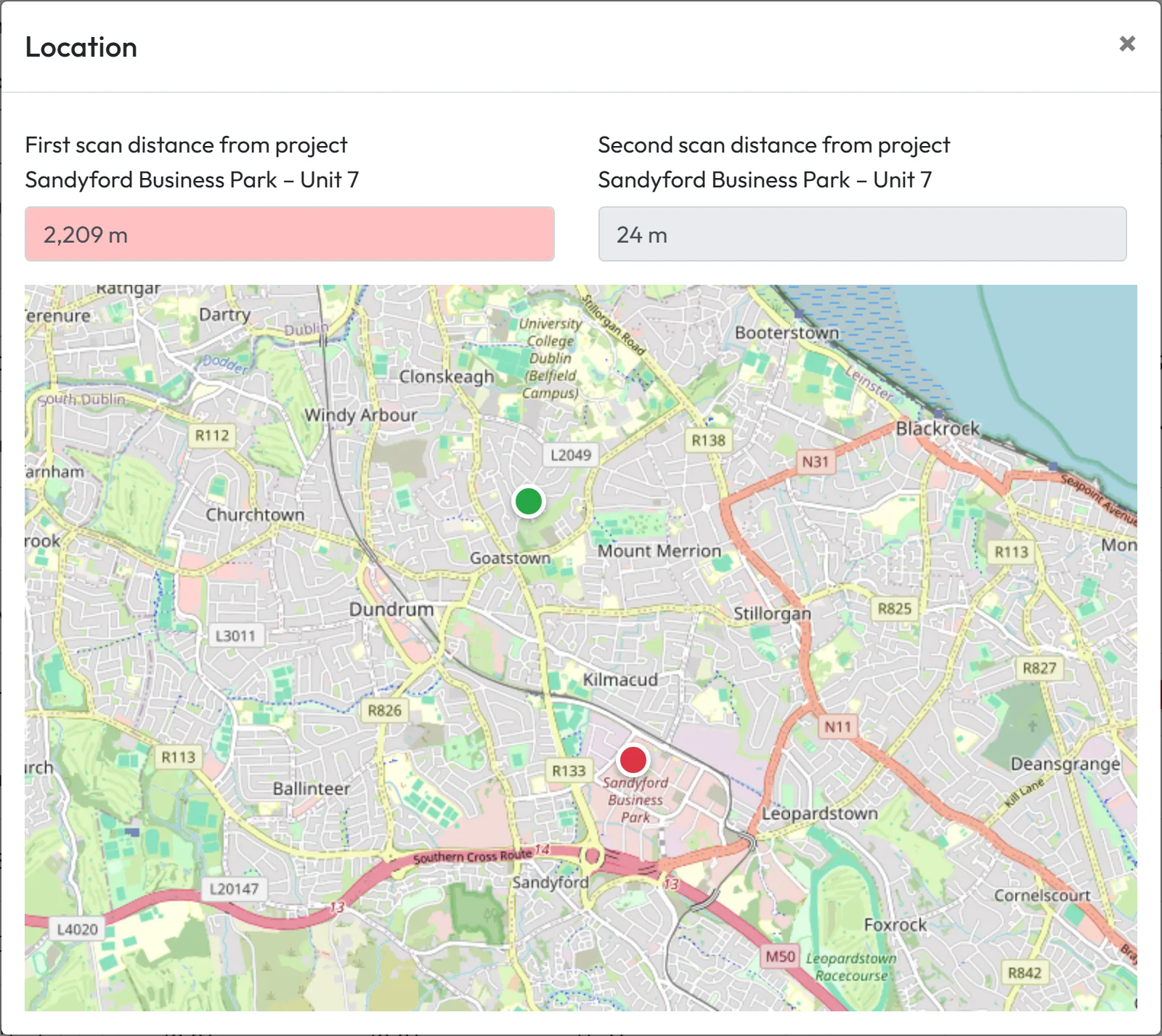
In the row menu, click Open Map. The window shows the clock-in and clock-out points on the map and their distance from the site. If the point is by the employee’s home rather than the client building, you have something to talk about.
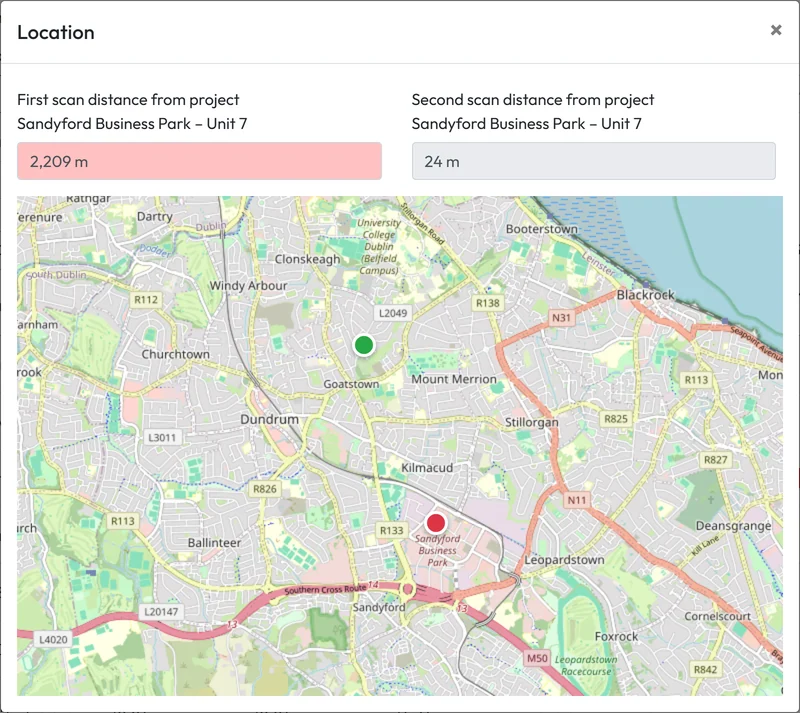
The map shows where the scan happened -
Switch on the email about far scans.
In My Company › Notifications, switch on the rule Far GPS scan detected. Choose the recipients – user accounts or the Direct supervisor – and fill in Minimum distance. The app recommends 500 m to 1 km; a smaller value would flood you with alerts caused by imprecise positions indoors. Emails are sent within 30 minutes. See Email notifications.

An email when a scan is more than 500 m away -
Adjust the accuracy if there are problems.
If an employee has an older phone and scanning takes a long time, lower their Geolocation Accuracy to Medium, for example. If their location shouldn’t be recorded for some reason, choose None (GPS disabled).

#The GPS clock-in map on the Dashboard
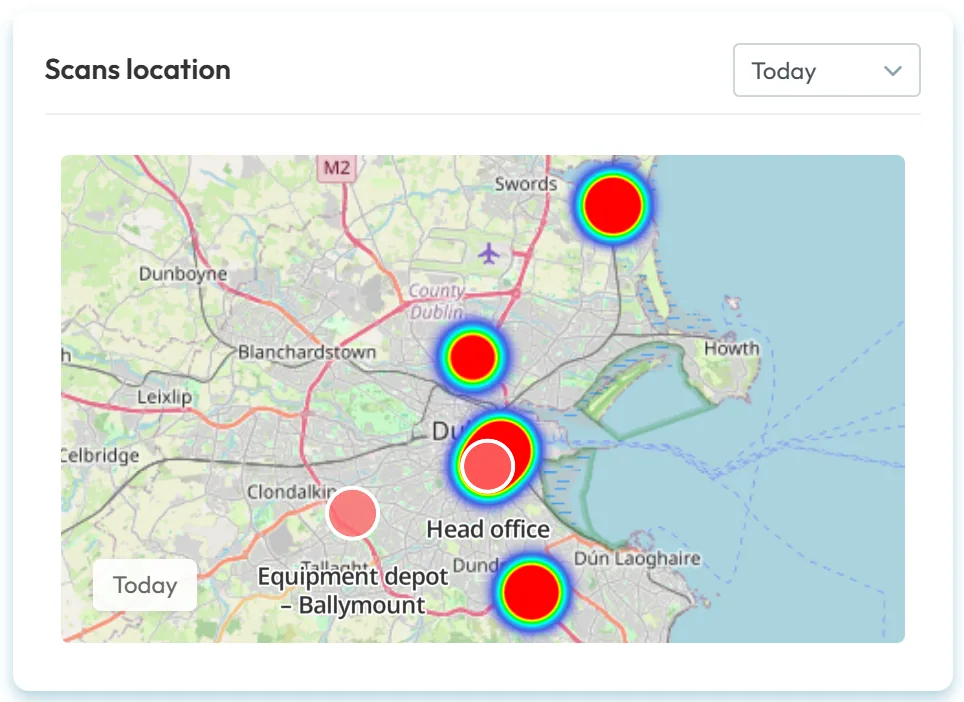
To see where your team scanned on a map, open the Dashboard and scroll to the Scans location card. By default it shows Today: each colour patch is a group of arrival and departure scans – the more scans in one place, the stronger the colour – and your branches are marked. Zoom in on a cluster that isn’t at one of your sites; for a single scan and its map, use Scan Details.
The map shows positions recorded at the moment of each scan, nothing in between. Scans of project QR codes appear where they were made, like branch scans. You can also show the map on a TV through a Public Dashboard URL.
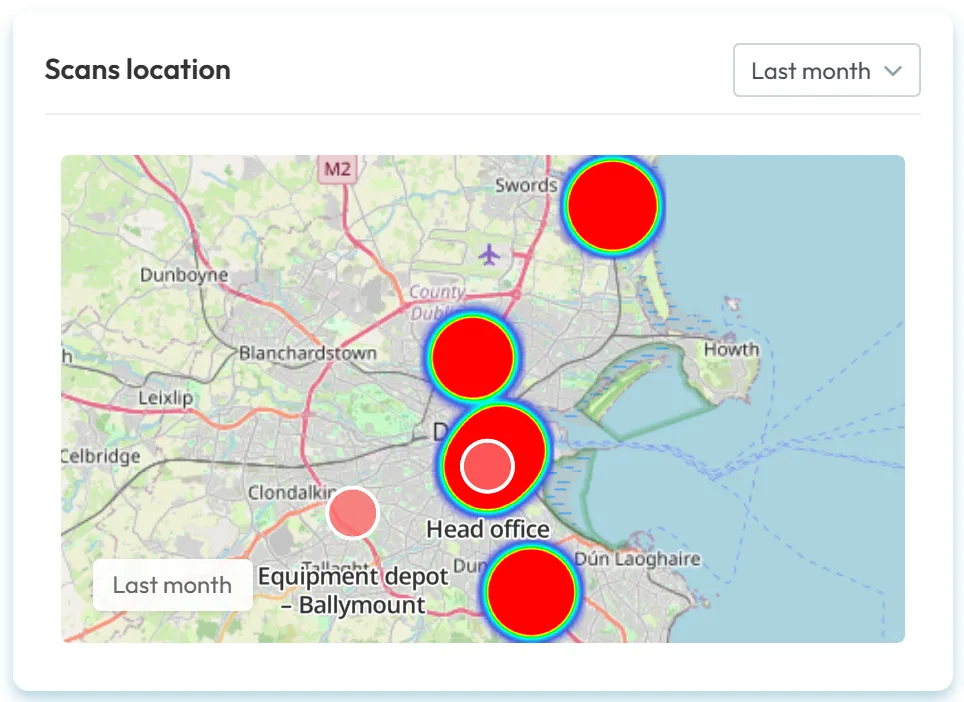
#Where people scanned last month
Use the select in the card to switch to This month or Last month. Over a whole month the pattern is clearer: for Brightway in Dublin, the clusters sit on the client sites from Malahide in the north to Sandyford in the south and around the head office, with the equipment depot in Ballymount marked as a branch.
- An empty map means there were no scans with GPS in the chosen period. Until the first scan the card says
Scan a QR code to show map
. - A point a little off the building is normal – phone GPS is less precise indoors.
- Branch and Project Managers see only the scans of their own branches or projects.
#Other ways to check presence
- Farthest GPS scans reportTable Reports has a Farthest GPS scans tab with the scans furthest from the site over a whole period. It’s good for a weekly check – see Farthest GPS scans report.
- Required photoGPS shows where the phone was. A photo shows what the workplace looked like. Together they are stronger proof – see Required photo on scan.
- A new QR codeIf someone scans a photographed printout, regenerate the code. Scans of the old code are then marked in red – see Clock-in and clock-out QR codes.
- Clock out only at the same branchIf you don’t want anyone to finish their attendance at another branch, switch on Block attendance closing on different branch in Mobile App Settings. This setting has nothing to do with GPS; it goes by the code that was scanned.
#Special cases and tips
- A scan a few hundred metres away
- Inside buildings, in basements and between tall buildings GPS is often imprecise. A few hundred metres doesn’t have to mean anything is wrong. Also check that the branch pin on the map is in the right place. What the employee can do is in GPS location when clocking in away from the branch.
- The employee didn’t allow location
- The app asks them to allow location. The steps for the employee are in Camera or location not working.
- Project scans
- For projects, the distance is measured from the project’s point if it has one.
- An employee with GPS switched off
- With None (GPS disabled) the distance columns stay empty and no far-scan email is sent for them.
#Frequently asked questions
Can I block scans away from the workplace?
No. FreshQR always saves the scan and records the distance. What you do about a far scan is up to you.
Does the app track employees during the day?
No. The location is taken only at the moment of the scan.
How do I switch GPS off for the whole company?
Employee by employee: set Geolocation Accuracy to None (GPS disabled) in each profile. There is no single company-wide switch.
What minimum distance should I set for the email?
The app recommends 500 m to 1 km. With smaller values you’ll also get alerts about imprecise positions inside buildings.
Does GPS drain the battery?
The location is taken only when scanning, so the battery is used only briefly.
#Related
You are hereGPS location check and accuracy
Administrator
Employee
Web app (administrator)Mobile app (employee)



