Clocked in during leave? Attendance & Absence Overlaps
On this page
Quick answer
When an employee clocked in during leave, FreshQR lists the day in Absences › Attendance & Absence Overlaps. Choose the year and month and you see each approved absence that overlaps a branch attendance record, with both sets of times. Then correct the absence or the scan before you close the month.
#What it's good for
- Before payroll you see every day where a scan and an approved absence clash, in one table instead of employee by employee.
- You decide which record is right – the leave or the scan – instead of leaving it to chance.
- The table exports to Excel for the payroll clerk.
#Who it's for
A good fit for
- Payroll clerks and admins who close the month.
- Companies where people often come in for a few hours during their leave, or where absences are entered for the wrong day.
Not the right fit for
- Teams that don’t record absences in FreshQR.
- Companies that track work mainly through project QR codes – project scans are not part of this check (see below).
#What the table includes
- Approved absences only, and only those that start in the chosen month. A holiday that started at the end of last month is checked under last month.
- Types marked Considered as work (Home Office, business trips), on-call types and compensatory time off are left out on purpose – the tooltip on the tab mentions this.
- Branch attendance only: arrivals and departures on the company’s and branches’ attendance QR codes. Scans on project QR codes are not compared.
- The real scan times, before any rounding.
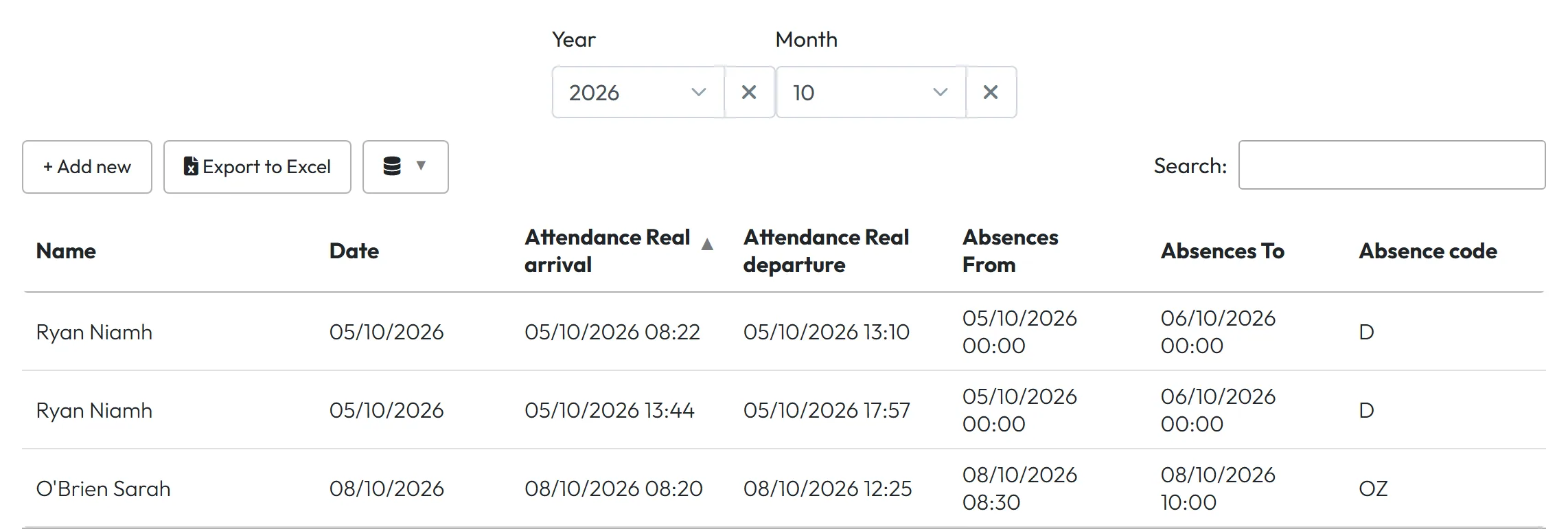
- A whole-day absence runs from 00:00 to midnight, so the To column shows the next day at 00:00. That is still a one-day absence.
The tab only lists. It changes no data. In reports, FreshQR already avoids counting the same time twice: absence time that overlaps work is shortened by the worked time.
#Step by step
-
Open the overlaps tab.
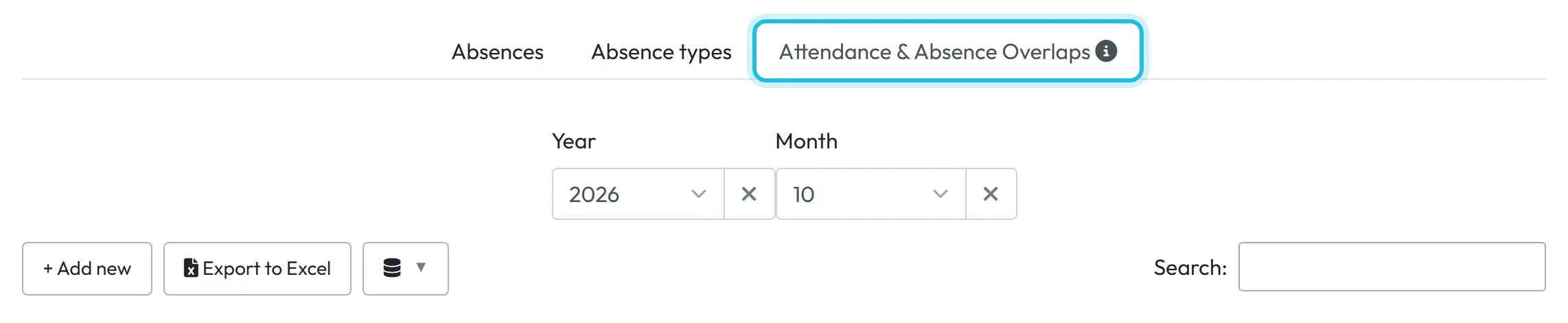
Click Absences in the left menu and open the tab Attendance & Absence Overlaps. Everyone who can see Absences can open it; you only see employees in your own scope.
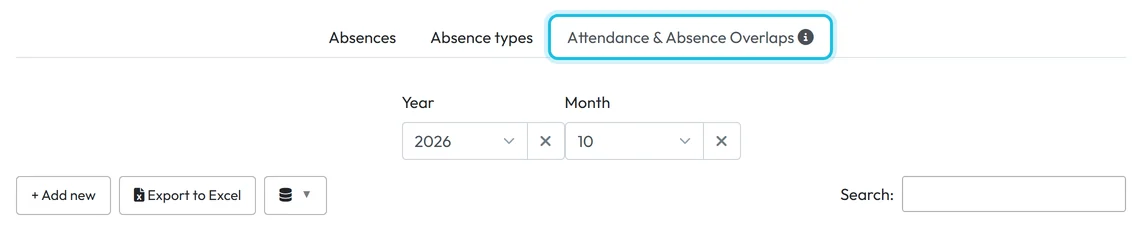
The Attendance & Absence Overlaps tab -
Choose the year and month.
Pick the Year, then the Month. The table loads once a month is chosen. If it shows
No data available.
, check that the right month is selected.Each row is one clash: Name, Date, the attendance Real arrival and Real departure, the absence From and To, and the Absence code. For example: a vacation day with a two-hour scan, or a doctor visit from 08:00 to 10:00 with an arrival at 09:30.
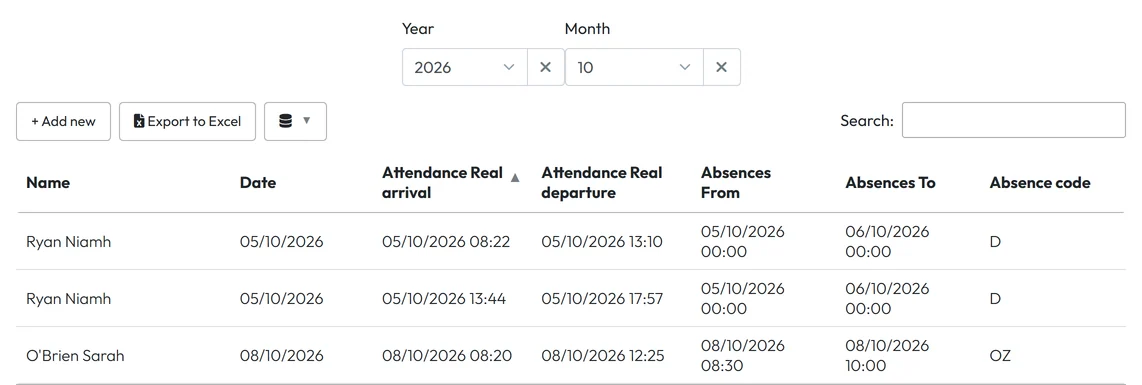
Scans during approved absences in one month -
Fix whichever record is wrong.
Rows can’t be clicked, so go to the record itself:
- The absence is wrong – open it on the Absences tab, change the dates or times, or set it to Canceled. See Adding an absence for an employee.
- The scan is wrong – correct it in Scan Details.
- Both are right – for example the employee came in for an urgent job. Leave them; reports won’t count the time twice.
-
Export the list if payroll needs it.
Use Export to Excel in the toolbar. The column chooser lets you hide columns first.
-
Get an e-mail next time.
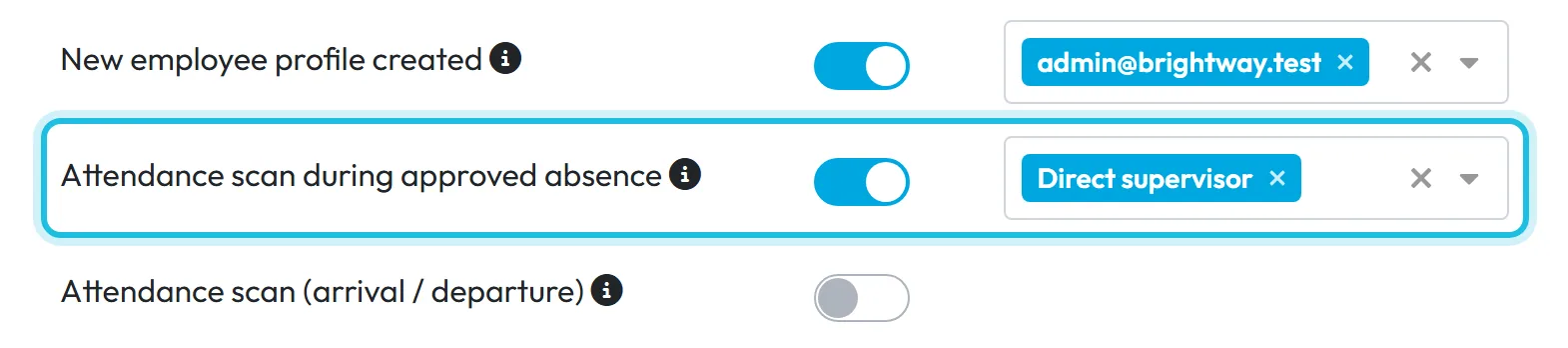
In My Company › Notifications, switch on Attendance scan during approved absence and choose recipients, for example Direct supervisor. The e-mail goes out within about 30 minutes of the scan, at most once a day per employee. More in Email notifications.
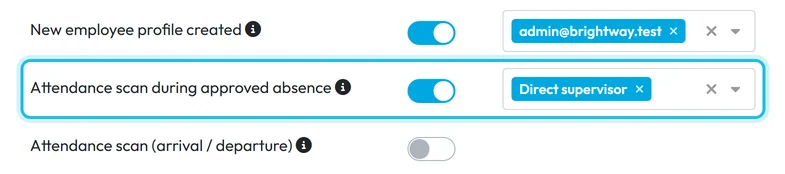
Get an e-mail when someone scans during an absence
#Special cases and tips
- Someone still clocked in shows up
- An attendance record without a departure yet is compared with approved absences later in the same month – check again once the employee has clocked out.
#Frequently asked questions
Why isn’t a home office day listed?
Types counted as work, on-call types and compensatory time off are deliberately left out of the check.
Does the tab fix anything automatically?
No. It only lists the clashes. Reports already avoid counting the same time twice by shortening the absence.
Why don’t I see an overlap from leave that started last month?
The tab checks absences in the month they start. Choose the previous month.
#Related
You are hereAttendance & Absence Overlaps
Web app (administrator)Mobile app (employee)



